
By the end of this list you will have nine free shortcuts installed, each with the trigger to assign and the daily minutes it hands back. They add up to a checked total of 10.0 minutes a day.
Shortcuts is already on your iPhone. It costs nothing. You do not write code. You pick a ready-made shortcut, assign a trigger, and change one or two settings so it does not break quietly.
Each entry goes through the same three-part test: the exact trigger you assign, the one setting that quietly breaks it, and the minutes it saves. That way you compare all nine on identical terms.
Number four is the one almost nobody has opened. It turns two taps on the back of your phone into a launch button for anything.
| Shortcut | Where it runs from | Minutes saved a day |
|---|---|---|
| Morning Summary | Home Screen icon, Control Center tile, or Siri by name | 2.0 |
| When Do I Need To Leave By | Home Screen icon or Siri | 1.0 |
| Running Late | Shortcuts app or Siri | 1.5 |
| Back Tap | Double Tap or Triple Tap on the back of the phone | 0.5 |
| Remember This | Share Sheet from a screenshot | 1.5 |
| AI Voice Note Taker | Shortcuts app or Home Screen icon | 2.0 |
| Low Power Mode at 40 Percent | Automatic battery-level trigger | 0.5 |
| Alarm-Stopped Morning Automation | Automatic when alarm is stopped | 0.5 |
| When Should I Mow? | Shortcuts app or Siri | 0.5 |
1. Morning Summary in One Bullet List
Prompt to copy
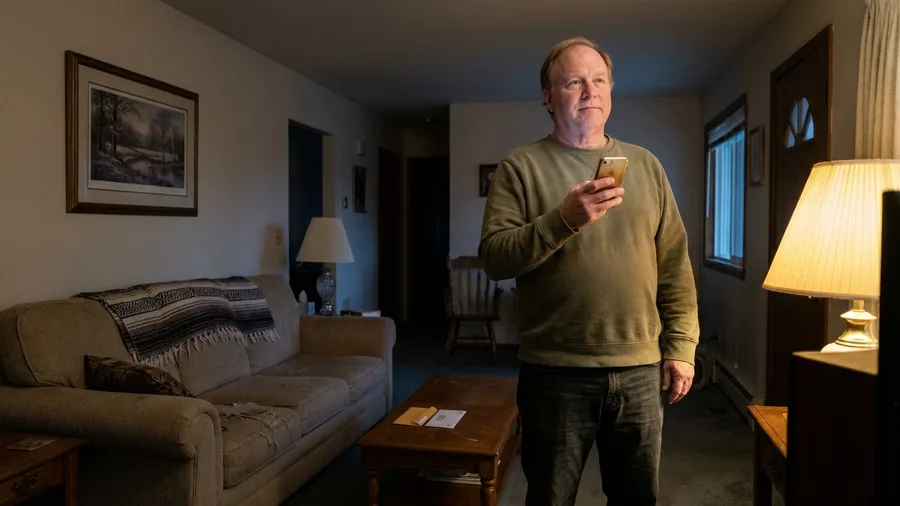
Write a set of setup steps for the built-in iPhone shortcut called Morning Summary. It shows today's calendar events, reminders due today or overdue, and the current weather with high, low and humidity as one bullet list. Tell me how to run it from a Home Screen icon, a Control Center tile, or by asking Siri its name. Keep it under 120 words, numbered, plain language, no code.
Paste that into ChatGPT or Claude, and you get a numbered setup in seconds. The shortcut itself already sits on the phone. It collects today's events, reminders due today or overdue, and conditions with high, low and humidity into one short bullet list.
If you want the paste ready to use, a five-slot prompt formula shows how to shape it before you run it.
Set it up once and a tap on its Home Screen icon, a Control Center tile, or its name to Siri runs the list. No app opens after that.
The fix: it needs a live connection, or the weather line errors out with a can't-detect-your-location message. Payoff: 2.0 minutes a morning that went to three separate app opens.
💡 Tip: Add it as a Control Center tile so you can pull it down from the lock screen without unlocking the phone.
🌙 Build order for tonight
Open Shortcuts
The app is already on your iPhone and costs nothing.
Install Morning Summary
Search the gallery and add it to your Home Screen.
Install AI Voice Note Taker
Turn on ChatGPT under Settings > Siri and set Auto-Lock to Never.
Set up Back Tap
Go to Settings > Accessibility > Touch > Back Tap and assign a safe shortcut.
Skip the seasonal ones
Leave When Should I Mow? until spring and skip the once-a-week shortcuts.
2. The Leave-By Shortcut That Adds Parking Time
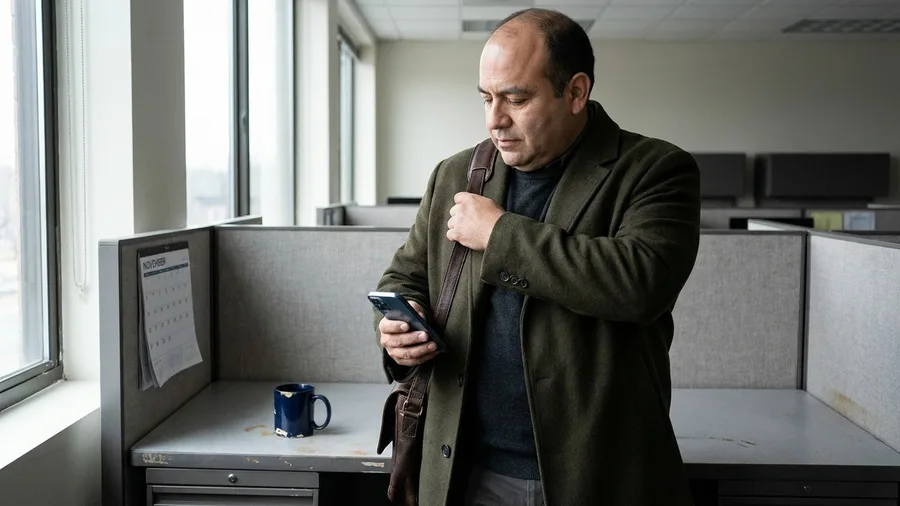
A leave-by time built on the wrong start time is worse than none. Setup asks when work starts and quietly assumes 9 a.m., so a start at 10 sends the reader out of the door an hour early.
Change the start time during setup, or the answer is wrong by that difference every single day.
The morning list shows the shape of the day but never the one number that gets a reader out of the door.
This shortcut turns the same calendar into a clock time: travel from home, plus a 5-minute buffer for the walk from the parking area to the desk.
At 8:40 there is no countdown to interpret while putting on a coat. The screen says walk out now, or in four minutes. Don't hand it to an AI setup guide before checking that one field by hand.
Payoff: 1.0 minute a morning that went to cross-checking Maps against the calendar. If the work start time is right, the answer is right.
💡 Tip: Change the 9 a.m. start time during setup, not after. It is one field and it is the difference between a useful answer and a wrong one.
3. Running Late Sends Your ETA for You
Prompt to copy
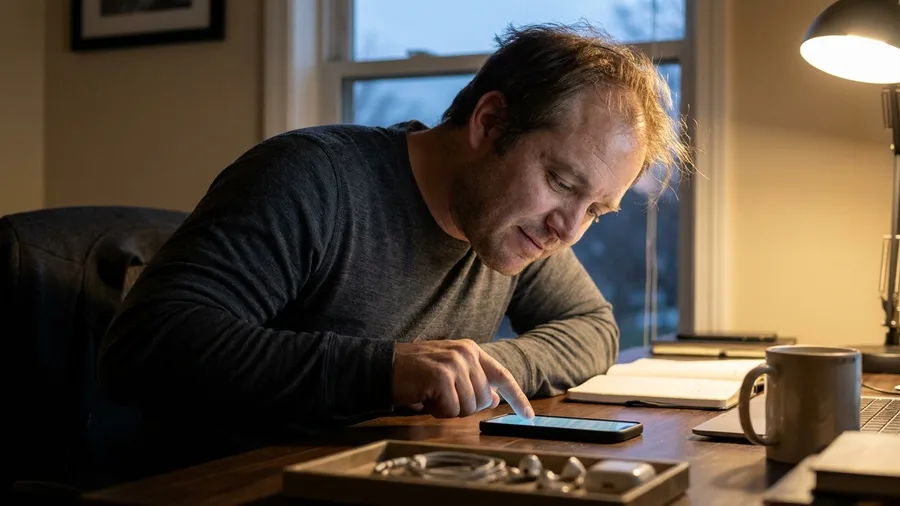
Write the message my Running Late shortcut will send to the three people in my 9:30 stand-up. Keep it under 25 words, name the new arrival time, say sorry once, and leave out excuses and emoji. Give me the plain text to paste at setup.
The reply is a single sentence naming an ETA, ready to paste into the setup field when the shortcut asks who to notify. Then it stays quiet until the reader runs it.
Trigger: open the shortcut and choose the recipients once, from contacts. Each run reads the location field on today's calendar events and skips any without one, so untagged meetings send nothing.
What you see: one message goes out, only at the moment it is run, with no live tracking after that.
It earns its 1.5 minutes when the calendar holds three or more back-to-back meetings with addresses; with one or two, setup costs more than the typing it saves.
4. Back Tap Turns a Double Knock Into Any Shortcut
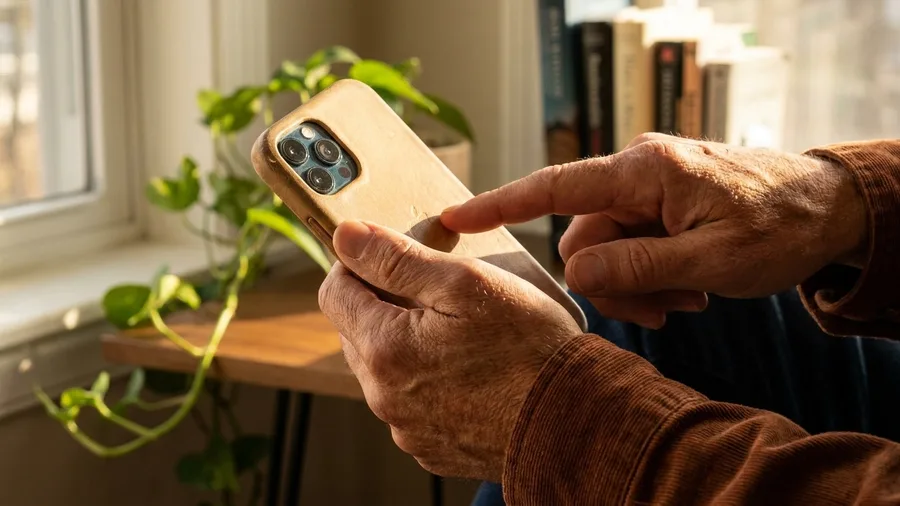
Two taps on the back of the case can open anything, without a Home Screen hunt first. Go to "Settings", then "Accessibility", then "Touch", then "Back Tap", and pick Double Tap or Triple Tap. It works on iPhone 8 or newer.
The catch: it gives no tactile confirmation. A phone set down on a table can fire it unnoticed. So assign something harmless when it runs by accident.
What it fixes is the gap in Apple's own list of assignable actions. Any shortcut becomes reachable from two taps on the case. Payoff: 0.5 minute a day.
5. Remember This Turns a Screenshot Into a Reminder
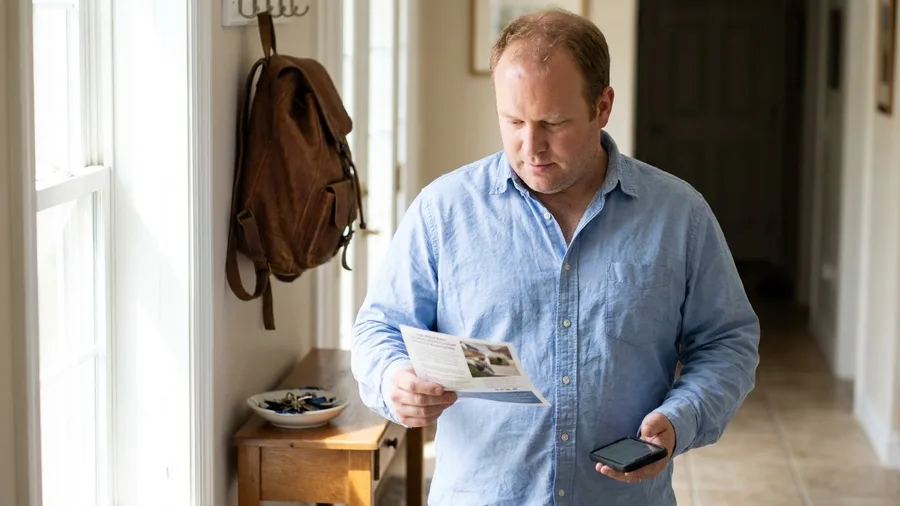
Retyping a school flyer into Notes costs about 90 seconds. Remember This drops that to a photo and one tap: it snaps the screen, lifts the appointment, the date, the phone number or the shopping item, and saves it in Reminders with the image attached.
Back Tap can open it from two taps on the case, with no icon to hunt for.
It is only as good as the grab.
A screenshot that catches half the flyer, or one taken at an angle in a dim hallway, produces a reminder with the wrong date, and fixing that by hand takes longer than the retyping it was meant to replace.
Check the date line before you put the phone away.
Cost check: the app is free, the shortcut is free, and setup is one added step to the Shortcuts library. That is 1.5 minutes a day back, about 45 minutes a month, all of it recovered from retyping what was already on the screen.
For anyone deciding what earns a permanent spot, the tools kept after testing explains how that cut gets made.
Remember This in Four Steps
6. AI Voice Note Taker: Record, Transcribe, Summarize
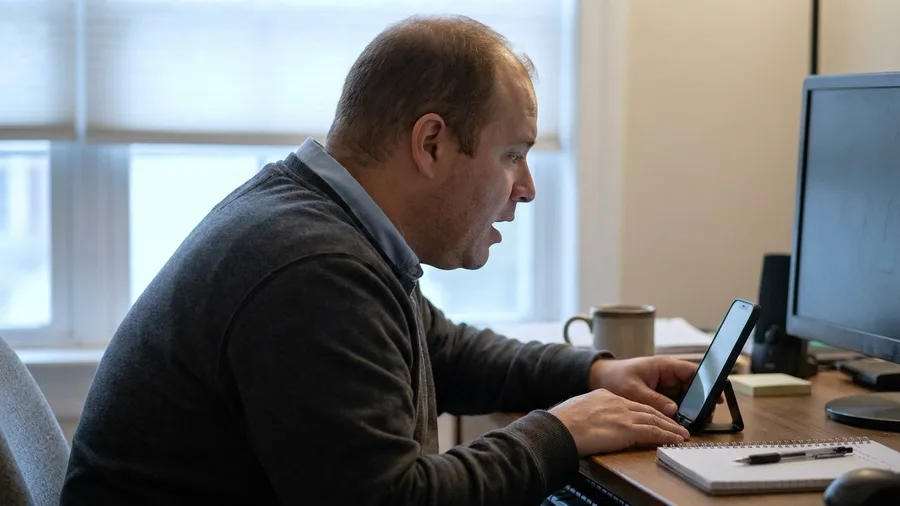
A two-minute voice memo comes back as a typed note: a short summary, the main points, chapters with timestamps, and a to-do list in Notes.
The shortcut records, files the audio in Files, transcribes it, then hands the text to ChatGPT. Screenshots catch what is written down; this catches the rest.
The one-time setup is about five minutes: turn on ChatGPT under Settings > Siri > ChatGPT with Use Extension enabled, then set Auto-Lock to Never, because recording stops the moment the screen locks. Review the note for mistyped names. That returns 2.0 minutes a day.
AI Voice Note Taker — At a Glance
🔁 Order of work
Record, then file audio in Files, then transcribe, then summarize
🧩 Use Extension
Must be on or ChatGPT gets no transcript
🔋 Battery trade-off
Auto-Lock Never drains the phone faster
🔍 Review target
Names and numbers only
🚫 When to skip
Anything confidential, sensitive or private
🎛️ Same shortcut, other trigger
Home Screen widget or Siri by name
Turn Auto-Lock back on
Set it to Never only while recording, then change it back to your usual time.
7. Low Power Mode at 40 Percent, Automatically
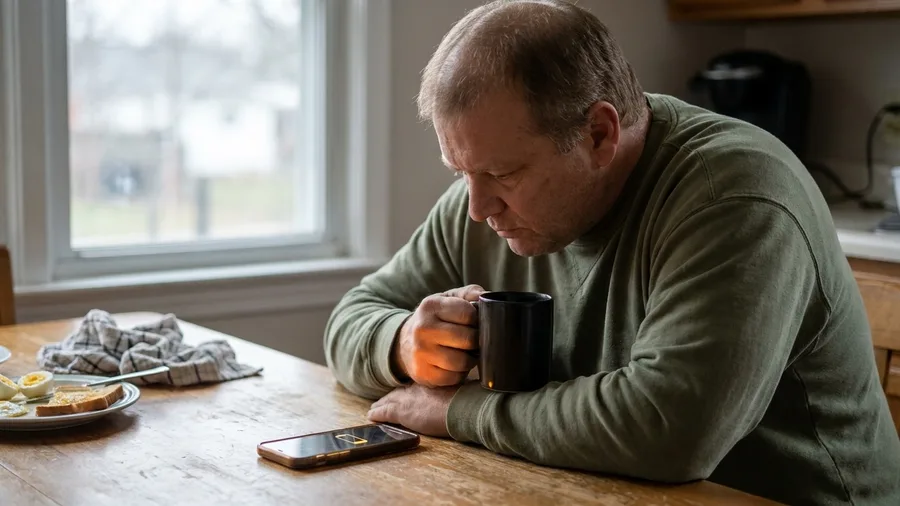
Battery warnings arrive at the worst time, and dealing with one costs about 30 seconds of tapping through Settings. The first entries on this list need you to tap something first.
This one needs nothing from you at all, because the phone watches its own battery and acts when it drops.
The trigger is the condition that starts an automation: here, the battery level. You build it in the Automation tab, not the gallery of ready-made shortcuts, which is why you will not find it by browsing.
Set the level below 40 percent. That's the threshold that fires it.
It fires on the drop, not on a schedule, so it skips the gallery of ready-made shortcuts entirely. The catch: it only turns Low Power Mode on.
A second automation on charging is what turns it back off, or the phone stays slowed until you switch it off by hand.
By hand vs. automatic: about 30 seconds of catching the yellow warning and walking into Settings, against zero taps, for 0.5 minute a day back.
💡 PRO TIP
Build the second automation too
Low Power Mode does not switch itself off. Add a charging automation that turns it off, or you will wonder why your phone feels slow for the rest of the day.
8. The Alarm-Stopped Automation That Starts Your Morning
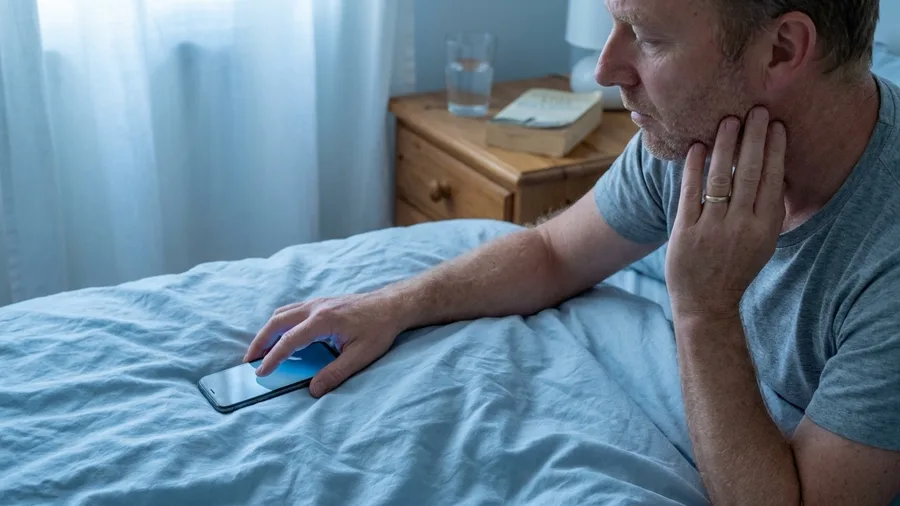
The Alarm-Stopped automation is a second automation, built in the same Automation tab where you set the battery threshold.
The trigger this time is the alarm itself, set to Alarm > When Alarm Is Stopped.
That's the trigger: the condition that starts the automation, which here is the alarm being stopped.
Snoozing will not fire it, which is exactly right. The routine starts when you are actually up, not when you hit snooze the second time. Your actions list the weather, today's calendar events, and optionally start a podcast or some music.
The catch is length. Keep the spoken part to a couple of short lines, or it becomes the thing you learn to mute, and the automation quietly stops. Check it the first morning: if you talked over it, cut a line.
The payoff is 0.5 minute a day and no squinting at the lock screen before you are properly awake.
💡 Tip: Keep the briefing under 30 seconds. Weather, events, done. Anything longer gets muted.
9. When Should I Mow? Finds the Dry Window
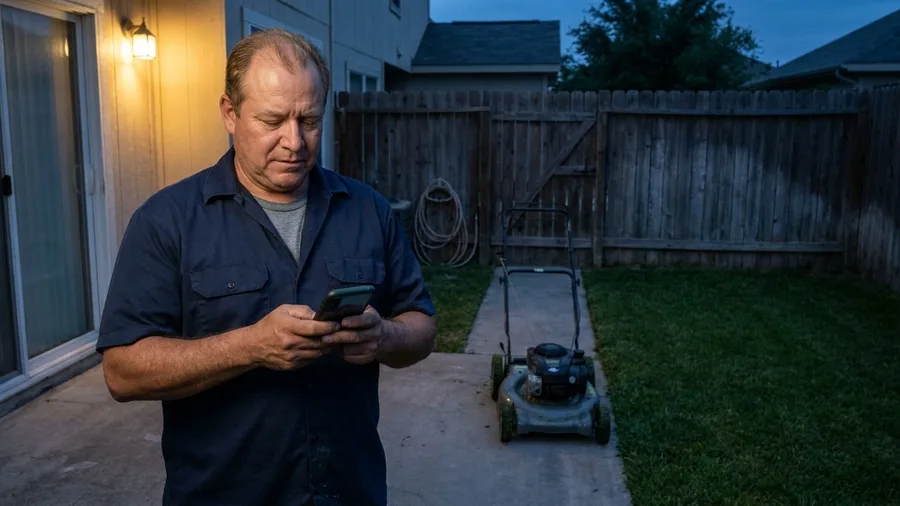
Deciding when to mow usually means checking three weather apps and guessing between showers.
This shortcut cuts that: its three actions pull the hourly forecast for where the phone is standing and let AI pick the window with 0% chance of rain and the lowest heat and humidity.
The old way: open a weather app, swipe through the hourly view, check the weekend, and settle for a guess that still ends in a wet mow.
The new way: one run, and the answer names the day and time. The catch is location, so run it at home, not from the office.
Every morning automation on this list runs daily. This one is seasonal, and in January it has nothing to do. In season it saves 0.5 minute a day, and your lawn does not get cut in the rain.
Adding shortcuts: ready-made vs. build-from-scratch
Ready-made shortcuts
- Free and already in the Shortcuts gallery
- Works on iPhone 8 or newer
- No code, no prompts to write
- One setting to check (like Auto-Lock)
- Takes 2 minutes to install
Build from scratch
- Can do exactly what you need
- Takes 10–30 minutes to build
- Easy to break with one wrong action
- Requires understanding triggers
- Only worth it if no ready-made exists
Frequently Asked Questions
Do I need to pay for Shortcuts or any of these shortcuts?
No. Shortcuts is free and comes installed on your iPhone. All nine shortcuts here are free to install and run. The only potential cost is if you use a paid AI service, but these use the free built-in tools.
Will these shortcuts work on my older iPhone?
Most will. Back Tap works on iPhone 8 or newer. The Action Button requires iPhone 15 Pro or any iPhone 16 model and later. The AI features need a phone that supports Apple Intelligence, which is iPhone 15 Pro and newer. Check your model in Settings > General > About.
Why does my shortcut stop recording after a few seconds?
Auto-Lock is still on. The AI Voice Note Taker recording stops when the phone locks, so set Auto-Lock to Never under Settings > Display & Brightness. Change it back when you are done recording.
Can I use these shortcuts without internet?
Some work offline, but Morning Summary needs a connection to fetch weather and AI-formatted output. Offline it shows a can't-detect-your-location error on the weather line. The calendar and reminder bullets still appear.
Is it safe to give a shortcut access to my calendar and reminders?
Yes, as long as you install shortcuts from the official Shortcuts gallery, not from random links. The gallery shortcuts are reviewed by Apple. If a shortcut asks for more access than its job needs, do not install it.
How do I undo a shortcut that keeps firing by accident?
For Back Tap, go to Settings > Accessibility > Touch > Back Tap and set Double Tap and Triple Tap to None. For automations, open the Shortcuts app, go to the Automation tab, and toggle the automation off.
Build these two tonight, add Back Tap as your fifth minute
The two shortcuts worth 2.0 minutes each are Morning Summary and AI Voice Note Taker. Build those tonight and you have 4 of the 10 minutes back before you go to sleep. That is the build order that pays off first.
Back Tap is your fifth-minute curiosity. Set it up once, assign a harmless shortcut, and see if it sticks. If it fires in your pocket and annoys you, set it back to None.
Skip the seasonal and once-a-week ones for now. When Should I Mow? can wait until spring.
Low Power Mode and the alarm automation are worth adding later, one at a time.
Ten minutes a day is the goal, and you do not have to hit it all at once.