
You wake up, hit snooze, get nine more minutes you did not ask for, and spend the first hour of the day arguing with a phone that has a better idea buried three menus away.
Most iPhone owners use a fraction of what iOS already includes.
This article hands over twenty-one settings that are already on your phone. Each one comes with the exact path, the catch that makes people give up, and the single moment it earns its place.
No downloads. No purchases. Everything here lives in iOS 26 and turns on in a couple of taps. The one thing that changes is how the phone behaves for you.
| Feature | Where to find it | What it does | Best moment to use it |
|---|---|---|---|
| Snooze Duration | Alarm app > edit alarm | Sets snooze from 1 to 15 minutes | Morning when 9 minutes is wrong |
| Live Captions | Settings > Accessibility > Live Captions | Real-time text for any audio or speech | Muted video in a waiting room |
| Back Tap | Settings > Accessibility > Touch > Back Tap | Double or triple tap the back for actions | One-handed screenshot or camera |
| Vehicle Motion Cues | Settings > Accessibility > Motion | Animated edge dots that ease car sickness | Long passenger ride |
| Background Sounds | Settings > Accessibility > Audio & Visual | Built-in rain, ocean and white noise | Open-plan office chatter |
| Visual Look Up | Photos > Info button | Identifies plants, flowers, trees, animals | Garden walk identification |
| Laundry Care Look Up | Photos > Info > Look Up Laundry Care | Explains care-label symbols | First wash of a new sweater |
| Group Polls | Messages > plus > Polls | Poll with up to 12 choices | Settling dinner plans |
| Long-press Plus | Messages composer | Opens recent photos immediately | Sending a receipt fast |
| Flash for Alerts | Settings > Accessibility > Audio & Visual | LED or screen flash on calls | Face-down phone in a noisy room |
| Voice Control | Settings > Accessibility > Voice Control | Hands-free tapping, typing and swiping | Cooking with floury hands |
| Call Recording | Phone call screen | Records call and saves a transcript in Notes | Support call you need in writing |
| Reduce White Point | Settings > Accessibility > Display | Dims below the slider minimum | Reading in bed at 1 a.m. |
| Silence Unknown Callers | Settings > Phone | Unknown numbers stop ringing but hit Recents | Deep work block |
| Hide My Email | Settings > Apple Account > iCloud | Random relay addresses for sign-ups | One-off discount deal |
| Text Replacement | Settings > General > Keyboard | Shortcut expands into a full phrase | Checkout address field |
| Wi-Fi Network List | Control Center > hold Wi-Fi | Shows nearby networks with security icons | Cafe Wi-Fi check |
| Missed-Call Reminder | Phone > Recents > swipe left > clock | Creates a Reminders reminder | After a meeting |
| Copy Part of a Message | Messages > long-press > Select | Copies only the highlight | Lifting one code out of a long thread |
| Hold Assist | Phone call screen | Holds the queue and rings back | Twenty-minute support queue |
| Call Screening | Settings > Phone > Call Screening | Asks unknown callers who they are | Robocall-heavy afternoon |
1. Custom Snooze Duration in Alarm
The tedious part of any morning is the same nine minutes, over and over. Every iPhone built before this year gave you one snooze length with no say in it. On iOS 26 that number is yours to set, inside each alarm you already have.
Open the Clock app, tap an alarm, and look for Snooze Duration. The dial runs from 1 minute up to 15. It is iOS 26 only, so check Settings > General > Software Update first. On older software the option is simply missing, not misplaced.
Fifteen suits a sleeper who needs the deeper stage that nine minutes cuts short. Set it to 1 and hitting snooze becomes a choice you make awake, not a hand moving on its own while you are still gone.
The payoff is a waking routine that matches you instead of the factory floor. Same alarm sound, same time, and you choose whether the next one rings in 1 minute or 15.
💡 Tip: Set the snooze to 1 minute on weekdays and 15 on weekends by editing each alarm separately.
The numbers that matter
Five figures from this list worth remembering
All settings live on iOS 26. Path on older phones may differ.
2. Live Captions for Any Audio

The alarm is the sound the phone has to make. Captions are for the audio it cannot or should not play out loud, and Live Captions turns any speech it picks up into text on the screen.
The question is where to switch that on. The path is Settings > Accessibility > Live Captions, and the covered audio is wide: videos, podcasts, phone calls, and nearby conversations caught by the microphone.
The catch is timing. Live Captions has to be running before the audio starts, and a caption that is not already on cannot be summoned the moment a silent video begins.
Switch it on before a waiting room, then watch a muted clip on the wall read as text. In a loud kitchen, the same setting turns a podcast into something read rather than heard.
3. Back Tap Shortcut for Everyday Actions
Two taps on the back of the phone, and the camera is open. Compare that with the old path: wake the screen, find the camera icon, aim, shoot. The tapping version takes about a second and the screen never has to be found first.
Go to Settings > Accessibility > Touch > Back Tap. The double-tap and triple-tap slots are set separately, so you get two gestures. Assign each one to a screenshot, the camera, the flashlight, or a Shortcut that launches whichever app you open most.
Captions turn what the phone hears into words on screen. This next setting turns what the phone does into a tap behind your finger, so the icon hunt disappears. Both are ways of reaching the phone without looking at it.
The catch is a hardware and software floor. Back Tap needs an iPhone 8 or later running iOS 14 or later. Older phones show no Back Tap menu at all, so check Settings > General > About before you go looking.
The payoff shows up one-handed. Triple-tap set to the camera lets you shoot with the phone still held in your pocket grip, thumb resting on the back case, the other hand free for the leash, the coffee, or the door.
💡 Tip: Build a Shortcut first, then assign it to Back Tap. The list only shows shortcuts you have already made.
4. Vehicle Motion Cues for Car Rides
Vehicle Motion Cues is not a cure for dizziness. It is built to ease the queasy feeling that comes from reading a screen in a moving vehicle, and nothing more.
Persistent vertigo or dizziness that shows up off the road needs a doctor. Head to Settings > Accessibility > Motion once that is settled.
The setting draws small animated dots along the screen edges, and they drift with the car. Your eyes get a motion signal that agrees with what your inner ear reports, so the conflict that turns your stomach settles.
Before the ride: switch it on in the driveway. Taps and Shortcuts work fine parked, but here the screen is the source of the trouble, so on a long passenger trip the dots are what let you still read and follow maps.
💡 Tip: Switch it on before the car pulls away. Turning it on mid-journey does not settle the stomach the same way.
5. Built-in Background Sounds

The office noise is gone and nothing was bought. A rain or ocean loop ran under the podcast, and it came from Settings > Accessibility > Audio & Visual > Background Sounds, two headings away from the motion setting in the same menu.
The ears get what the eyes got on that ride.
iOS mixes the sound itself, so it plays over or under music and calls. The test took about 40 seconds to set up. The alternative is 10 minutes of searching for a sound app and another app to cancel later.
Two times: 40 seconds in Settings, nothing downloaded, against roughly 10 minutes finding and installing a sound app – and no subscription left to remember.
💡 PRO TIP
Add these to the triple-click
Settings > Accessibility > Accessibility Shortcut lets you put three or four of these on a triple-click of the side button. Put Reduce White Point and Background Sounds there and you can toggle both without opening Settings at all.
6. Visual Look Up for Plants and Animals
Point the camera at a leaf you do not recognize and take the shot. Open it in Photos and tap the Info button.
The identification comes back in seconds, naming the plant, flower, tree or animal in the frame. The setup is nothing – the button is already on every photo.
That is the one-press move to learn once, and after the garden walk next spring it keeps paying: no plant app to install, no search typed into a browser, no guessing from a blurry memory.
The catch is the photo. A blurry shot, or a subject far off in the corner of the frame, may return nothing.
The subject has to fill enough of the frame for the match. Step closer, shoot again, and try the same button on the sharper photo.
The moment it earns its place is a garden walk with a plant in reach. The name comes back before anyone decides whether to touch it. It works the same on the bird on the fence or the tree down the street.
The settings vocabulary, decoded
7. Laundry Care Label Scanner
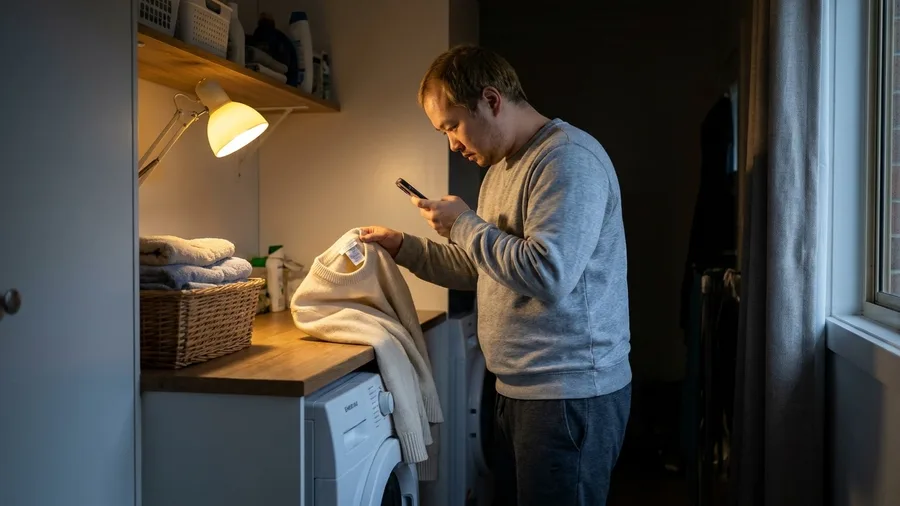
The same Info button that names the plant in your camera roll will read the care label sewn inside a sweater. Photograph the label, open the shot in Photos, tap "Info", then choose "Look Up Laundry Care".
Every symbol comes back in plain words: wash, bleach, dry, iron. Glare across the label or a crease along the seam can leave a symbol unreadable, so shoot again from a flat angle.
The cost is the minute it takes to shoot and read, which is cheaper than one shrunken sweater. Run it before the first wash.
8. Group Chat Polls in Messages
Reply flood: the group settles on one dinner time by tally, and nobody counts answers by hand. Inside the group chat, tap the plus sign next to the message field, then tap "Polls".
You get up to 12 choices, voted on right inside the thread. That cap is the first thing to trim: most dinner questions need three options, and a dozen just splits the vote.
Prompt to copy
Write a poll question for my group chat with 4 dinner options for Saturday. Keep the question under 80 characters, one option per line, no commentary.
Paste the reply into the poll field and cut any option nobody will pick. This is a group-chat tool, not a public survey, and it will not work in a one-to-one thread, so keep it where the votes are.
9. One-Press Recent Photos in Messages
The catch: this skips a menu layer, not a search. Photos older than your recent roll still need the full picker and a scroll, so do not expect the long press to find a picture from last March.
Step 1. Open the conversation in Messages. Step 2. Press and hold the plus icon beside the text field. Step 3.
Recent photos appear at once, and you tap the one you want and send it. The steps stay in the same compose field a poll uses; this one just strips out a tap.
What you should see: the picker opens straight onto your last few photos. If a menu opens instead, you tapped rather than held, so lift and press again for about a second.
The snag: if the shot you want is not among the most recent, back out and use the photo picker. The fix: send your own recent photo to a contact first.
It sits at the top of recents, and handing it over takes one long press instead of three taps.
10. Flash for Alerts on Calls
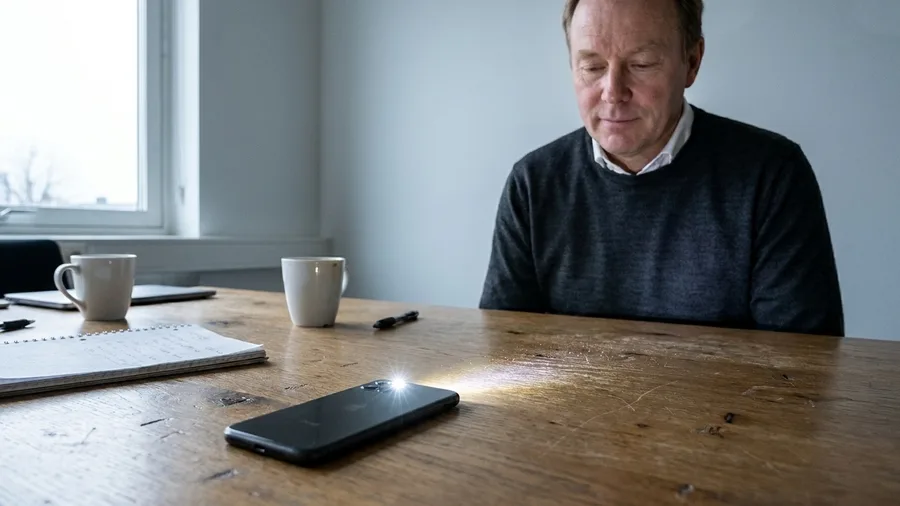
A phone face-down on a desk stays silent through the whole call, and the missed-call notice is the first you hear of it. Flash for Alerts fixes that by making light do the work a ringtone usually does.
You get two lights, chosen separately: LED Flash, which fires the camera flash on the back, or Screen flash, which lights the whole display. Turn both on and every incoming call or notification announces itself either way.
The screen flash suits a quiet meeting, where a bright pulse reads as a glance at the phone.
The LED flash suits a noisy pocket, with the phone face-down and the ringer drowned out.
The catch: both are distracting in a dark theater or on a bedside table at 3 a.m.
For anyone who keeps the phone on silent all day, that is the trade: a call seen without a ringtone ever being switched on.
11. Voice Control for Hands-Free Use

Prompt to copy
Open Settings, then Accessibility, then Voice Control, and turn it on. Then try these three commands out loud: swipe up, tap Continue, and open Messages. Say each one twice and tell me which worked on the first try and which needed a second attempt.
That completes the setup in about two minutes, and from then on the phone answers to your voice for swiping, tapping, typing and opening apps by name. A person with floury hands can dictate a text to a grocery list without touching glass.
The weak point is the microphone, so a crowded kitchen or a car with the windows down sends commands to the wrong place.
Test your three commands once in the noisy room before relying on them there, then save the rest for the quiet moments when both hands are full.
💡 Tip: Keep the phone within an arm's length in loud rooms. Voice Control hears the room as much as it hears you.
12. Call Recording with Transcript

Compatible iPhones and software versions can record a call and turn it into text, saved in the Notes app beside your other notes. Check that your phone supports it before you count on it.
The catch is the point: every participant hears that recording has begun, so this is not a stealth recorder and cannot be used as one. The payoff is a support call or an interview captured as searchable text, with no second device on the table.
13. Reduce White Point for Night Screens
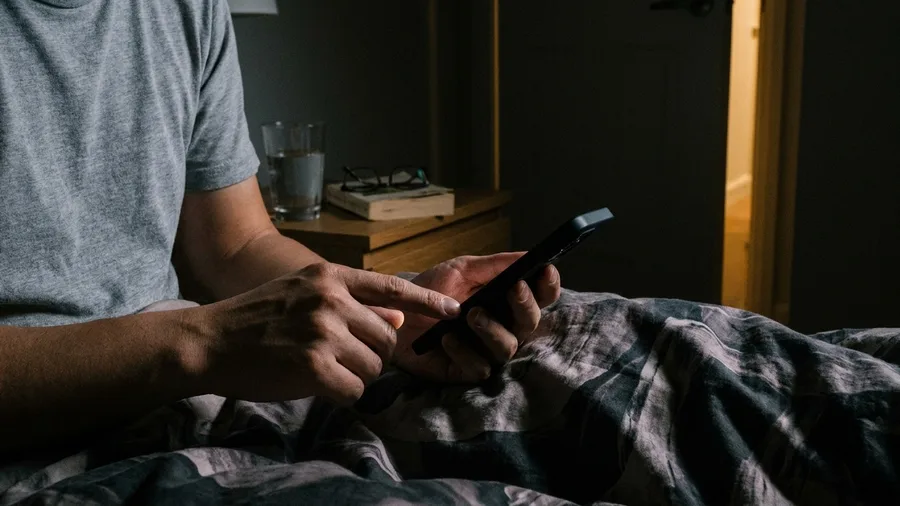
Reduce White Point does exactly that, and it stays invisible until you turn it on.
A transcript saved to Notes is something to read; this setting decides how that screen treats your eyes after dark. Find it in Settings > Accessibility > Display & Text Size.
The slider stops where Apple decided the room is dark enough. Reduce White Point goes below that floor, pulling the glare off white backgrounds without touching the rest of the color.
In a bedroom at 1 a.m. the difference between the two settings is the difference between a lit room and a lit phone.
The toggle gets tedious if you dig for it nightly, so map it to the Accessibility Shortcut. Triple-click the side button and it flips on or off from anywhere, including a locked screen.
The catch is color: white point down shifts contrast, so a photo or video you edit with it on will look wrong on every other screen. Check edits with it off.
Two times: by hand, the nightly path is seven taps through Settings, about 25 seconds, and most people skip it. With the shortcut, one triple-click, about 2 seconds. The payoff is reading in bed without the screen lighting the whole room.
14. Silence Unknown Callers
Nine minutes is how long iOS used to hold a snooze. A call from a number you do not know gets no such grace: it rings the full time, at any hour.
One switch ends that. Open Settings, then Phone, then tap "Silence Unknown Callers" and turn it on.
What you see: Incoming calls from numbers outside your contacts and recent calls stop ringing. Each one still lands in Recents, so nothing vanishes. A missed call from a new number waits there for you to find it.
The catch: A call you are waiting for from a new number will not ring either. A doctor's office, a delivery driver, a recruiter all go silent, and the only trace is a line in Recents. Check that list before you assume nobody called.
The payoff: Turn it on before a two-hour focus block or a movie. The phone stays quiet, the ringer stays off, and you scan Recents once at a time you choose. Waiting on a delivery? Flip the switch off for that afternoon, then back on.
15. Hide My Email Relay Addresses

Prompt to copy
Write me a one-line reason I can paste into a discount signup form when it rejects my Hide My Email relay address. Keep it under 15 words, polite, and do not include any personal details.
That prompt handles the small snag this feature hits. The feature itself needs no AI.
Open Settings, tap your name, then "Hide My Email", and the phone hands you a random address to type into a website instead of your real one.
It needs an iCloud+ subscription.
Each relay address is its own shield. Turn one off in the same Hide My Email list and that sender is cut off, while your real inbox and every other site stay untouched.
Price and how many relays your plan includes are not stated here. Apple's iCloud+ page has both.
The catch: Some sites reject relay addresses. Banking, government portals, work accounts and anything tied to your legal identity need your real address. Do not force a relay there.
Use it for shops and newsletters, not for accounts that hold your money or your tax forms.
The moment it earns its place: a one-off 15-percent signup at a clothing store. Make a fresh relay for it. The week the spam starts, deactivate it and the sender is gone, with nothing to unsubscribe from and no filter to build.
16. Text Replacement Shortcuts
A short trigger like "addr" can expand into your full street address, apartment number and ZIP. It replaces the long string a relay address forces you to type.
Set it once and the same trigger fires in any app that uses the standard keyboard, from mail to messages to checkout forms.
The catch is the trigger itself. A real word will fire in the middle of ordinary typing, so "addr" works and "home" does not. Pick two or three letters, or a symbol, that never appears in normal text.
The cost is one setup minute, no download and nothing to subscribe to. Program the address, work email and phone number, and every checkout form after that takes a three-letter tap where the full string used to go.
17. Control Center Wi-Fi Network List
One press on the Wi-Fi button in Control Center and a list of nearby networks drops down, a small padlock drawn beside each one that needs a password. That padlock settles the cafe question before you flag down a server.
The press is a long one, held for about a second until the panel expands.
The list shows what is in range, not the networks your phone has saved, so it cannot hand back a forgotten password.
Joining still takes a tap into Settings or the network list.
So at the counter, an open network shows no padlock and a locked one does, and you know whether to ask for a password at all.
18. Missed-Call Reminder from Recents

A missed call is easy to lose. The phone stops ringing, a notification slides away, and by the time the meeting ends the name is buried under newer alerts.
Writing it on your hand is the usual fix, and it fails as soon as you wash your hands.
iOS puts the callback on the list instead. Open the Phone app's Calls list, swipe left on the missed call, and tap the clock icon. A reminder appears in the Reminders app, sitting alongside everything else you have to do.
The catch is timing. Once the list is cleared, the shortcut goes with it, so the reminder has to be made while the call is still in Recents. Clear that list out of habit and the feature has nothing to work on.
The cost is the two seconds the swipe takes. Set it during the meeting and a client's name surfaces in Reminders instead of a note you never wrote.
19. Copy Part of an iMessage
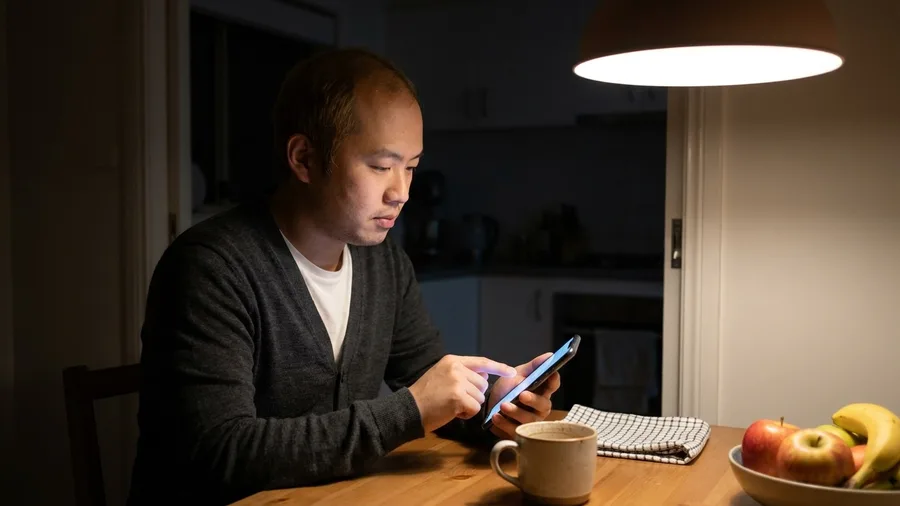
The whole-message copy is the trap. Long-press an iMessage and the menu offers Copy, which takes everything: the greeting, the three paragraphs about someone's weekend, and the line you actually needed.
In iOS 26, long-press the same message and tap Select instead. Drag the handles over only the wanted words, then cut or copy.
What lands on the clipboard is that text alone. The rest of the message stays unselected, so you paste one line into a form and nothing else comes with it.
The old way meant pasting the whole thread and deleting what you did not want, word by word.
The limit sits in what you are selecting. Select works on iMessage text, not on every attachment or web preview. A photo, a PDF or a link preview still copies as one whole object, or not at all, so the handles are no help there.
Where it earns its place: one address or one six-digit verification code lifted cleanly out of a long message, with nothing forwarded and no thread reopened. The message stays where it was, and so does your reply.
20. Hold Assist for Phone Queues

Twenty minutes is a normal hold on a support line, and most of it is silence. With Hold Assist, the call joins the queue and the phone keeps your place, so nothing is pressed to an ear.
When a live agent picks up, the phone rings, you answer, and the call resumes where it paused.
For copying one line out of a message, the work left the screen. Here a far longer stretch leaves your hands: laundry gets folded, a desk gets worked through, and the queue runs in the background.
No app plays hold music at you, and nothing needs watching.
The catch is what the feature is built for. It handles call queues, where a recorded voice puts you in line. Dial a direct line and a person answers on the second ring, which means there is no wait to hand off, and nothing changes.
Where it pays off: the pharmacy, the airline, the bank, called at the wrong hour and dealt with while the rest of the afternoon carries on. Your shoulder is spared the phone.
💡 Tip: Ask the first person who answers for the direct extension to the department. The next call skips the queue entirely.
21. Call Screening for Unknown Numbers
Call Screening decides who reaches your ringer at all. For a number not in your contacts, the phone answers quietly first.
It asks the caller for a name and a reason, and shows you both on screen. Then you choose: pick up, send to voicemail, or let it go.
Some callers will not answer that prompt. Robocalls tend to hang up the moment a machine voice comes back at them, which is the point; the call never rings and your name never joins a list.
A real person will usually state a name and a reason in a few seconds.
The cost is time, and it is the caller's, not yours. A delivery driver spends about ten seconds saying who they are and where they are. Thirty robocalls a week spend nothing, because they quit at the first prompt.
The total: zero dollars, no plan or subscription, and a few seconds of a stranger's time, weighed against every silent call that never reaches your pocket.
Do this, not that
Turn on tonight
- Set snooze to 1 or 15 minutes, not 9
- Map Reduce White Point to the Accessibility Shortcut
- Assign Back Tap to the camera and flashlight
- Create one Text Replacement trigger for your address
- Switch on Live Captions before the noisy room
Skip or check first
- Flash for Alerts in a dark theater or at 3 a.m.
- Silence Unknown Callers when a doctor or driver is calling
- Relay addresses on sites that reject them
- Hold Assist on a direct line
- Call Recording without telling participants
Frequently Asked Questions
Do these settings cost anything?
Almost all are free and built into iOS. Hide My Email is the exception: it needs an iCloud+ subscription, and Apple's iCloud+ page carries the plan price and relay limits. The rest turn on with no purchase.
Will turning these on drain my battery?
The visible ones, like Background Sounds and Live Captions, use some power while they run. Reduce White Point and Flash for Alerts cost almost nothing. Toggle sounds and captions off when you are done and the drain goes with them.
My phone does not have some of these options. Why?
A few need a specific software version: snooze duration and the Wi-Fi list went live with iOS 26, and Back Tap needs iPhone 8 or later. Check Settings > General > Software Update first, then check your model.
Is recording a call legal where I live?
Recording law varies by state and country. The iPhone alerts participants when a recording starts, so nobody is recorded without knowing. Check the local rule before recording anything you plan to share.
Which one should I turn on first?
If spam calls are the problem, start with Call Screening. If you read in bed, Reduce White Point. If you fight your morning alarm, fix the snooze first. One switch, then the next, over a few days.
Pick one by what happened to you today
Sort the list by the problem you actually had. If spam calls interrupt your day, start with Call Screening and add Silence Unknown Callers for deep work blocks.
If a car seat makes you carsick, Vehicle Motion Cues is the first switch. If speed is the issue, Back Tap and Text Replacement save more time than anything else here.
For a single setting to turn on tonight, pick the snooze duration. It takes thirty seconds, and it fixes the loudest argument of the morning.