
You updated to iOS 27 and the phone that used to last until dinner now dies by lunch. The headline said a hidden setting is killing your battery, and everyone has a guess about which one.
Here is the real answer: Connectivity Assist, the switch Apple added at the bottom of the Wi-Fi page in iOS 27. It shipped to smooth the handoff between Wi-Fi and cellular, and a reported case shows what it costs when it misbehaves.
By the end of this you will know how to check your own battery screen to confirm it is the culprit, where the switch lives in two separate places, and what you give up when you turn it off.
| Setting | Where it lives | Effect on battery | What to do |
|---|---|---|---|
| Connectivity Assist | Settings > Wi-Fi, bottom of page | Keeps checking and shifting traffic between Wi-Fi and cellular, including saved networks | Turn it off if the drop began with iOS 27 and no single app tops the battery list |
| Adaptive Power | Settings > Battery > Power Mode | Drops the phone into Low Power Mode at 20% | Check it is on, not off |
| Optimized Charging | Settings > Battery > Charging | Holds charge at 80% or less until it expects use | Leave on; turning it off may speed up battery wear |
| Background App Refresh | Settings > General | Apps refresh in the background when idle | Turn off per app you do not need refreshed |
The Setting Is Connectivity Assist, Introduced in iOS 27

The name is Connectivity Assist, and Apple shipped it inside the first iOS 27 release. Apple's own release notes, as TechRepublic reports them, say it makes the handoff between Wi-Fi and cell service smoother.
The drain makes sense once you know what it does all day. It keeps testing which network is better and pushing traffic to that one, saved networks included. So the phone sits on a table looking idle while the radios keep working.
Here is what nobody has proved. Apple has never confirmed a battery bug. The evidence is user reports, not a statement from the company. And iOS 27.2, which landed Oct. 26, names no fix for this in its published notes, according to TechRepublic.
The clearest report: an iPhone 15 Pro Max at 89% battery health gave 3 to 4 hours of screen-on time after the update. With Connectivity Assist off, the same phone reached 7 hours, per MakeUseOf citing a Reddit user.
That is one phone and one person's account, so treat it as a lead, not a promise. It is still worth a minute tonight, because no other setting moves, and both switches go back exactly where you found them.
The words in this fix, in plain English
Check the Battery Screen Before Switching Anything Off
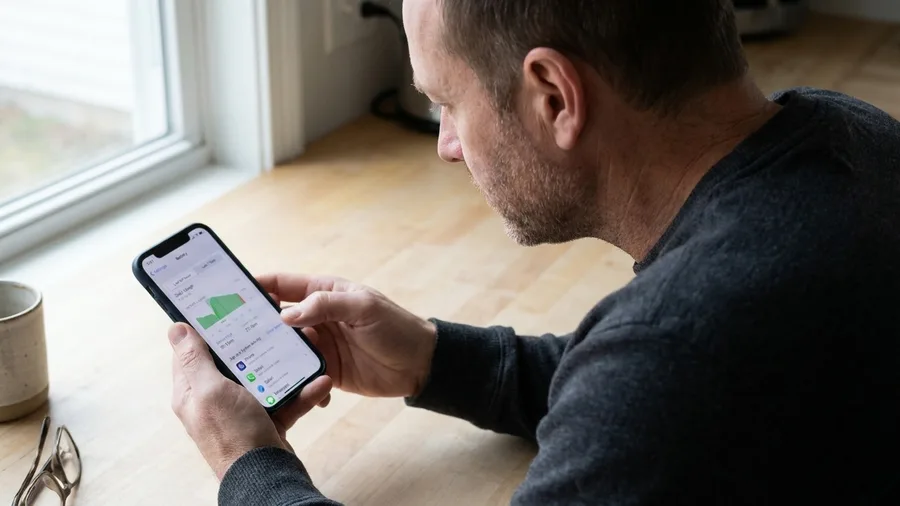
The Battery screen tells you whether the drop came from an app or from the update itself. Open Settings and tap "Battery". The Daily Usage chart there needs iOS 26 or newer. It summarizes today's use against the past seven days.
Below it, App and System Activity lists the three apps that used the most battery that day.
On iOS 18 and newer, Insights also flags background activity that can affect battery life and heat for a while.
Battery life returns to normal when that activity finishes, per Apple.
Before you read too much into a bad day, a warning. A drop in the first few days after an update is often update-related background work. Apple's guidance is to wait a few days and check again.
It does not say how many days count as a few, and its page was last updated March 31, 2026, written for iOS 26 and not revised for iOS 27.
The rule: if one app tops the list, fix that app. If nothing stands out and the decline started with iOS 27, Connectivity Assist is the switch to try.
One app or the whole system?
One app at the top
- Fix path: update the app, then check its background refresh setting
- Leave Connectivity Assist on for now
- Recheck the Daily Usage chart after one full charge
- Only revisit the Wi-Fi switch if the bar stays flat
Nothing stands out
- Check Battery Health location: iPhone 14 and earlier, Settings > Battery > Battery Health & Charging
- iPhone 15 and later: Settings > Battery > Battery Health
- Turn off the main switch under Settings > Wi-Fi, bottom of the page
- Then open each saved network's info icon and turn off Use Connectivity Assist there too
- The main switch alone leaves it running on saved networks
Turn It Off in Two Places, Not One

That rule points at a specific setting, and the setting has two homes. A half-done job shuts one and leaves the other running.
Start with the version: if Settings > General > About says iOS 26 or earlier, the control does not exist yet, and a drain there has some other cause.
On iOS 27, open Settings > Wi-Fi and scroll past your networks to the bottom of the page. Connectivity Assist has a switch there. Turn it off.
That is not the whole job. The feature also runs per saved network, and MakeUseOf reports that the main switch alone leaves it active on each one.
So open Settings > Wi-Fi, tap the info icon beside every saved network, and switch off Use Connectivity Assist on each.
The whole job is two screens and well under a minute. Nothing else on the phone changes, and if the rougher handoffs bother you, both switches return where you found them.
⚙️ After the switches: what to check
Know the score if it does not move
Battery Health sits under Battery Health & Charging on iPhone 14 and earlier, battery health on iPhone 15 and later.
Skip the chart on old iOS
Daily Usage needs iOS 26 or newer. On iOS 27.2 the release notes list no Connectivity Assist battery fix.
Expect a small hit
One iPhone 15 Pro Max at 89% health went from 3 to 4 hours on screen to 7 with it off.
Do not confuse it with Adaptive Power
On by default on iPhone 17, iPhone Air, iPhone 18 Pro and iPhone Duo, at Settings > Battery > Power Mode.
What You Give Up, and Who Keeps It
What you give up is a smoother move from Wi-Fi to cellular. The loss shows up in one spot: a call or a video that starts while you are still at the edge of a known network and about to step off it.
Leave the switch on if you take calls while walking out of the house or office. Leave it on too if you move between saved networks all day and have seen no drop since installing iOS 27.
There is a middle path. Keep the main switch on and turn it off only on the one saved network where your phone drains, under the info icon beside that network's name.
Then test it. Use the phone normally for two or three days and compare screen-on time on the Battery screen's Daily Usage chart against the week before, before deciding whether it stays off.
💡 PRO TIP
Check the version before you hunt
The Connectivity Assist control only exists on iOS 27. If your phone is on iOS 26 or earlier, there is nothing to switch off, and the drain has another cause.
The Settings That Get Blamed but Actually Help

Switch those off and you do not fix the drain. You can shorten the battery's life. MakeUseOf notes that turning off Optimized Charging may make the battery degrade slightly faster over time, which is the opposite of what you want.
Apple's own battery suggestions point the same way. Turn automatic brightness on if it is off, and set auto-lock on if the device sits idle often. Both cut real drain without touching anything that protects the battery.
Check Adaptive Power is on, not off. It ships enabled on the iPhone 17 series, iPhone Air, the iPhone 18 Pro models and iPhone Duo, under Settings > Battery > Power Mode > Adaptive Power.
It can drop the phone into Low Power Mode at 20%.
Optimized Charging is on by default and holds charge at 80% or less until it expects you to use the phone. Charge Limit caps the maximum at 80, 85, 90 or 95%.
The one background change worth making is Background App Refresh, per app, under Settings > General > Background App Refresh. It trims real drain and leaves the protective settings alone.
When No Setting Will Save a Worn Battery

Settings have a ceiling, and a worn battery sets it. Before another evening of toggling, open the Battery section and read the health figure; the number tells you whether any switch can still move the hours.
The path depends on the model. On iPhone 14 and earlier it sits under Settings > Battery > Battery Health & Charging.
On iPhone 15 and later, find it under Settings > Battery > Battery Health. You want a percentage and one line of text beside it.
Read the wording as much as the number. A significantly degraded figure, or a service recommendation that the phone shows on that screen, means software changes will not bring the hours back. No switch in Settings reverses a cell that has lost its capacity.
Pricing for a replacement belongs to Apple's own battery service pages. Look there for the cost and terms on your model, and treat any figure quoted elsewhere as out of date until you check.
If the reading is healthy and the hours are still short, keep testing. If it is not, the money goes to the battery, not to another evening of settings that cannot reach the cause.
Frequently Asked Questions
Will turning off Connectivity Assist break my calls or Wi-Fi?
No. Your phone still connects to Wi-Fi and cellular; it just stops actively managing the handoff between them. You may notice a slightly rougher transition if you walk out of range mid-call.
I turned off the main switch but my battery still drains. What did I miss?
The per-network switches. MakeUseOf reports that the main Connectivity Assist toggle alone leaves the feature running for saved networks. Tap the info icon beside each saved network and turn Use Connectivity Assist off there too.
My phone is on iOS 26. Can I turn Connectivity Assist off?
No. The control was introduced with iOS 27, so there is nothing to switch off on earlier versions. Update to iOS 27 if you want the option, and check the Battery screen for another cause in the meantime.
How long before I know whether switching it off helped?
Give it two or three days of normal use. Apple's own guidance for post-update drain says to wait a few days before judging, because update-related background work can continue for a while.
Should I also turn off Background App Refresh and Optimized Charging?
Turn Background App Refresh off per app if you want to trim drain. Leave Optimized Charging on; turning it off may make the battery degrade slightly faster over time, according to MakeUseOf.
Which switch to flip, chosen by what your phone is doing
Switch Connectivity Assist off if the drop began with iOS 27 and no single app tops the battery list. Do it in both places, main switch and per network, then compare screen-on time after two or three days.
Leave it on if handoffs on the move matter and runtime looks normal. Keep the settings that protect the battery, too: Optimized Charging, Adaptive Power and automatic brightness.
If battery health is degraded or the phone recommends service, price a replacement instead of hunting for another toggle. Software can smooth the edges, but it cannot rebuild a worn cell.