
Most people still treat Claude like a search box with better manners. You type a question, you get a clean paragraph back, and then you go do the actual work yourself. That is not what Cowork is for.
Cowork runs from the Claude desktop app and sits on your computer. It reads the files in a folder you point it at, works across the apps you already pay for, and finishes a job while you get on with something else. No coding. No timeline scrubbing. No copying and pasting between tabs.
The catch is that an agent is only as good as the task you hand it. Give it something vague and you get a vague mess. Give it a repetitive job with one clear finished output, and it will surprise you.
Below are eight jobs worth handing over, in the order they build on each other. Each one assumes exactly one thing: a dedicated folder and a named skill. Here is what each looks like when it runs.
Quick Tips Before You Start
One folder per job
Always create a dedicated working folder before you open Cowork; it reads everything inside, so put only what the task needs.
Name the skill, nothing else
Type the skill name into the prompt box, like 'get video highlights', and let the skill carry the instructions.
Include the transcript
Video and audio tasks need the .vtt or text transcript in the folder; without it the agent is guessing from pixels.
Test on one file first
Run a single recording or email through the skill before you hand it a whole quarter of files.
Build the skill once
A skill is just text the agent reads; write it carefully the first time and every future run takes seconds.
1. An agent that works inside your files
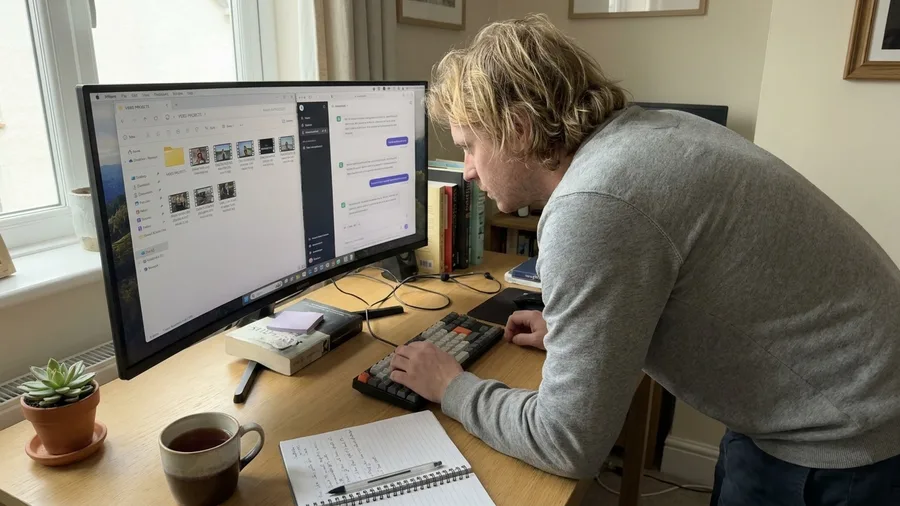
Cowork doesn't write a better answer than Claude chat. It does the work the answer was describing.
Ask regular Claude to plan a product launch and you get a genuinely good plan laid out in tidy prose. Helpful, sure, but the spreadsheet still isn't built, the calendar still isn't filled, and the emails are still sitting in your drafts folder waiting on you. The advice was the easy part. The clicking was always the job.
Cowork skips the handoff entirely. It runs from the Cowork tab in the Claude desktop app, opens the files in a folder you pick, reaches into your connected apps, and finishes the task while you go do something else. Every task starts the same way: choose a dedicated working folder, because that folder is effectively the whole brief.
So which jobs deserve it? Three tests. The work is repetitive, it lives in files or apps rather than in your head, and you can describe the finished result in one sentence. "Five clips with our outro" passes. "Make our content better" doesn't. Keep the folder clean too, since whatever you point at is what it reads; a messy dump of half-finished exports will slow it down before it starts.
💡 Tip: Name the working folder after the job, not after the date. 'video-highlights' tells you what belongs in it; 'March' tells you nothing.
| Use case | What you hand it | Hands-on time | What you get |
|---|---|---|---|
| Video highlights | One folder with two recordings and the VTT transcript | Under a minute of typing | Five branded, LinkedIn-ready clips plus a markdown overview |
| Marketing email | A prompt plus the 'create marketing email' skill | Seconds | A finished draft in Customer.io's Design Studio, ready to edit |
| Meta Ads analysis | One Meta Ads Library link | One permission click | Every image and video ad, plus landing page analysis |
2. Five branded clips from a single folder
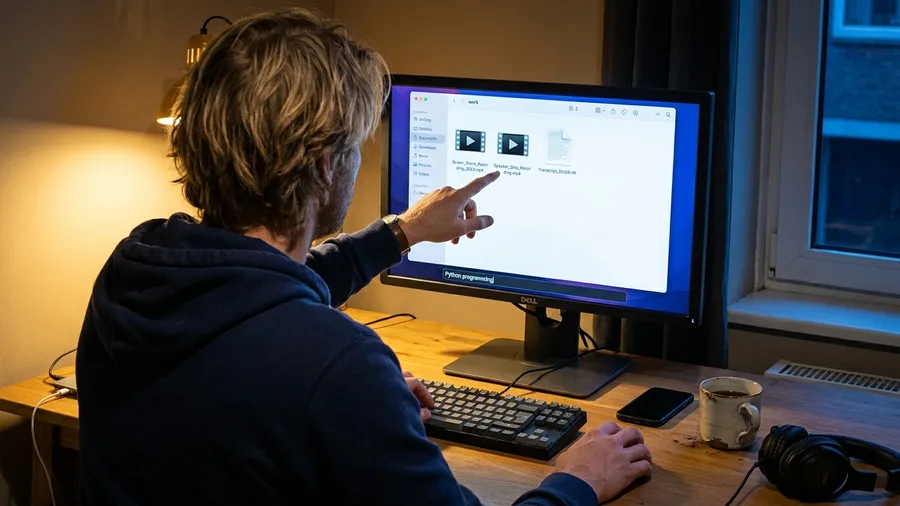
For a video job, three things and no more: the screen-share view of the recording, the speaker-only view of that same session, and the full VTT transcript of the audio.
Those two views aren't optional extras. The skill needs both sitting side by side so it can choose between them later, moment by moment. Drop in a single mixed recording with the slides and the face baked into one frame and you've capped what it can do before it starts.
Pointing it at the right place takes about four clicks. Choose work in a project, then choose a different folder, and select the folder holding those three files. That's the setup finished.
The only thing you type at the prompt is the skill name: get video highlights. No timeline, no keyframes, no editing software to learn, no coding. Say you run a monthly product demo: same two exports, same transcript, one line typed, and you're free. If an afternoon spent trimming a webinar into social clips by hand is a familiar memory, the first run will feel a little unfair.
Avoid These Mistakes
3. What comes back five minutes later
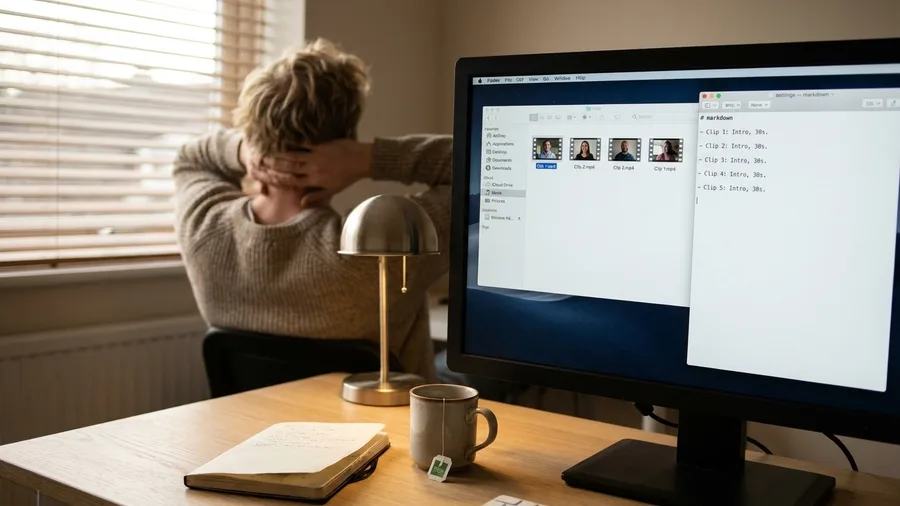
Between the folder being ready and the review, Cowork writes its own to-do list before it touches a single clip. It checks the folder, reads the whole transcript, hunts down the top moments, cuts five clips, and adds the branding. You just watch the ticks appear.
The switching rule is the clever bit. Where the on-screen text carries the moment, it keeps the screen-share view. Where the person carries it, it cuts to speaker-only, because that framing tends to land better on social. Then it appends the branding outro to every clip without anyone asking.
Five minutes later, five LinkedIn-ready video files are sitting in the folder you started from. Next to them is a markdown overview: a short summary of each clip alongside the transcript snippet it was cut from, so the caption practically writes itself. For a weekly webinar, that's roughly one to two hours of manual editing gone, week after week.
💡 Tip: Open the markdown overview before the clips. The transcript snippet tells you instantly which clip is worth posting first.
⏱️ One Run, Start to Finish
Pick the exact folder
In the Cowork tab of the desktop app, choose your working folder. Both recordings and the VTT must sit directly inside it, not in subfolders, or the agent won't see them.
Send the bare prompt
Type 'get video highlights' and send it. Add no extra instructions, filenames or tweaks, because anything beyond the skill name gets treated as an added task and slows the run.
Leave the browser alone
This step needs no browser, so you won't see permission prompts. Keep the app open; closing it or moving the files mid-run is the one thing that stops the agent.
Don't expect a progress bar
The to-do list is the only progress cue. Each tick is the agent finishing its own sub-task, and there's no setting to nudge the clip count up or down.
Not production-ready yet
The five files and the markdown overview arrive in the folder you chose, with the branding outro already appended. Treat them as review cuts: small slips in the cut points are normal and get fixed in your editor of choice.
4. One skill, every recording you already own
The first output folder is when you ask whether this was a one-off, and it isn't. The skill is a reusable instruction set, not a webinar trick.
Your back catalogue is the easiest win: hand it a long published video from a few years ago and it will cut highlights you never got around to making. Research works the same, since a one-hour interview fed through it comes back with the moments that would survive on a testimonials page. Testimonials, podcasts and call recordings behave identically, as long as the transcript travels with the file.
Only the folder changes between runs. The skill text stays the same, which is exactly why building it once is worth the afternoon. When you want to turn those one-off skills into something you can brief and ship repeatedly, a repeatable agent workflow shows the review steps that keep it safe. Try one old recording before you rely on it across the archive.
5. An email drafted inside your email tool
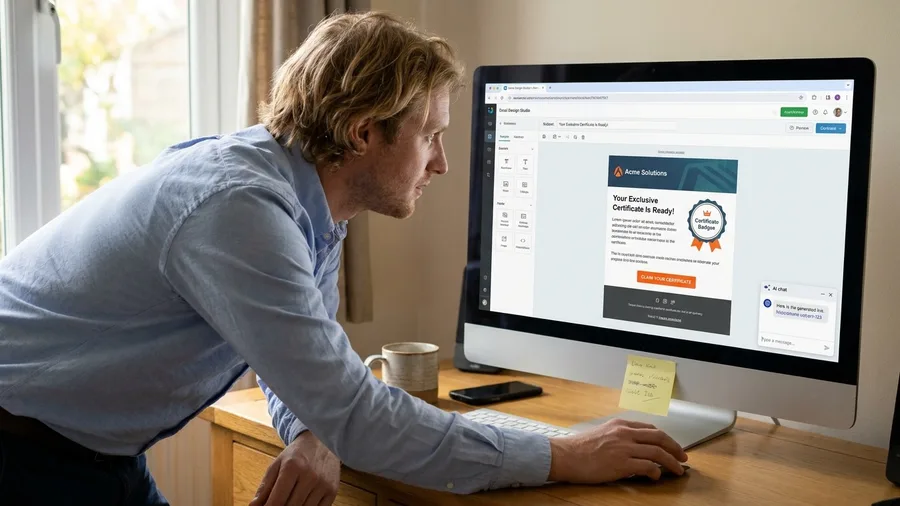
Once the agent has proven it can organise your own files, the obvious next question is whether it can reach into your actual tools. That is the bigger upgrade, and it is where an email job makes the difference crystal clear.
The prompt you give is deliberately ordinary: draft an email to the students who just finished the AI Builder training, congratulate them, and encourage them to grab their certificate and put it on LinkedIn. Type that into plain chat and you get a perfectly nice email sitting in a text box, which you then copy, paste and rebuild by hand inside your platform. So the writing was never the slow part. The rebuilding was.
Attach the create marketing email skill instead and Cowork picks up the Customer.io connection on its own and starts working. Seconds later it hands back a link that opens the email in Design Studio, already filed under the template "AI Builder Course Completion Congratulations", with the subject line "You did it! Your AI Builder certificate is ready".
Here is the part that matters more than the speed. The email arrives inside your existing company template, footer, font, button and layout all sitting exactly where they belong, because nothing was rebuilt by hand. The catch is that this only works when the connection is live and the template already exists in your account, so check both before you attach the skill rather than after.
Same prompt, two very different afternoons. One gives you a draft you have to go and implement, which adds a task to your day. Fitting that into a week of other tools is easier with a small four-tool stack than a sprawling list. The other gives you a draft you can simply review and send, which removes one.
💡 Tip: If your team runs Mailchimp, HubSpot or Klaviyo, check that the connector exists before assuming the same one-click result. Otherwise treat the output as a draft you paste in.
💡 PRO TIP
Review in the tool, not in chat
When the draft lands in Design Studio, fix the wording there rather than sending it back to Cowork for every tweak. Small edits are faster by hand; only a wrong direction needs another run.
6. Why an editable email beats pasted HTML

But an email that arrives looking finished can be a trap, and that is where building it inside the tool beats asking chat for HTML. Plain chat will happily write you the markup for a branded email, and technically it works. Practically, the moment someone asks you to change one word or resize a button, you are wading through code you did not write, hunting for the line that controls a font size you never set.
Working inside the email tool takes that away. You prompt, you review it in the editor, you tweak the wording yourself, and you only send it back to Cowork if the whole thing went the wrong way. It rarely nails the copy first time, so budget one round of edits and stop pretending the first pass is the final one.
The bigger prize is what it does to a team. At plenty of companies only a couple of people actually know their way around the email platform, so every send queues behind those two. Share the create marketing email skill and anyone who can write a clear prompt can produce a branded, on-template email themselves. If your team runs Mailchimp, HubSpot or Klaviyo instead, check whether a connector exists before you expect the same one-click result, and otherwise treat the output as a draft you paste in.
7. Reading a competitor's whole ad library

One link is all this job needs. Every advertiser's Facebook and Instagram ads sit public in the Meta Ads Library, so you paste in the page link for any competitor and let it go to work. Chat alone cannot touch that page. The Claude in Chrome plugin changes that, because Cowork can open a real Chrome window and operate in the browser directly, clicking and scrolling the way you would.
In a demonstration run it identified the advertiser as the Superhuman AI newsletter, counted 51 active ads, then pulled every image and video ad and matched each one against its landing page. That is the whole mechanism: a public library, a browser it can drive, and a single link as the input.
What you do with the output is the actual point. Look at which offers, hooks and creative formats a competitor keeps paying to run, and you start to see what is working for them instead of guessing from the handful of ads that happen to follow you around. The finished run is a full picture of a paid strategy, not one screenshot.
Folder Jobs vs Browser Jobs
Working in your own files
- Files stay where you put them
- No live accounts touched
- Run it while you do something else
- Output lands in the same folder
Working in the browser
- A permission prompt appears first
- It reads live pages and accounts
- You should watch the run
- Stop Claude is your undo
8. The permission prompt and the stop button

Unlike the folder jobs, which paw through files you already own, a browser run touches live accounts and other people's pages, so it asks before it goes anywhere. It requests permission to use the Claude in Chrome connector and to visit that specific site. Grant it per site with 'allow for this website' rather than handing over a blanket yes that covers everything you might open later.
There is an escape hatch too. A Stop Claude button sits in the browser window, and you can take the wheel back mid-run without losing the work already done up to that point. Treat it like sitting next to a fast intern: useful to watch, easy to correct.
Before you repeat the run on a new site, check that site's own terms on automated access. Rules differ from one page to the next, so look them up on the official page rather than assuming a quick scrape is fine. An afternoon of gathering that breaks the terms can cost more than it saves.
💡 Tip: Watch the first browser run on every new site. Once you trust the pattern, you can walk away.
The Words You Will See
Frequently Asked Questions
Do I need to know how to code to set up a skill?
No. A skill is text, and you write it in plain language: what to look at, what to produce and where to put it. If you can describe the job to a new colleague, you can write the skill.
What happens if the agent gets the output wrong?
You review it and either fix the small things by hand or ask Cowork for another pass. That is why the email job lands in an editable tool rather than as pasted HTML.
Can I use this for audio-only recordings?
Yes, as long as a transcript sits in the folder. The transcript is what the agent reads; without one it has very little to work from.
Does the browser job run without me watching?
It can, but watch the first run on any new site. The permission prompt and the Stop Claude button exist so you can take over at any point without losing progress.
Will the email skill work with my email platform?
Only if that platform is connected. Customer.io is the one demonstrated here; check whether your tool has a connector before you assume the same result.
How much time does a setup actually take?
The first folder and skill are the slow part, an afternoon at most. After that, runs take minutes and the same skill works on every future recording.
Pick One Folder, One Skill, One Test Run
The right starting point depends on where your week leaks time. If you already sit on recordings and transcripts, start with the get video highlights skill; it is the most complete demonstration of what an agent on your computer can do.
If the real pain is a two-person bottleneck on every branded send, start with create marketing email. If competitor research is the weekly sink, start with Meta Ads Analyst.
Then do one thing only: make one folder, write one skill, run it on one small test. The second run is when it starts paying you back.
One folder is all it takes
Open the Cowork tab, pick a single working folder, and hand it one repetitive job this week. The first run tells you more than any list.