
Most people open the ChatGPT desktop app, ask a question, close it, and never touch the tiny browser icon in the corner. That icon is the most overlooked feature in the whole app.
It's a full browser with ChatGPT sitting inside it. You can hand it a task in plain English and watch it click through pages, fill forms, and pull information from sites you're already logged into.
The catch is knowing which chores are worth handing over and which ones will waste your afternoon. Here's the setup that makes it safe, then ten jobs it handles well, ranked from simple to bold.
By the end you'll know exactly which button to click first and which task to test before you trust it with anything that matters.
Quick Tips Before You Start
Turn on browser control
In Settings > Integrations > Browser, switch on 'Let ChatGPT control the built-in browser' before anything else.
Say 'browser use'
Add the phrase 'use the browser' or 'browser use' to prompts so it doesn't default to a plugin.
Import your logins
Use the three-dot menu > Import cookies and passwords to bring over your Chrome profile.
Watch the preview
A live preview pops up when the side panel is closed, so you always see what it's clicking.
Set per-site rules
Keep the default on 'always ask' and add specific sites you trust as exceptions.
Split the view
Click 'Restore panel width' to get chat on the left and browser on the right with a draggable divider.
1. A Side Panel Browser With Built-In ChatGPT

None of the automation in this article works until the panel itself is set up, so start here. Click the icon in the top right of the ChatGPT desktop app and you'll see one of two menus: Files and Browser, or just Browser. Pick Browser, hit the expand button so it fills more of the window, and you've got an address bar that doubles as a search field, plus back, forward and refresh.
The real setup lives in Settings > Integrations > Browser. Turn on 'Let ChatGPT control the built-in browser,' then set both Web URL and Local URL open destinations to ChatGPT so links open in the panel instead of bouncing you out to Chrome. Leave annotation screenshots off unless you need visual context, because they count against your plan usage.
Now scroll to Permissions. Keep Approval on 'always ask' by default, then stack per-site exceptions on top. Run a daily lead scan on facebook.com and an always-allow rule skips the prompt every time. When the test is over, delete the rule and return the default to always ask. Per-site rules override the global setting, which is exactly why you clean them up.
The three-dot menu also carries an 'Import cookies and passwords' option that pulls from a Chrome profile, which saves you logging back into everything. Check the current app to see exactly what syncs before you rely on it.
💡 Tip: Set the Web URL open destination to ChatGPT so links from a chat open in the panel, not your external browser.
💡 PRO TIP
Use the right phrase
Add 'use the browser' or 'browser use' to any prompt. Without it, ChatGPT often defaults to a plugin and never opens the page you need.
2. Everyday Reading Without Leaving the Chat

A real browser that stays logged in between sessions and holds multiple tabs, with ChatGPT sitting underneath it.
Open an article and click 'Work with ChatGPT' at the bottom of the panel, then type 'Summarize this article.' Drag the model slider down to a faster setting so browsing doesn't feel sluggish, then click the chevron to watch the thinking trace as it reads and pulls out the main points before the summary lands. That trace is worth seeing once, because it tells you how much of the page it actually read.
Prefer chat on the left and the page on the right? Click 'Restore panel width' and drag the divider to wherever you want it.
One honest catch: a fast model summarizes well but misses subtleties, like a return window buried in a footnote. Bump the slider up for legal or technical pages and leave it low for news.
| Use case | What ChatGPT handles | What you set up first | Best for | Watch-out |
|---|---|---|---|---|
| Side panel browser | Opens URLs, keeps tabs, controls the browser | Side-panel toggle, settings, cookies import | Everyday reading and quick tasks | Check what imports actually sync |
| Everyday reading | Summarizes any open article or page | Work with ChatGPT field, faster model slider | Long articles and research | Thinking trace can be long |
| Background chores | Starts a filing or return, goes as far as it can | Login to the site, email access | Annual filings, support returns | Needs hand-back instruction |
| Shopping tabs | Opens 4–5 product tabs, builds comparison table | Nothing extra | Product research with a shortlist | Ratings and stock can change mid-task |
| Web apps with context | Edits the page you already have open | Notion plugin plus browser page | Editing Notion, docs, dashboards | Plugin still does the actual write |
| One AI consulting another | Opens grok.com, asks, merges findings | Grok account signed in, skill saved | Trending topic research | Grok output can be opinionated |
| Logged-in sites | Scans LinkedIn feed, support forums | Site login in the ChatGPT browser | Lead scans, complaint roundups | Terms of service may forbid it |
| Messaging channel | Sends a Google Chat message when done | Its own email and Google Chat account | Knowing when a task finishes | You must stay signed in |
| Annotation for vibe-coded sites | Selects elements, applies visual fixes | Local dev site open in the browser | Hover states, colors, small visual bugs | Shift multi-select is easy to forget |
| Scheduled bookings | Checks when reservations open, books at the drop | Login on the reservation page | Campsites, tickets, timed slots | Confirm official opening rules yourself |
3. A Background Agent for Online Chores
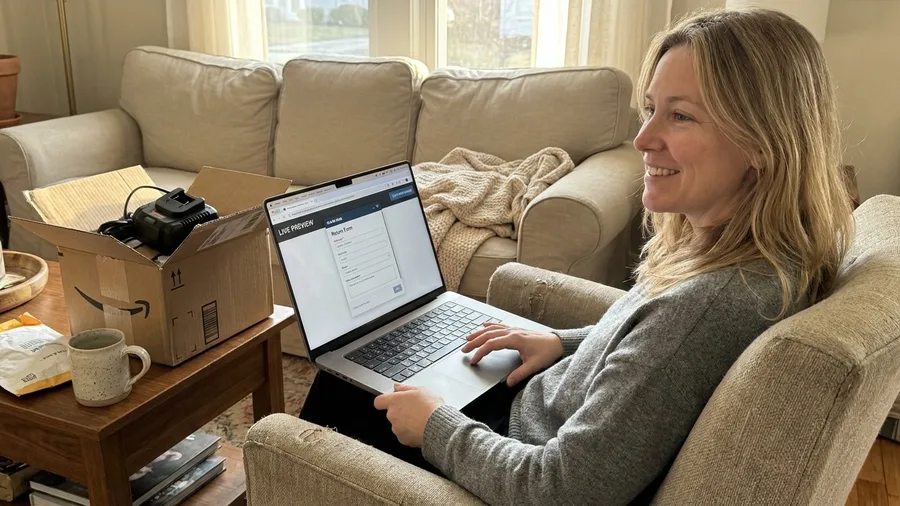
Picture the moment you remember the annual state business filing is due and you can't recall which website handles it this year. That's the chore worth handing off.
Don't ask ChatGPT how to file. Tell it to start the process and get as far as it can before handing back. It already knows a lot about your business, so it clears the opening screens while you get on with something else. The same works for a return: 'Use your browser to open homedepot.com, open live chat, and return the drill I recently purchased, the order details are in my email.' It opens the site, finds the chat, clicks 'Start a return' and pulls the right order number from your inbox.
Say 'use the browser' or 'browser use' in the prompt so it doesn't reach for a plugin first. If the side panel is closed, a small live preview appears in the corner and you can expand it any time.
Then add the hand-back line: ask it to stop and tell you if a problem comes up, so you take over rather than guessing why it stalled.
Half-finished is fine here. The filing still needs your signature, but you skip twenty minutes of hunting for the login page and the right menu.
💡 Tip: Have it notify you when it hits a wall. 'If a problem comes up, let me know and stop' saves you from guessing at a half-finished task.
🤖 From chore to hand-back in four steps
Check approval mode first
Settings > Integrations > Browser: set Approval to always ask, then whitelist only the filing site or homedepot.com.
Import logins before you start
Side panel three-dot menu > Import cookies and passwords from Chrome, so it can clear a login wall instead of stalling.
Name the stopping point
Say 'go as far as possible, stop at payment or signature, tell me what blocks you' – that is the hand-back.
Resume, don't restart
In the same chat, answer its question and say 'continue from here' – fresh prompts lose the page state.
4. Shopping Tabs Compared Side by Side

Hunting for a mounting bracket is the same chore, just with more tabs. ChatGPT can open that dozen-tab pile for you: 'I have a Starlink Mini to attach to a truck camper roof. Find four or five mounts with good ratings that are easy to mount, and pull each up in a separate tab.' It opens them all.
Already found options yourself? The reverse works too. With several product tabs open, ask for a table comparing features across all of them, and it reads every open tab while writing the answer. That means you can browse first and compare second.
Just check the ratings yourself before you commit. A table makes the specs look tidy, but it won't catch a seller with a suspicious review pattern.
The shopping loop
5. Web Apps With Context Already Attached

That division of labor is the same one you saw in the return example: the browser sees the page, and something else does the writing. Plugins used to be the whole story. You'd type @Notion, name the page 'ChatGPT vs Claude' in a video database, and spell out exactly what you wanted changed, because the model had no idea what the page looked like.
Open that same Notion page inside the ChatGPT browser instead, and the prompt shrinks to 'Edit this to make it shorter.' No page name, no plugin tag.
The browser supplies the page context and the Notion plugin performs the actual write, which is faster and more reliable than either alone. Watch the right-hand panel and you'll see the edit land on the page while the chat explains what changed.
Plugins are built for reliable writes, and the browser is built for sight. Put them together and the short prompt stops being vague.
⚠️ COMMON MISTAKE
Don't skip the plugin
It's tempting to make the browser do everything. When a plugin can write to a service, let it write while the browser shows the page. Pure browser edits on web apps are slower and lossier.
6. One AI Consulting Another AI

Where the grocery and returns tasks were about speed, this one is about range. Open grok.com inside the ChatGPT browser and sign in, and you have a second model sitting next to the first, with real-time access to Twitter and X, which is exactly what you want when the question is what's trending right now.
Then save a skill called 'Ask Grok'. A skill is nothing more than a saved instruction you can reuse, and this one does the boring part for you: every time you ask for research, ChatGPT opens Grok, sends the question over, and merges both sets of findings into one report. The prompt pattern is blunt: research the topic, also ask Grok, merge both sets of findings.
You could wire up the official Twitter API instead, but that means learning the setup and paying for access. This skips both. One thing to remember: Grok only answers because it's signed in, so if that session drops, the merge comes back thinner than you expected.
Plugin vs browser: which one does the job?
Use the plugin
- Writing to Notion, Linear or a CRM
- Tasks that need structured data
- Anything you'll repeat often
- When you want a clean audit trail
Use the browser
- Reading pages that need a login
- Filling forms on sites with no plugin
- Watching a page for a change
- Sites where the plugin is limited
7. Logged-In Sites When Plugins Fall Short

Back to the Notion page from earlier, where one model was already consulting another: plugins have limits too, and some sites have nothing at all. That's the gap browser use was built for.
LinkedIn is the honest example. There's a plugin, but it can't really scan your feed for new leads when you're weighing up starting an AI agency. Browser use can, because it scrolls the feed the way you would and collects what it finds, in your own logged-in session.
The same move works on any login-gated site. Picture a busy software support forum: point it at the visible threads and ask it to compile the biggest complaints into one list, and you get a competitor's weak spots in a few minutes.
Here's the catch, and it's a real one. Automating a logged-in site can violate that site's terms of service. Read the rules before you aim a background agent at anything, and accept that the account at risk is yours.
Check first, automate second. That's the whole discipline with logged-in sites, and it's what keeps this trick useful instead of expensive.
💡 Tip: Keep a separate browser profile for automation so your main account isn't the one that gets flagged.
Browser use at a glance
8. A Messaging Channel for Finished Tasks

Phone notifications from ChatGPT aren't always reliable, so a job can wrap up while you have no idea.
The fix is to give the assistant its own way to reach you. Set up a separate email address and a Google Chat account for it, not your personal login. Then the instruction becomes 'start this task, and when it's done, message me.'
'Message me' maps to opening Google Chat in the browser and sending a note, so you get an alert you can actually see. It's free, fast to set up, and easy next to building a custom notification.
The trade-off is that it depends on staying signed in. If that session expires, so does the message, so log in now and then or you'll be checking the task list by hand anyway.
9. Annotation for Vibe-Coded Sites
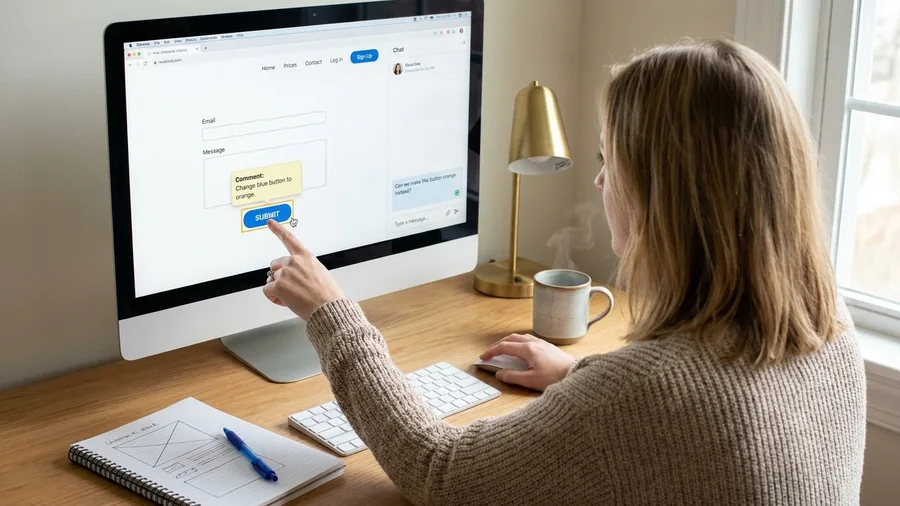
If you're building a site with ChatGPT and reviewing it in the browser, annotation is how you get precise edits without writing a paragraph for every element. Click the annotation button, then select the thing you want changed.
Hold Shift to select multiple elements at once. Most people miss that. Type your comment, something like 'the blue here ought to be orange,' and press Enter to add it to the chat. Command+Enter sends it straight away.
The good part comes after. Once it applies the fix, it reopens the page and hovers the elements itself. If they still turn orange, it knows the fix failed and goes back for another pass.
That self-check loop is the difference between a model that guesses and one that verifies. You're not asking it to trust its own work; you're asking it to test it the way you would.
One warning: each annotation screenshot counts against your plan usage, so group related notes into one comment instead of firing off ten tiny ones.
10. Scheduled Bookings at the Drop
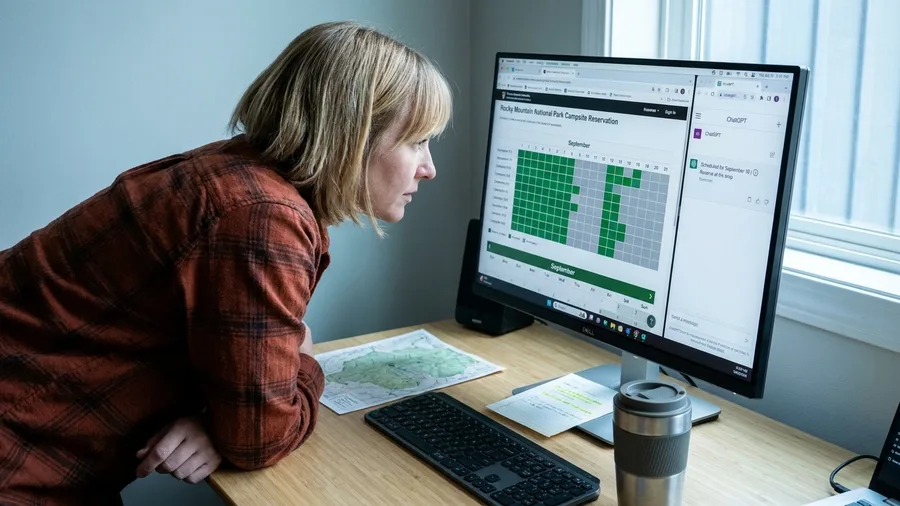
That self-checking habit matters most when a booking opens at a specific minute, because refreshing the page yourself is the worst way to spend a morning. This is the one that can save you a whole day of staring at a browser.
For a Rocky Mountain National Park campsite on the weekend of September 18, first ask when reservations open. Then schedule a task to reserve a spot the moment availability appears.
Scheduled tasks sit in the task list, where you can review or cancel one before it fires. If the site layout changes and the booking flow won't work, tell it to stop and notify you rather than guess.
Confirm the park's actual opening rules on the official reservation page yourself. Don't trust a remembered date, and don't let the agent assume one either. Takeover beats a confident guess every time.
💡 Tip: Set a calendar reminder a day before the scheduled task fires so you remember to review it.
What Browser Use Costs in Plan Usage

The one line worth circling in those settings is the note next to annotation screenshots: they count against your plan usage. It's easy to skim past, and it's the thing that decides whether a long browser run feels cheap or expensive.
Here's the mechanism. Annotation sees the page and takes a screenshot so ChatGPT can pick out individual elements, every button, every field. That's far more context than a plain text read, and context is what you're paying for. A quick summary costs next to nothing; an agent creeping through a checkout spends a lot more, because the more the browser stops to look, the more usage it burns.
So turn the dial rather than leaving it wide open. For simple text summaries, switch annotation off. Keep it on for visual pages where you actually need element-level context, like that feature table pulled across four or five open tabs.
And batch your work. One run that does the whole job is gentler than three long runs going at once, each stopping to screenshot the same pages. Free versus paid allowances shift, and browser control can vary by plan, so check the current plan page for exact numbers before you plan a heavy session.
Frequently Asked Questions
Does browser use work on the free plan?
It can, but capability varies by plan. Check the current plan page for exact allowances and whether browser control is included.
Why does ChatGPT keep using a plugin instead of the browser?
Plugins are tried first by default. Add 'use the browser' or 'browser use' to the prompt to push it onto the page.
Is it safe to let ChatGPT control the browser?
Start with Approval set to 'always ask' and add specific sites as you learn to trust them. That keeps you in the loop for anything new.
Can it book things while I'm away from the computer?
Yes, scheduled tasks can fire when you're not there, but they depend on staying logged in and the site layout not changing.
What happens if the page changes and the task breaks?
Ask it in the prompt to stop and notify you rather than guess. That keeps it from clicking through wrong buttons.
Can I get a message when a task finishes?
Give the assistant its own email and Google Chat account, then tell it to message you when done. The notification arrives in Google Chat open in the browser.
Configure once, test small, then hand over the calendar
The single setting to change first is Approval. Keep it on 'always ask' until you've tested the browser on a low-stakes task.
That first task should be reading, not doing. Summarize one article and watch the thinking trace to see how it handles the page.
Then move to one background chore like a return or a filing, with a hand-back instruction so you take over when it stalls.
Only after that should you try the logged-in sites and scheduled bookings where money or deadlines are at stake.
Start with the Approval setting
Open Settings > Integrations > Browser today, set Approval to 'always ask,' and test one article summary. Then work up to the bigger jobs.