
How many hours does one product video actually cost you? From the first idea to the file you can publish, most small teams burn six to ten hours, and that is before you make a second version for another platform. If you are running a brand, an agency, or a solo channel, that math stops working fast.
The alternative is not a bigger team. It is a workflow that turns a written product idea and one reference image into a downloaded, ready-to-publish commercial while you do something else.
That is what this pipeline does. Seedance 2.0 on BytePlus handles the generation step through an API, and n8n strings the steps together: collect the idea, write the script, convert the image, run the generation, poll until it finishes, and save the file. You set it up once, then feed it new ideas on a schedule.
By the end you will know how every node works, the exact API settings that start a Seedance job, and how to keep the whole thing from stalling when a call fails.
| Stage | n8n node | Key setting | Output |
|---|---|---|---|
| Collect idea + image | Form Trigger | Text field and image field | Idea text and uploaded product image |
| Write the script | OpenAI chat node | System prompt pre-set, idea dropped into message two | Video script or screenplay |
| Combine branches | Merger node | Input number set to two | Script and image kept together |
| Convert image | JavaScript code node | Runs after the merger | Base64 image string |
| Build the prompt | OpenAI chat node | Script and Base64 image in values two | Seedance-ready prompt |
| Start generation | HTTP Request (POST) | BytePlus endpoint, Bearer auth, JSON body | Task or video ID |
| Wait | Wait node | 30 seconds | Pause before status check |
| Check status | HTTP Request (GET) | Endpoint plus video ID in URL | Job status: running or succeeded |
| Loop decision | IF node | Checks for succeeded status | Loops to wait or moves on |
| Save file | Download Video node | No configuration needed | Finished video file |
Seedance 2.0 Is Live on BytePlus
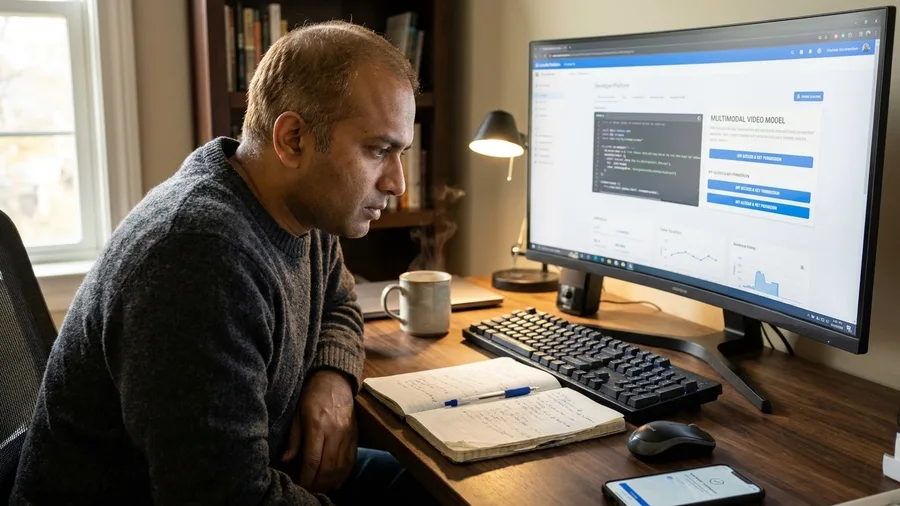
You can use Seedance 2.0 today, no waitlist and no beta tag. It's generally available through BytePlus, which in plain terms means the model is live and stable enough to put inside a real production pipeline instead of a weekend experiment.
You get to it through the BytePlus ModelArk console, where Seedance 2.0 sits listed as a production-grade multimodal video model. That phrase earns its keep. Beta tools break halfway through a build and quietly change their request format, and you spend an afternoon debugging something that wasn't your fault. A GA model stays put.
So the workflow you're about to wire up is infrastructure, not a toy. You can point a scheduled n8n trigger at it and trust that the endpoint won't vanish on a Tuesday.
Before you build a single node, open the console and check that Seedance 2.0 actually shows up for your account and your region. Availability can differ by location, and there's no quicker way to waste an evening than wiring nodes to an endpoint your key can't reach.
Once it appears there, you're clear. Everything after this is n8n work, not account work. One last thing to check while you're in there: confirm your BytePlus API key has access to the model, because a valid key that isn't scoped to video generation will still give you a permissions error and send you chasing the wrong problem.
Seedance Accepts Image, Clip, Audio, and Text
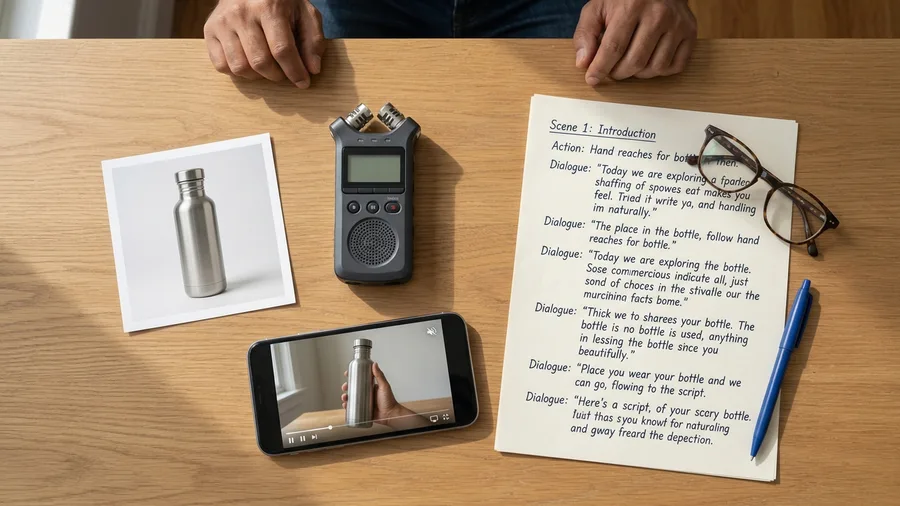
Seedance 2.0 takes more than a sentence. You can input a picture, a moving-image clip, a sound file, and written instructions all at once, and the model treats each of them as creative context for the content it builds.
That's the part worth sitting with, because it changes what you can reuse. The product photo you already shot on a phone, the brand voiceover already sitting in a drive folder, the mood clip you saved from a competitor's ad, none of it gets thrown away just because the old tool only read text. Your existing library quietly does half the work.
It also explains why one clean product still plus a written idea is enough to start a commercial. The photograph carries what the product looks like; the text carries the story you want wrapped around it.
In n8n, more form elements mean the same request can carry those extra references. Start with a single image and get a full run working end to end, then add a field for a clip or an audio file once the basic version is reliable. Piling every input on before the first successful generation just gives you more places to hunt for the bug.
Edits Extend Without Starting Over
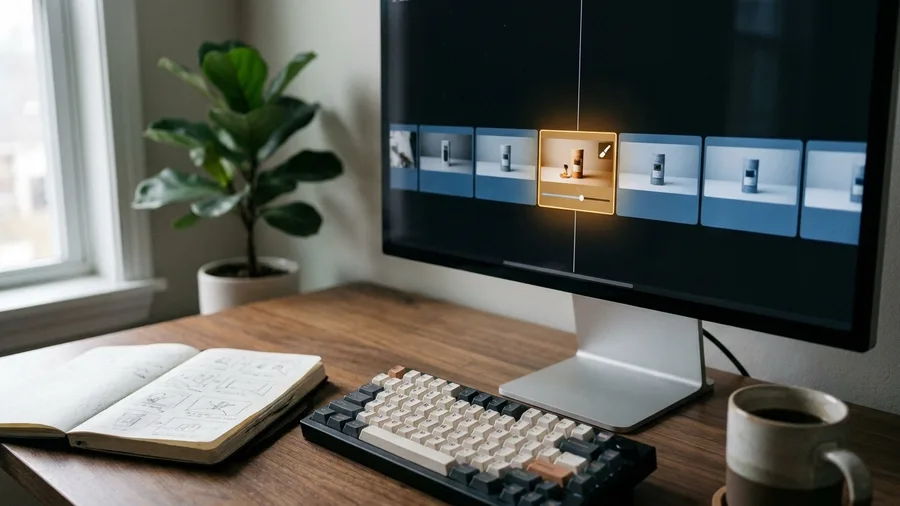
If the first video lands close but not right, you don't regenerate the whole thing. Seedance 2.0 lets you extend a clip, refine specific sections, and in-paint, so you keep the shots that worked and fix the one that didn't.
Think about what a full reroll actually costs you. A fifteen-second commercial might come back with a look you liked less than the first attempt, and now you're choosing between two flawed versions instead of polishing a good one. An edit keeps the good take and touches only the weak part. That's director-level control, and it's what makes the output feel deliberate rather than lucky.
The habit to build is create once, adapt everywhere. Get one solid base video, then branch it: a square cut for social, a shorter version for a pre-roll, a variant with different on-screen copy. Each branch is an edit, not a fresh spend of generation time.
One caution. Use editing after a successful generation, not as a rescue for a vague prompt. If the first output missed the product entirely, the prompt was the problem, and in-painting a bad scene just gives you a polished version of the wrong idea. Fix the prompt first, then edit.
Motion Is Physics-Aligned and Realistic
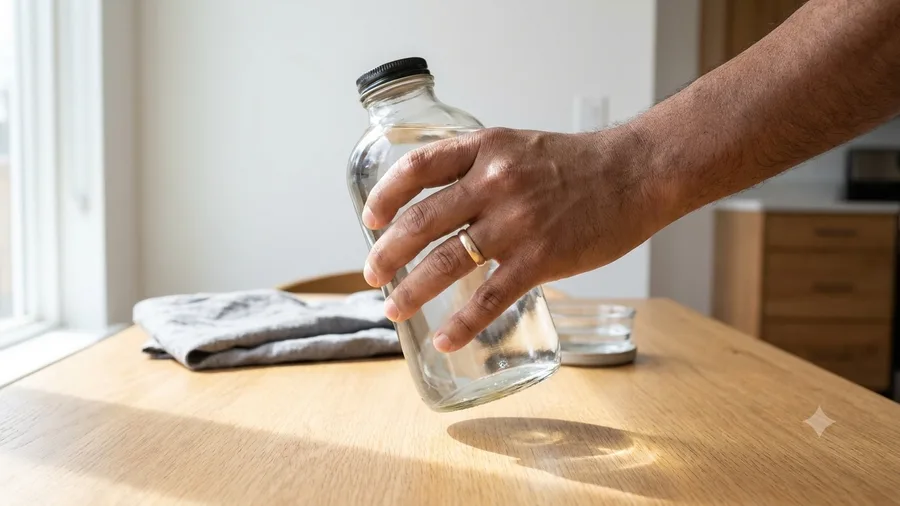
It shouldn't look like cheap AI video, and the reason comes down to motion. Seedance 2.0 produces physics-aligned movement: objects interact the way real objects do, characters move naturally, and lighting stays coherent even in a busy scene.
For product work that's the whole ballgame. A bottle that floats above a table, a hand that bends the wrong way at the wrist, a shadow that points two directions at once, each one tells the viewer this was generated, and it drains trust from the brand paying for the ad. Coherent motion and lighting are what make a generated commercial feel like a crew shot it.
You can help it. Feed a clean product image, describe one clear action, and keep the prompt tight on the shot you actually want. Vague input gives the model room to invent, and invention is where the weird stuff creeps in. Motion quality still depends on what you hand it.
An honest limit worth knowing before you promise anything to a client: this is good, not magic. A clean product turntable or a single hero shot is well within reach. Complicated multi-person choreography, where four people have to move together and stay consistent, is a much harder ask. Match the shot to the job and you'll be happy with the result more often than not.
Audio Is Generated and Synced Natively
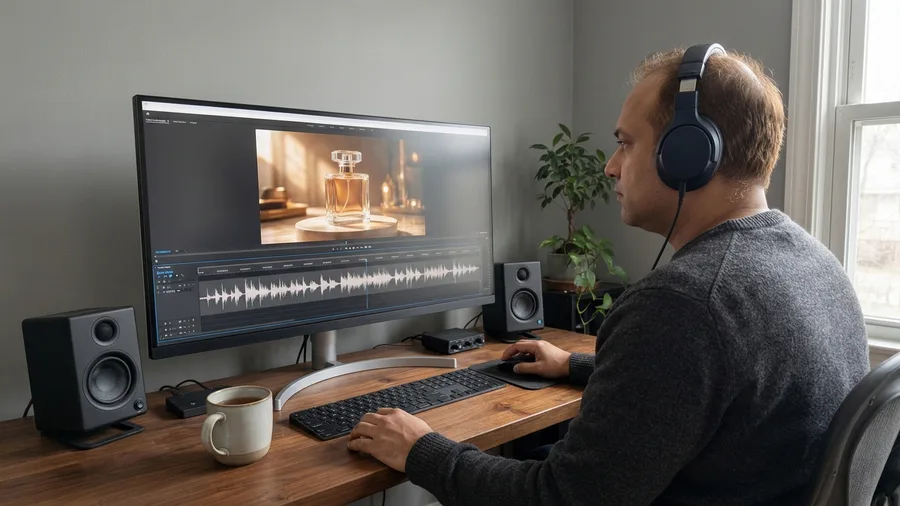
Separate audio pass for the first version. Seedance 2.0 produces audio and syncs it to the visuals natively, so the sound design arrives attached to the picture instead of being stitched on afterward with a waveform you nudge by hand.
The sync is tight and the mix is integrated, and that removes one whole stage from your early workflow. You're not exporting a silent clip, hunting a stock track that fits the mood, and dragging it against the timeline until the beat lands. That's an afternoon you get back on every video.
That said, a clean mix doesn't fix a weak script. Listen to the finished audio against the actual brand claim before anything goes out. If the voiceover says something your legal team wouldn't sign off on, the fix lives upstream in the script node, not in the sound.
Review the audio the way you'd review a rough cut from an editor: once for the message, once for the finish. Does it say what you meant, and does it sound clean? Those are two different checks, and a video can pass one while failing the other.
The API Makes the Pipeline Automatable
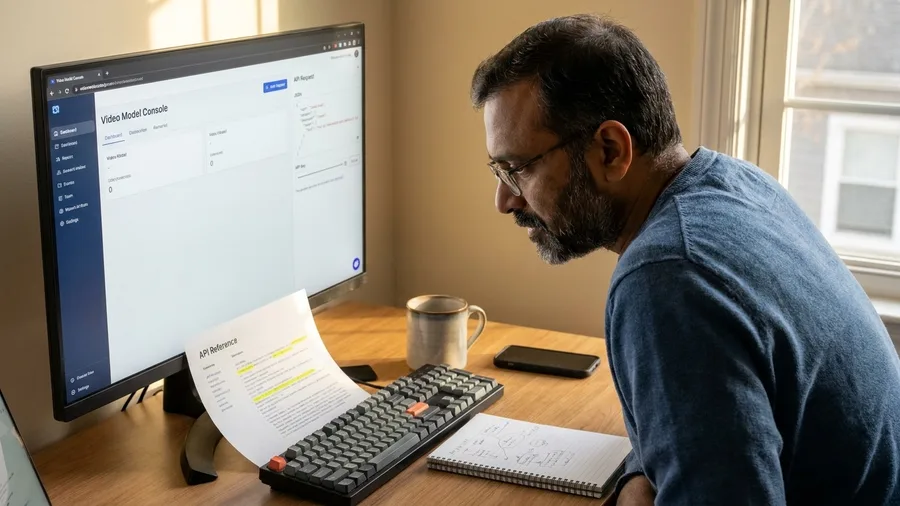
You can automate Seedance 2.0 instead of clicking through the console. Every capability this pipeline uses is reachable programmatically through the API, which is exactly what makes the whole thing automatable.
Here's the part that matters: the API is the bridge between n8n and Seedance 2.0. n8n sends the request, Seedance does the work, and n8n picks up the result. You never have to open the console and click through a single video by hand.
One credential covers both halves of the job. The same API key and the same endpoint handle the generation request that starts a video and the status checks that tell you when it's finished. One key, two calls, no extra accounts to juggle.
So where does the console fit? Treat it as the place to test a prompt and manage access. Try an idea there, see how it looks, get your key sorted. Then treat the API as the production route. That split keeps your experiments separate from your pipeline, so a half-finished test never ends up in the queue.
Once that's settled, the build itself is just nodes. You wire up a trigger, a script writer, and a couple of HTTP requests, and the console becomes a place you visit now and then instead of a place you work.
Worth knowing before you start: the endpoint you call and the body you send need to match what BytePlus documents for your account, so keep that reference open while you wire the nodes. The pipeline is only as reliable as the request it sends.
💡 PRO TIP
Test in the console before you wire the key
Run one prompt manually in the BytePlus ModelArk console first. If the output looks wrong there, the API call will reproduce the same problem and you will blame your workflow.
A Ready-Made Workflow Imports into n8n
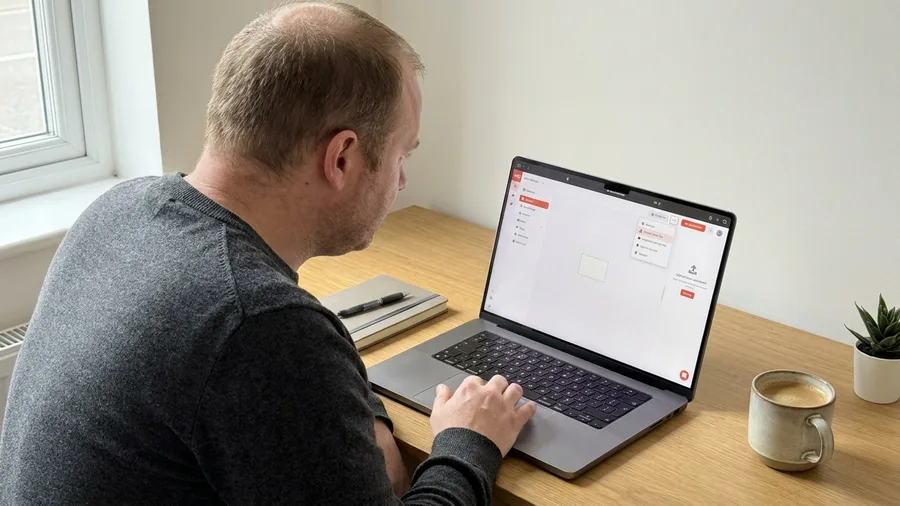
You get the automation into n8n by importing a workflow file rather than building every node from scratch. n8n is free to try, so create an account and log in first.
From the workflow list, click Create new workflow, open the three-dot menu, and choose Import from file. The template is available from the resource link, so the wiring, the node order, and the prompt structure are already in place when the canvas loads.
Think about what that saves you. Building this by hand means a form trigger, two chat nodes, a code node, a merger, an HTTP request, a wait, a status check, an IF node, and a download step, all connected in the right order. One wrong connection and you're hunting a bug through ten nodes. Importing skips all of that.
After import, your job is credentials and settings. Open each node that needs a key and confirm it points at your own account before you execute anything. The template ships with the structure, not the keys, so you still supply your own OpenAI and BytePlus credentials.
Importing takes a minute. Reviewing takes ten, and it saves you an hour of confused debugging later.
If the import throws an error, check that you're pulling in a workflow JSON file and not a credentials file, since the two look similar in a download folder.
The Form Trigger Collects Idea and Image
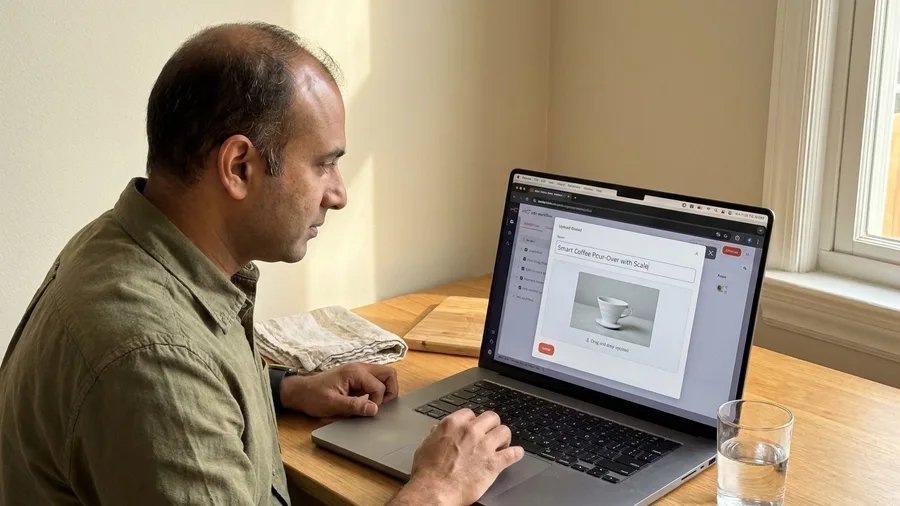
The Form Trigger is where a new product idea and its image enter the workflow. It has two inputs by default: a text field for the idea and an image input for the product photo.
You aren't locked into those two. Add more form elements if you want multiple reference images, a short video, or an audio file, and the same request carries them through to Seedance without extra wiring. Seedance 2.0 accepts image, clip, audio, and text, so the form is really just how you decide which of those go in this time.
The trigger type is flexible too. Swap the form for a schedule trigger, a Telegram message, or a new row in a Google Sheet, and the pipeline runs from whichever source fits your team. That swap is also the door to volume: a sheet of ten product rows beats ten manual form fills any day.
To test, hit Execute and fill the pop-up with an idea, then upload the product image. That first step is your gate. If the form fails here, nothing downstream will help, so get a clean submission before you touch anything else.
One small habit pays off: give the image field a clear, consistent name. Later nodes reference it by that name, and a rename now means a broken link there.
🎬 From idea to downloaded video in 10 nodes
Form Trigger
Collect the written product idea and upload the reference image.
Script GPT
Turn the idea into a short video script or screenplay.
Merger
Join the trigger branch and the script branch with input number two.
Base64 Code
Convert the product image into a Base64 string.
Prompt GPT
Combine script and image into the final Seedance prompt.
POST to Seedance
Send the prompt and image with Bearer auth and capture the video ID.
Poll and Download
Wait 30 seconds, check status, loop until succeeded, then save the file.
The GPT Node Writes the Script
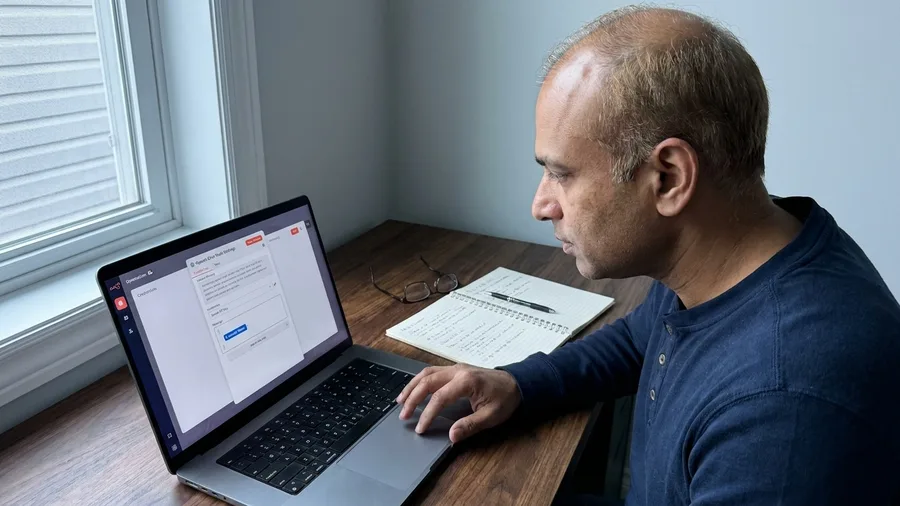
The workflow turns your idea into a script using an OpenAI chat model node. Add your OpenAI API key in the node's credentials, and leave the rest of the default settings alone for the first run.
The system prompt is pre-set and does the heavy lifting. It tells the model how to shape a product idea into a short script, so you don't need to write your own instructions on day one. Do not edit it until you've seen one clean run, because changing two things at once tells you nothing about which one broke.
In the second message, click the JSON expansion icon and drag the concept into the box. That's the whole configuration for this node. What you're doing is handing the model the exact text a user typed into the form, not a description of it.
One detail people miss: make the image variable node's file name exactly match the form field name. A typo there means the later step receives an empty image and the prompt comes out weaker. It won't error, it'll just quietly underperform, which is worse.
If you want different scripts, edit the system prompt rather than the user message. Keep the concept mapped where it is.
The Code Node Converts the Image to Base64
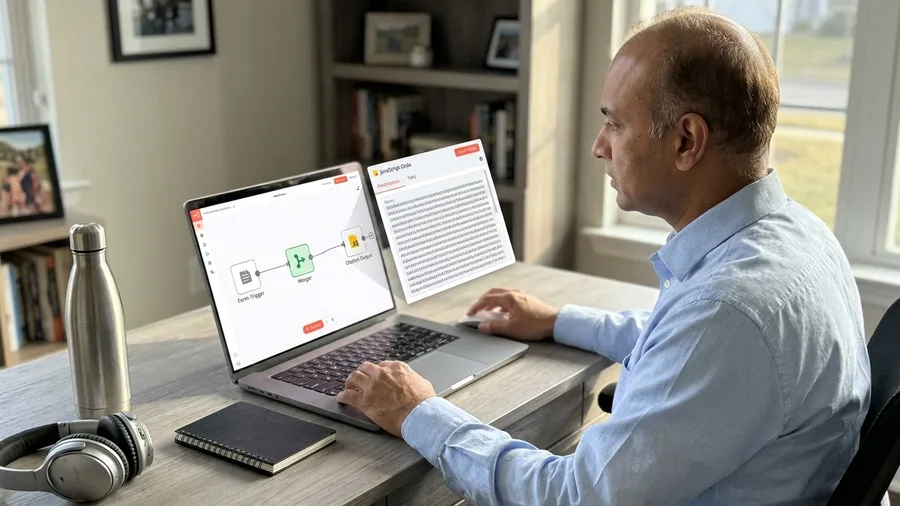
The image needs to be Base64 because the Seedance request sends the reference image inside the JSON body, and that field expects an encoded string rather than an uploaded file. The JavaScript code node handles the conversion.
Before it, add a merger node and set the input number to two. Connect one input to the trigger branch and the other to the chatbot branch, so the script and the image travel together from here on. Without that, the two branches drift apart and you're feeding half a request into the next node.
Run the merger, then run the code node and watch the output. Keeping both branches aligned is what stops the later prompt step from losing either the script or the image halfway through. That's the whole point of the step, and it's the one people skip when they're moving fast.
If the code node fails, check the file name match from the previous step first. It is almost always the file name.
A quick sanity check on the output: the encoded string should be long, because Base64 inflates size by roughly a third. If you see a short value, the image never made it through.
The Second GPT Node Builds the Prompt
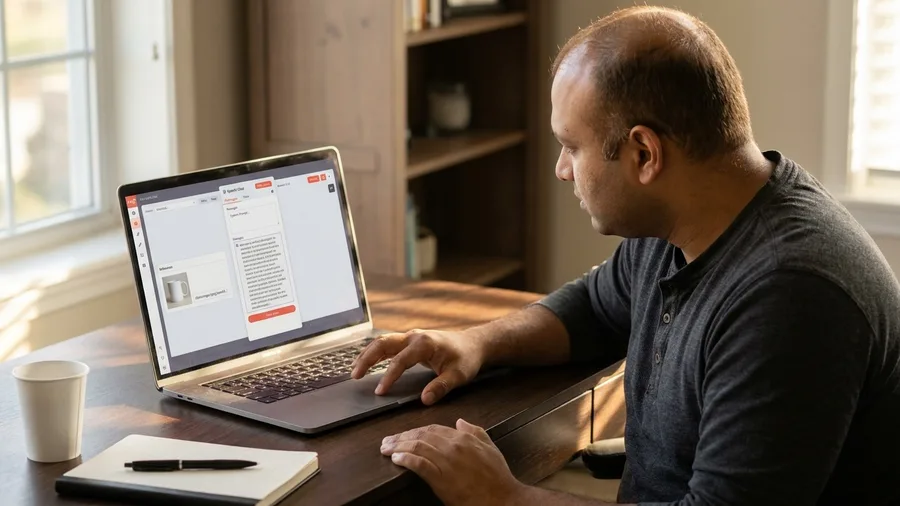
Your script and your Base64 image go into a second OpenAI chat node, and out comes the prompt Seedance actually reads. Same credentials as before, so there's nothing new to authenticate here.
Open the node and look at the message values. Value one holds the system prompt, and you leave it alone. Value two is where the work happens: drag the script from the first GPT node into that message field, then drag the Base64 string from the JavaScript node in right after it.
Click execute and you get the final prompt back.
Read it before it goes anywhere near the API. A prompt worth sending names four things clearly: the product, the action, the visual style, and the camera intent. If the product is vague or the camera intent never shows up, don't cross your fingers and hope the model fills the gap.
Fix the input instead. Nine times out of ten the script was too thin or the image had no clear subject, and the second node could only repeat what it was given. Tighten the earlier node, run this one again, and check the wording landed properly this time.
Here's the bit that's easy to miss: this step is the cheapest quality upgrade in the whole pipeline. You're spending a few seconds of model time to catch a bad prompt before it burns a full video generation and thirty seconds of waiting, so treat the review as part of the build, not an optional extra.
Where each pipeline mistake hurts
Low effort to fix, high damage if ignored
- Wrong file name in image variable: Silent empty image; the prompt gets thin but the run still completes.
- Vague prompt with no camera intent: Generates something, just not the commercial you described.
- Missing Bearer token on POST: Generation never starts and no video ID comes back.
- No retry cap on the polling loop: A stuck job runs forever and burns your execution quota.
The POST Request Starts Video Generation
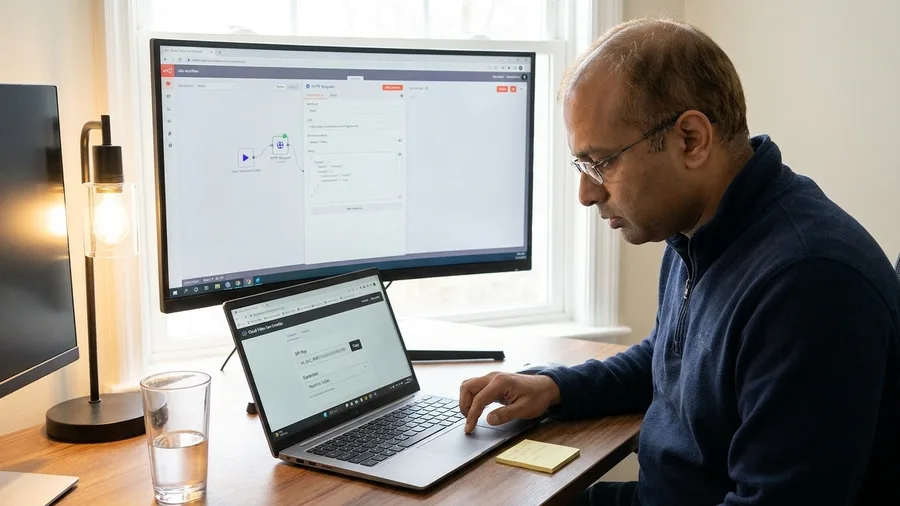
An HTTP Request node is what actually kicks off the render: POST method, the BytePlus Seedance 2.0 endpoint URL, and generic credential type with Bearer authentication selected.
First, the key. Head into the BytePlus console, confirm that the Seedance 2.0 generator is the option you've picked, and click Access API. If you don't have a key yet, create one, give it a name you'll recognise in six months, and copy it. Then paste it into the bearer token field in n8n.
Next, headers. Add an Authorization header whose value is Bearer followed by that key. Then open Send Body, choose JSON as the content type, and build the body: place the prompt in the opening bracket of the text section, and your Base64 string goes in as the reference image URL.
Execute the node and watch the output. You want a task or video ID coming back before you go any further.
That ID is the whole reason the rest of the workflow exists. Every status check from here on needs it, so if the node returns an error or an empty response, stop and read the message rather than wiring up nodes on top of a broken call. A wrong key or a malformed JSON body will both fail here, and both are quick to fix once you see them.
The GET Request Checks Status After 30 Seconds
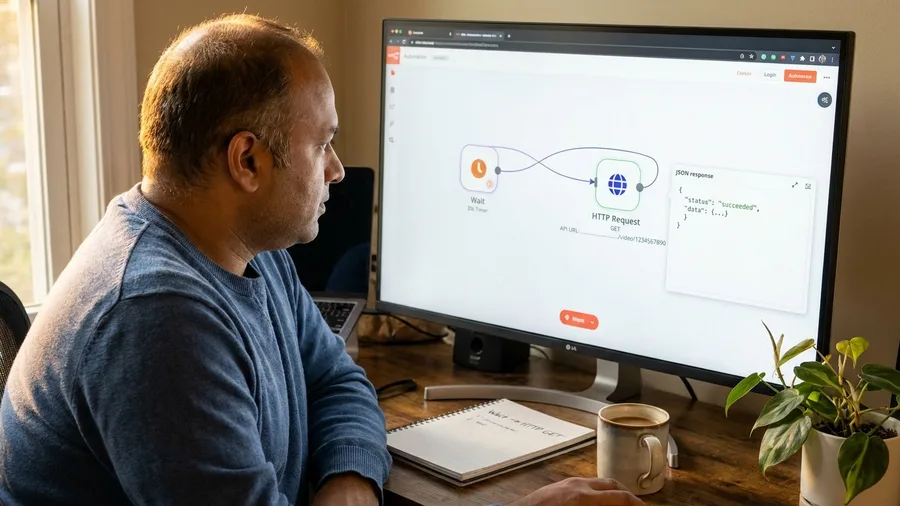
You know the job is done when a GET request comes back with a succeeded status, and the first thing that check needs is a pause. Set a Wait node to 30 seconds so Seedance has time to actually work before you start asking questions.
Then add a second HTTP Request node and switch it to GET. The URL is the API endpoint plus the ID the POST node handed you, and you drag that ID straight from the previous node so the link stays live. Type it by hand and it'll break the moment the ID changes.
Credentials are the easy part: reuse the same Bearer setup from the POST node. n8n remembers it, so this node needs almost no configuration at all.
Execute it and read the response.
A finished job says succeeded. Anything else means the render is still in progress, and that's your cue to loop rather than sit there refreshing. If generations in your account are routinely taking longer than half a minute, bump the Wait node up rather than hammering the endpoint with rapid-fire checks, because more requests won't make the render finish any sooner.
The IF Node Loops Until Succeeded
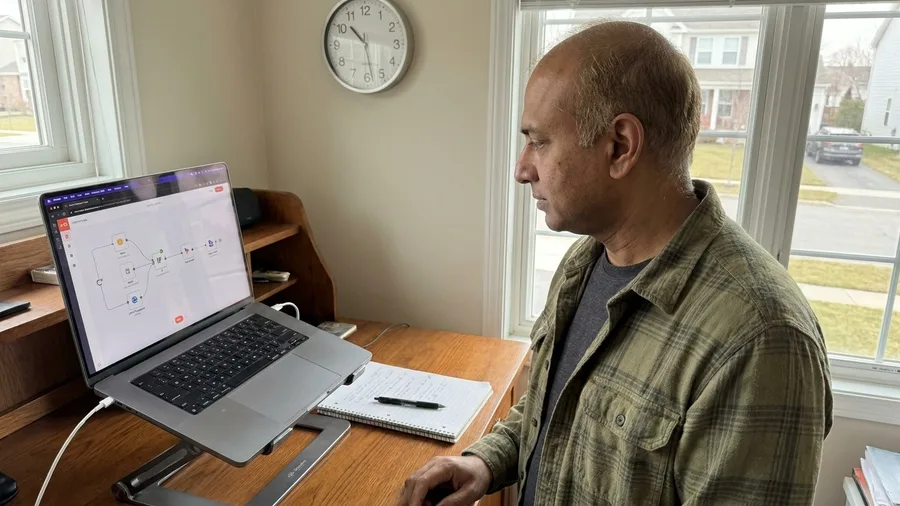
If it's still generating after that first check, an IF node catches it and sends the flow straight back for another round. It tests the status, and when the job isn't ready, the workflow loops to a fresh 30-second wait and triggers the GET node all over again.
That cycle keeps repeating until the status comes back succeeded. Then it moves forward to the download step and the finished file lands in your hands.
There's one thing the basic build doesn't do, though: stop. A job that never finishes will circle forever, quietly burning executions and telling nobody. In a production version, add a retry cap, say five or six loops, and a failure branch that alerts you when the cap is hit.
Think of it as a smoke alarm rather than a fire extinguisher. The cap doesn't fix the stuck render, it just makes sure you find out about it instead of discovering a silent workflow three days later.
The next section deals with exactly that, along with the other ways a pipeline can go quiet on you.
A demo loop vs a production loop
Fine for testing
- Endless loop back to the 30-second wait
- No cap on how many times it polls
- Failures vanish with no alert
- You retry manually from memory
What you ship
- Retry cap that exits after a set number of loops
- Failure branch that fires a notification
- n8n error workflow on both GPT and Seedance calls
- Task ID and response message logged for debugging
The Download Node Saves the Finished Video
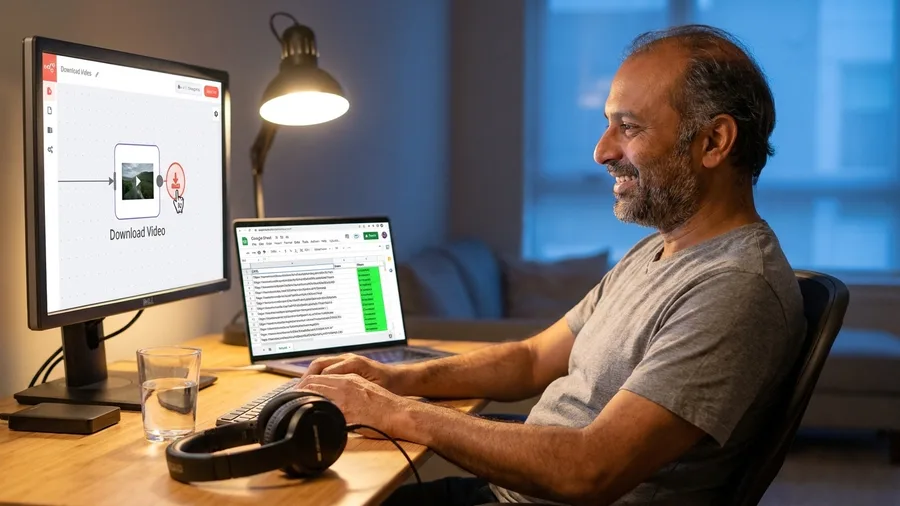
The Download Video node saves your finished file with no configuration at all. Execute it and n8n pulls the file in so you can play it right there in the node or download it to your machine.
That completes one run. You put an idea and an image in at the top, and a finished commercial came out at the bottom.
Scaling it is the genuinely easy part. Swap the form trigger for something batch-friendly and add rows to a Google Sheet, and the same pipeline chews through each item in turn. The example moves from roughly two videos a week to about ten, and nobody had to be hired to make that happen.
One honest caveat: volume only pays off if quality holds. Run your first ten through the prompt review from earlier, because a pipeline that produces mediocre videos quickly is still producing mediocre videos.
The full workflow template sits on GitHub for free, but you still bring your own OpenAI and BytePlus credentials. That's the real shape of the repeatable part: import the workflow, drop in your keys, and you're running. No rebuild, no starting from a blank canvas each time.
Failures Need Alerts and Retry Limits
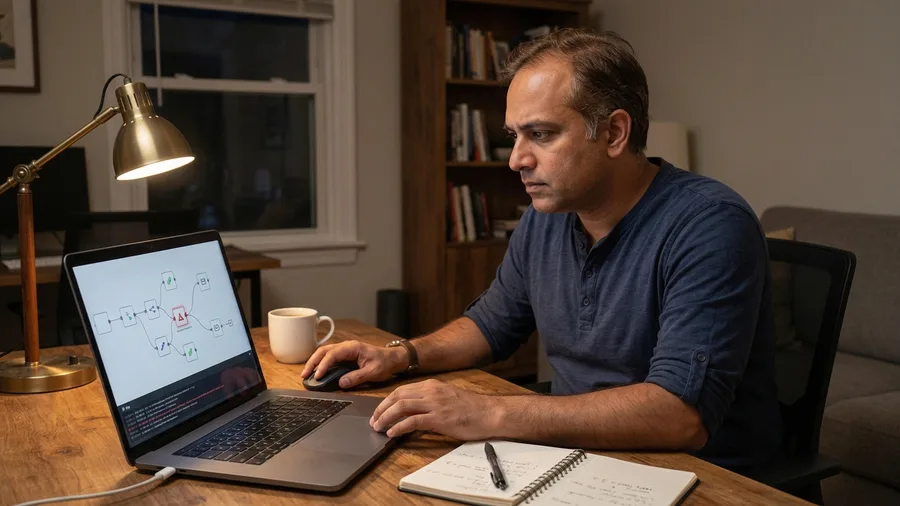
A failed Seedance job is annoying; a workflow that never stops checking is a problem. The default polling loop only asks whether generation is still running, and it has no ceiling, so a stuck job can circle forever while nobody notices.
That is the line between a demo and a real pipeline.
Put a counter in the loop. Let the IF node sort three states instead of two: running, succeeded, and failed. Still running, loop back as before. Past your cap, exit cleanly and fire a notification so you actually find out. Something like 10 to 15 passes at 30 seconds each is a sane ceiling for most jobs, and it keeps a dead task from piling up executions all night.
Then cover the silent failures, which are the sneaky ones. An n8n error workflow, or a small alert node hanging off the OpenAI and Seedance calls, means a failed request shows up somewhere you'll see it instead of vanishing into the execution log. Same for the script step: if the first GPT node errors, you want a message, not a half-built prompt.
Log the task ID and the response message on every failure. That pair is gold: you can retry the exact video that broke, or open a support ticket with the real error in hand rather than a vague "it didn't work."
Do that and you can walk away from the pipeline. Skip it and you're babysitting a robot.
The pipeline at a glance
🎯 Trigger
Form, schedule, or Google Sheet
🧠 Script model
OpenAI chat node
🖼️ Image handling
Base64 via code node
🎥 Video model
Seedance 2.0 on BytePlus
⏱️ Poll interval
30 seconds
Credentials you supply
Your own OpenAI key and BytePlus API key, entered into the imported template.
Frequently Asked Questions
Do I need coding experience to run this n8n workflow?
No. The template already contains the nodes and the JSON structure. You import the file, enter your OpenAI and BytePlus keys, match the image file name to the form field, and execute. The only code is the JavaScript node that converts the image to Base64, and it is already written.
How long does one video take to generate?
The workflow waits 30 seconds before the first status check, then loops until the job returns succeeded. Actual generation time depends on the model's load and the length of the video. If your jobs regularly take longer, raise the Wait node to 60 seconds to reduce pointless checks.
Can I make multiple videos without rebuilding the workflow?
Yes. Swap the form trigger for a Google Sheet or a schedule trigger and add one row per product idea. The same pipeline processes each item, which is how the example goes from about two videos a week to ten without adding staff.
What happens if my Seedance API key expires or is wrong?
The POST request fails and no task or video ID comes back, so nothing downstream can run. Add an error workflow or alert node to the HTTP Request node so a bad key surfaces immediately instead of quietly ending in a failed execution.
Do I need a separate tool for voiceover or sound?
Not for the first version. Seedance 2.0 generates and syncs audio natively, so the finished video arrives with the mix included. Review it against your brand claim, though; clean audio will not rescue a script that says the wrong thing.
Import, connect two keys, run one commercial end to end
The launch sequence is short. Import the n8n template, connect your BytePlus and OpenAI credentials, and run one product commercial from idea to downloaded file.
Do that single run before you think about scale. It proves the keys work, the image converts, the POST returns an ID, and the poll loop exits with a succeeded status.
Once that run is clean, you have a choice to make: scale by adding batch rows to a Google Sheet, or add error alerts and retry limits first. For anything you plan to leave running unattended, do the alerts first.
After that, adding videos is a spreadsheet task, not a hiring one.