
Most people assume the chatbot forgets a chat the moment the tab closes. It doesn't – it keeps notes.
A US adult on a free or plus tier of a major chatbot asks a fresh question and the reply references a project mentioned weeks earlier. That unprompted callback is the first visible sign: something was written down, filed, and pulled back out.
The stored material is not one thing. A master Memory toggle, a Saved Memories list, custom instructions, chat-history reference, a training opt-out, connected integrations, a retention timer, and shared links each hold or expose a different slice, and flipping one rarely touches the rest.
Five minutes with the right controls, worked in the right order, shows you what the chatbot has written down, what it can pull from, and which single action removes it. No switch wipes everything – but a sequence covers the ground.
By the last check you can decide for yourself: leave memory on, delete specific entries, clear the whole account, or revoke one shared link before something sensitive surfaces.
Quick Tips Before You Start
Open settings on a desktop
The full memory list is cramped on mobile; use a browser tab so you can see every saved entry at once.
Screenshot before you delete
Capture the Saved Memories page first so you have a record of what was there if something returns.
Check one toggle at a time
Change a setting, confirm it saved, then move on — these menus sometimes reset when you leave the page too fast.
Export before cleanup
Download your data first; the export shows inferred details the settings pages never surface.
Block five minutes, not one
The permission gate, saved list, bio, training opt-out and retention timer live in different screens.
1. The Master Memory Toggle

The permission slip comes first. Before you read a single remembered fact, find out whether the chatbot was ever allowed to keep one.
The master Memory toggle lives in Settings, under Personalization in some builds and under Data Controls in others, depending on which major chatbot you pay for. Its current state is the first thing to look at, before you open a single saved entry, because everything downstream depends on whether saving is on. On a free tier the same switch sits in roughly the same place, so the audit costs you one menu.
Switched on, the chatbot can both save new facts and use them in later answers. Switched off, it stops writing new entries.
That distinction matters more than it sounds. A preference you mentioned weeks ago — say, that you answer emails in the morning and want replies kept short — still shows up on the Saved Memories page after you flip the toggle off, because the toggle governs future saves, not past ones. Open a fresh chat, mention a new detail, and it will not be added. The gate is closed; the room behind it is still full.
This is the setting most people mistake for the eraser, and it is not one. Turning memory off is a permission change: it limits what the chatbot can learn from here forward while leaving every already-stored fact in plain sight on a page you have not opened yet.
Read the toggle's state, note it, and move to the list. What it lets the chatbot do is stop collecting; what it leaves behind is every fact it collected while the permission was live.
💡 Tip: If the toggle is already off but the Saved Memories list is full, someone (probably you, months ago) turned it off after it had already learned plenty. Go straight to the list.
| Setting | What it controls | Where to find it | What to do |
|---|---|---|---|
| Memory toggle | Whether new facts can be saved and used | Settings > Personalization or Data Controls | Turn off first if you want to stop new saves |
| Saved Memories | The visible list of stored facts | Memory page | Delete or edit each entry individually |
| Chat history reference | Whether old chats feed new answers | Data Controls | Switch off to stop past chats being used as context |
| Custom Instructions | Persistent 'about you' text applied to every chat | Settings > Personalization | Trim or rewrite sensitive details at the source |
| Model training opt-out | Whether chats improve the model | Data Controls or Privacy | Opt out; it's separate from memory |
| Temporary chat | Per-conversation incognito mode | New chat toggle | Turn on before you type, not after |
| Connected apps | Email, calendar and drive access | Connected Apps / Integrations | Revoke anything you don't actively use |
| Auto-delete | How long chats are retained | Data Controls | Set 3, 30 or 90 days |
| Export data | Full download of chats and memories | Account menu | Scan it for surprises before deleting |
| Clear all memory / delete all chats | Wipes stored memories and history separately | Account menu | Do both; they don't erase each other |
| Shared links | Public URLs that expose a chat | Account menu | Revoke any link you don't recognise |
2. The Saved Memories List

The list is where the chatbot shows its handwriting. Cutting off new saves tells you nothing about the stack of facts already written down, and that stack sits on its own page.
Open Saved Memories, sometimes labeled simply Memory, and you get each remembered fact as a plain sentence — no dashboards, no categories, just lines like "works as a teacher and prefers brief answers," with an edit control and a delete control beside each one. Expect five to fifty of them on an active account. They read like notes a stranger took about you at a party.
The entries cover the obvious: your name, your job, stated preferences, projects you described. They also cover details you never stated outright — things the chatbot inferred from how you write, what you asked, and when.
Editing a single sentence is genuinely useful when one fact is wrong. Trim "works as a teacher and prefers brief answers" down to the format preference alone, and the job detail is gone while the response style stays. That is the surgical fix, and it costs about ten seconds.
Deleting a single entry removes that fact and leaves the rest of the list standing. Neither edit nor delete touches the others, which is exactly why this page needs reading line by line rather than cleared in one gesture.
This is the visible archive the permission switch never empties. Whatever the toggle's state, the plain sentences here are what the chatbot actually wrote down about you — read them like your own file, because that is what they are.
💡 Tip: Delete the vague entries first. 'Interested in health topics' is more revealing in aggregate than a specific project name.
⚠️ COMMON MISTAKE
Off is not the same as erased
The single most common error is switching the Memory toggle off and assuming the stored facts are gone. They aren't. The toggle stops new saves; the Saved Memories list is where the old ones sit until you delete them one by one. Do both or you've done half a job.
3. Chat History Reference

The tidy list is not the whole story. A chatbot also reads from old conversations that never became a saved entry, and that pull is governed by a separate control.
Chat-history reference is its own setting, distinct from Saved Memories. It does not consult a curated list of facts; it lets the chatbot draw context straight from your past conversations when it answers a new question. Switch it off and the chatbot will not use those old sessions to shape new replies.
What that explains: a project you mentioned in passing eight weeks ago, never saved to the memories page, can resurface in a fresh answer — because the original chat is still on file and the reference is on.
Flipping the reference off does not delete anything. Your old chats remain in your account until you remove them yourself, so you have blocked the use without clearing the archive. Some people expect the switch to do both and are surprised to find the old conversation still sitting in the history list afterward.
Read it as a use control over generated material, not a delete control over stored chats. What it lets the chatbot do is read your back catalog; what changing it leaves behind is that same back catalog, intact and still on the server.
If the reference is off and old chats remain, the next question is not whether the archive exists — it is what the chatbot can pull from beyond your own conversations, and that answer lives in the inputs you connected.
Which controls actually erase what
- 🗑️ Delete individual memories — Removes that one fact immediately; the rest of the saved list stays.
- 🚫 Clear all memory — Wipes the stored memories in one step, but not your chat history.
- 🖇️ Revoke a shared link — Closes external access to that chat without touching the stored memory.
- ⏳ Auto-delete at 30 days — Timed cleanup of chats only; saved memories can outlive the chat they came from.
- 🔒 Memory toggle off — Stops new saves; the existing archive stays until you delete it.
- 📅 Revoke a calendar link — Cuts future access; details already pulled in can remain.
- 🧠 Assume it forgets when you close the tab — It doesn't. Memory, history and training each need their own setting.
- 📤 Export and call it cleanup — The download is an audit copy; nothing is deleted by taking it.
4. Custom Instructions and Bio

One line typed into a settings box a year ago follows every conversation since. The 'about you' field, labeled Custom Instructions, holds short self-descriptions like "I'm a teacher" or "I prefer brief answers" that load before the first prompt of every new chat.
That is a different animal from a fact the chatbot inferred and filed away. A saved memory is one entry in a list you can scroll, edit, or delete; custom instructions are a standing instruction the model reads as background truth on every turn, whether or not you meant to leave it there.
Deleting another entry from your saved list does nothing to this text. It has to be edited at the source, in Settings under Personalization, where the about-you field and the response-style field sit as editable blocks.
The damage is quiet. Write "I'm managing a chronic illness" or "I'm job hunting after a layoff" into that field and the model calibrates tone, guesses, and detail level around it forever, even in a chat about a recipe.
Open the field and read it aloud. Trim the job title, the health detail, the relationship status, the salary band; keep the useful style asks like "skip the preamble" and "use plain language." The persistent stuff lives here because you put it here, so that is where it comes out.
💡 Tip: Rewrite Custom Instructions in the most generic terms that still help: 'answer at a professional level' rather than naming your employer.
5. Model Training Opt-Out

Your conversations are not just stored; on many plans they are eligible to improve the model itself. The switch governing that is not the memory toggle, not custom instructions, and not anything on the memory page.
It lives in Data Controls or Privacy Settings, usually labeled something like "Improve the model for everyone" or "Help improve our services." The setting decides whether your chats can be used to make the next version smarter.
This is the catch most people miss: memory off does not mean training off. A user turns memory off, feels relieved, and the conversations keep flowing into model improvement because that separate control was never touched.
Find the toggle in Data Controls, read its current state, change it if you want, and save before leaving the screen. The state sticks once saved; it does not reset the memory page, and it does not delete a single stored conversation.
Opting out draws a line around future use. It is a use control, not an eraser, so saved memories and old chats survive it exactly as they were.
Temporary chat — at a glance
⏱️ When to set it
Before the first message
🗂️ Saved to history
No
🧠 Added to memory
No
🛡️ Safety review
Still possible
🏋️ Model training
Varies by provider
What it is not
Temporary chat stops a conversation sticking to your account; it is not blanket anonymity.
6. Temporary Chat Mode

Some questions should never touch your account at all. A medical bill, a legal clause, a message you are drafting to a family member: temporary chat is the per-conversation mode built for exactly those, and it only works if you flip it before you type.
The toggle sits at the top of the chat window or in a menu next to New Chat. Turn it on first, then ask. A chat that starts in normal mode cannot be made temporary after the fact; the switch has to be set before the conversation begins.
A temporary conversation is left out of your history, never lands in the saved list, and never becomes past-chat context the model pulls from later. Ask about that medical bill in temporary mode and no memory entry is created.
It is not blanket anonymity, though. These conversations may still be reviewed for safety, and depending on the provider they may still be used for training, since temporary chat and the training opt-out are separate mechanisms.
Use it as a break-glass mode for the sensitive one-off, not a guarantee that nothing anywhere saw what you typed. The stakes of a close chatbot relationship are real, as one teen's story shows.
A normal chat vs a temporary chat
Normal chat
- Retention clock starts at the first message
- Delete-one lives under Data Controls, not the chat
- Shared links survive deletion of the chat
- Clear-all wipes the list, not the training copy
- Memory toggle off stops new saves only
Temporary chat
- Toggle resets to off on every new chat
- No share link can be generated from it
- Export skips these threads entirely
- Safety review can outlast the session
- Opt out of training separately in Data Controls
7. Connected Apps and Integrations

A temporary chat keeps one conversation off the record. The inputs wired in from outside the chat box are a different matter entirely.
Connected apps and integrations are where a chatbot reaches past the conversation into email, calendar and cloud drive. A linked calendar alone hands it meeting titles, attendee names and times it can fold into a reply as if it already knew.
Access lives in the connected apps or integrations section of account settings, where each linked service shows its own revoke control.
Pulling the plug is the easy part. Revoking the calendar link stops future reads, but details already pulled from a meeting with a named colleague can sit in memory long after the pipe is closed.
The reason is structural: an integration is an input pipe, and closing a pipe does not clean what already flowed through it.
Revoke the link, then go back and check the Saved Memories list for whatever arrived from it.
8. Auto-Delete and Retention

Every input you connect gives the chatbot one more source to draw on, and retention decides how long the conversations it already holds stay in reach.
Open Data Controls or the Privacy settings and find the Auto-Delete line. Your choices run to whole-day spans: three days, 30 days, or 90, and the one in effect clocks every chat from the moment it closes, sweeping it out of history when its span runs out.
The timer only counts conversations.
Set it to 30 days and a chat from six weeks back quietly drops out of your history, but a favorite author or a vacation date the chatbot already wrote down as a memory entry from that same conversation is still listed. Saving sits apart from the timer, so the timer does not touch it.
Think of retention as a countdown on the transcript, not a broom for the memory list.
💡 Tip: If you rely on old chats for ongoing projects, export before you drop the retention window to 3 days.
What the retention timer actually covers
Auto-delete windows are the standard options offered in data controls as of this writing.
9. Export Your Memory Data

A retention timer thins the archive going forward. It never shows you everything already sitting in it.
For that, use Export data, which shares an account menu with delete-one, clear-all and shared-link controls.
The download that lands is messier and more revealing than the settings pages. It bundles chats and memory entries into one file, and it often surfaces inferred details the Saved Memories page never displayed.
Picture a line reading that you are job-hunting, pulled from an offhand remark months ago and never shown on any list. It shows up in the export and points straight to the entry worth deleting.
Treat the export as an audit, not a cleanup. Deleting happens back in the controls that own each item, one list at a time.
💡 PRO TIP
Search the export, don't skim it
Open the downloaded file and search for three things: your employer's name, your town, and any health term you've typed. The hits show you which saved memory entries to remove — and which ones you didn't know existed.
10. Delete Individual Memories

That export is an audit. The smallest repair it can point you toward sits one line down.
On the Saved Memories or Memory page, every remembered fact is a single plain sentence with an edit control and a delete control in the same row. A line reading 'works as a teacher and prefers brief answers' has its own delete button, independent of every other entry in the list. Click it and that one sentence disappears while the rest of the archive stays exactly where it was.
Deletion of a single entry is usually immediate. No confirmation email, no 30-day grace period, no ghost of the sentence lingering at the bottom of the page.
The catch sits behind that clean result. With the Memory toggle still on, the chatbot keeps saving, and the fact you just removed can come back the next time a chat mentions it. Delete a wrong job title on a Tuesday, mention the same role in a Thursday conversation about a promotion, and a fresh entry with the same detail reappears on the list.
Granular delete fixes the visible fact at this moment. It does not touch the conditions that let the fact be saved in the first place.
That is why the delete button is the right tool for a single bad line and the wrong one for a pattern. If the same detail keeps returning, the problem is upstream, and the fix is the permission gate rather than a faster finger on delete.
💡 Tip: Delete entries that combine two facts into one sentence, then re-add only the half you want by stating it plainly in a future chat.
11. Clear All Memory and Chats

One wrong fact at a time gets tedious fast. When the goal is a clean slate for both the stored list and the conversation log, the account menu holds two separate buttons that do two separate jobs.
Clear memory wipes the stored memories. Delete all chats wipes the conversation history. They sit in the same account menu, and neither one deletes your account, so the login and billing details survive the cleanup untouched.
The order matters less than checking both. Plenty of people hit clear memory, see an empty Saved Memories page, and assume the chats are gone too. The old conversations are still sitting in history, ready to feed the next answer if history reference is on.
Anything you downloaded earlier stays downloaded. A CSV export pulled during an audit last month still holds every memory entry and chat transcript it captured, and clearing the product does nothing to a file saved to your laptop or sitting in your cloud drive.
Think of it as the nuclear reset inside the product. It drops the two internal stores to zero. Total erasure everywhere is a different problem, and it includes files you saved yourself.
12. Shared Links and Public Chats
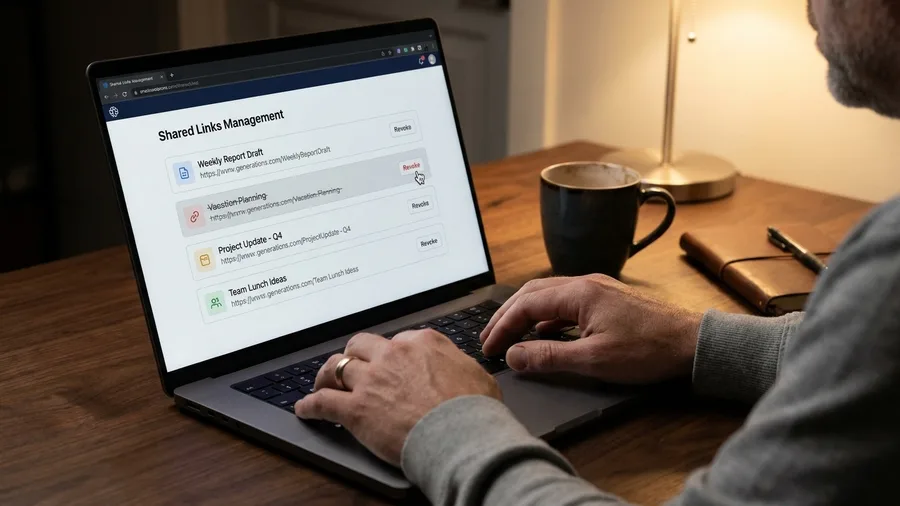
The internal cleanup is done, and one exposure sits outside the account entirely: the shared link.
A shared link converts a single chat into a URL that loads for anyone holding it, with no sign-in, no contact request, no confirmation that the person clicking is the person you meant to send it to. The conversation renders whole, which means the earlier exchange about a project rides along with whatever the chatbot pulled into that thread: a manager's name, a salary question, the detail about a client that made you wince when it appeared in the reply. The reader who forwarded that link at 11pm to loop in a colleague sent more than the answer they wanted to share.
Nothing warns a recipient, and nothing notifies the sender when the link gets passed on.
The control sits beside the other cleanup tools in the same account menu: export, delete-one, clear-all, and the list of links you have generated. Open it and read every entry, because the URLs there carry titles that look bland and conversations that are not. A link titled with a casual opener can hide a chat about a medical bill or a performance review. Revoking one takes a click, and from that moment the URL returns an error page to everyone who tries it, including anyone who saved it months ago.
Revoking closes the door to viewers. It changes nothing behind it.
The conversation stays in your history, and any fact the chatbot drew from it stays in the saved list, that entry still sitting there for future answers. Strip the external access now and the internal material still needs the deletions the memory controls own. Two separate jobs, two separate screens, and only one of them lives at that URL.
Frequently Asked Questions
Does turning off memory delete what the chatbot already knows about me?
No. The Memory toggle is a permission gate: off stops new facts being saved. Everything already written down sits in the Saved Memories list until you delete each entry individually or use the clear-memory control.
Is a temporary chat really private?
It's excluded from your history and memory, so it won't add to the saved list or become context for later answers. It may still be reviewed for safety, and whether it feeds model training depends on the provider. Read the small print under the toggle.
If I clear my chat history, are my saved memories gone too?
No. Clearing memory and deleting chats are separate controls. Clearing memory wipes the stored facts; deleting all chats wipes the conversation history. Do both, then check the Saved Memories page to confirm it's empty.
Can a deleted memory come back?
Yes, if memory is still on. The chatbot can re-learn a deleted fact from a future conversation. Switch the master toggle off first, then delete the individual entries, and the deleted fact stays gone.
Does the model-training opt-out delete my old chats?
No. It stops your chats being used to improve the model going forward. Old conversations and saved memories are untouched, so handle those with the retention timer and the Saved Memories page.
What does a shared chat link expose?
Anyone with the URL can open the conversation, including the context the chatbot carried into it and details it repeated back. Revoking the link stops it working for viewers, but it doesn't change the stored memory or delete the chat.
Kill The Memory Toggle First
Run the order, not the panic. Master Memory toggle first, then the Saved Memories list and Custom Instructions, then the training opt-out, then auto-delete and shared links. If only one action happens, turn off memory and delete the saved list; that stops new saves and clears the visible facts at once.
The callback to an old project is the symptom. The toggle and the list are the first two places to look, and the remaining controls close use channels and timers, not memory itself. Cleanup is a sequence of permission, inspection, limits and revocation, designed separate.
So close the tab and open the account menu. That forgotten chat is still there, written down, until you go and read it.
Five minutes, twelve checks, one clean account
Open your chatbot settings now and start with the Memory toggle. Then work down the Saved Memories list — that's where the old facts live.