
You'll get your free space back tonight, without an Apple Store trip and without buying iCloud storage that frees nothing on the phone. Here are nine deletions, ordered by how much they return.
This is for anyone whose iPhone is nagging them before a photo, a video or an update. The example used throughout is a 256 GB iPhone showing about 10 GB free, but the steps work on any model.
Each step states the catch before the win. Most catches are smaller than they look, and the biggest one is not deleting the right things: it's forgetting to empty Recently Deleted at the end. That's why it's the last step.
| What you remove | What it typically frees | What you give up | Do it now or later |
|---|---|---|---|
| 4K videos already saved elsewhere | About 4 GB per 10-minute clip; around 20 GB for five clips | The copy on the phone only | Now — biggest single win |
| App data hidden behind small apps | Up to 9 GB from a 250 MB app; Snapchat shows 6.04 GB | Chat history in some apps unless backed up | Now |
| Message attachments and old threads | Up to 5 GB from 50 full-size attachments | Those photos and files, with no undo | Now |
| iCloud photos kept only on the phone | Depends on library size; Optimize Storage saves space-saving copies | Full-resolution copy on the device | Now, or when you next edit |
| Downloaded music and podcasts | Varies by library; each download shown in iPhone Storage | Offline listening until you re-download | Now, if you have data |
| Voice memos and oversized files | The size of each large file | The file itself unless you share it out first | Now |
| Screenshots and screen recordings | Hundreds of small files; typically hundreds of MB | Nothing that matters | Later — they go to Recently Deleted for 30 days |
| Unused apps (offloaded) | Several GB from apps you keep just in case | The app file only; documents and data stay | Now |
| Recently Deleted album | Everything the earlier steps promised | The 30-day undo for those photos | Last |
1. 4K Videos You Already Saved Somewhere Else
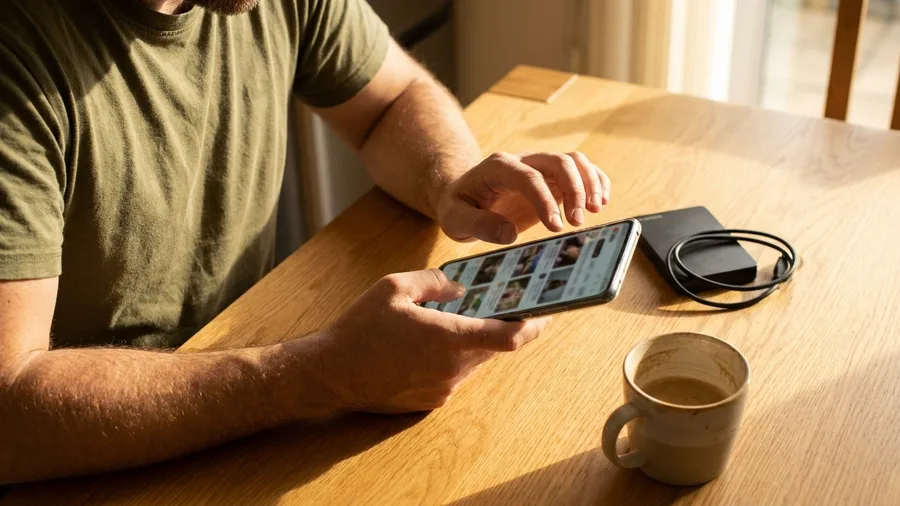
Twenty gigabytes. Five ten-minute clips shot in 4K at 60 frames per second take about 400 MB a minute, so each one runs roughly 4 GB.
On a 256 GB phone holding five of them, that is a fifth of the whole device sitting on the camera roll.
Settings > General > iPhone Storage sorts apps and files by size, so the largest single items land at the top.
In Photos, go to Albums > Media Types > Videos to see every clip in one grid. The videos number is the one to read first.
If the grid does not show which clips already live on a laptop or drive, hand the list to AI tools that survived a year and ask which are likely duplicates. Confirm each one yourself before anything goes.
Prompt to copy
Below is the list of video titles and dates from my iPhone Photos app. I have backups on an external drive from 2024 and 2025. Sort the titles into two groups: clips likely already backed up on the drive, and clips I should keep on the phone. Ask me one follow-up question if the titles are not clear. Keep it under 150 words and do not tell me to delete anything until I confirm the backup.
What comes back is a short sort, not a decision. Check the file names against the drive yourself, and check that iCloud Photos is off or that the clip is not one you need in the cloud.
Then play the copy on the computer before deleting. The originals still exist wherever you saved them.
💡 Tip: Sort iPhone Storage by size, not name. The top five items are almost always video.
2. Apps That Are Tiny but Carry Gigabytes

The storage bar says 6 GB next to Snapchat, but the App Store listing said 331.7 MB. The shop number is the download size. The phone number includes every message, photo and media file the app has cached since you installed it.
Open Settings > General > iPhone Storage and each app shows its own size separately from its documents and data. Sort by that second number.
A 250 MB app can drag 9 GB behind it. One data-heavy app deleted and reinstalled can hand back more than an hour of culling photos.
Back up chats in WhatsApp or WeChat first, or the history is gone. Reinstalling from the cloud keeps documents and data. Deleting removes them. Cost: $0, about 15 minutes, and one backup you will never need again.
⚠️ COMMON MISTAKE
Don't delete chat apps cold
Deleting WhatsApp or WeChat without a backup wipes the conversations for good. Use the app's own backup first, then delete. If you only need space, offload the app instead.
3. Message Attachments and Years of Old Threads

Because Messages keeps everything by default. Every photo, video and file anyone ever sent stays, indefinitely. Attachments can reach 100 MB each, so 50 full-size ones is 5,000 MB, or about 5 GB, sitting inside one app.
App data is the biggest hidden store, and Messages is the app where it arrives by itself, one tap at a time.
Step 1: Open Settings > Apps > Messages and find the keep setting. Change it from Forever to one year or 30 days. You should see the new limit saved with a checkmark. This caps what the app can pile up from now on.
Step 2: Open Settings > General > iPhone Storage, tap Messages and delete the largest attachments. They go immediately and skip Recently Deleted, so there is no undo. Unlike photos, which sit for 30 days, this is permanent. Tap through each one first.
You get the space back tonight, and the footprint stays smaller every month because the app now drops what it no longer needs.
4. Photos That Already Live in the Cloud
The photo library is the one place where the fix is a setting, not a deletion. Turn on iCloud Photos and the phone can keep small standby copies while the full-size originals stay in the cloud.
Apple switches this on by default. On iOS 27 or later, confirm it under Settings, your name, iCloud, then Photos.
Catch first: paying for more iCloud room frees nothing on the phone itself, because device storage and cloud storage are separate pools.
As of November 2026, US upgrades run $1 a month for 50 GB, $3 for 200 GB and $10 for 2 TB, and that money buys cloud room only.
Deleting a shot here also removes it from iCloud.
Anyone who will not pay can move photos into Google Photos instead, where a free account holds 15 GB. This is the step that hands back space without losing a single picture.
Delete or offload? The choice that decides the space
Delete the app
- Removes the app and its documents and data
- Chat history is gone unless backed up
- Best for apps you truly never use
- Reinstalling means setting it up again
Offload the app
- Frees the storage the app uses
- Keeps its documents and data
- Tap the cloud icon to reinstall
- Some built-in apps cannot be offloaded
5. Music, Podcasts and Video You Downloaded

Prompt to copy
List every app on my iPhone that is likely holding downloaded music, podcasts or video for offline use. For each one, tell me in one line where inside that app I find the downloads and how to remove them, and flag which ones I should check before a flight.
Paste that into ChatGPT or Gemini and it returns a short checklist in under a minute.
The numbers behind it showed up in Settings earlier: Music, Podcasts and any video app each carry their own block of storage, and each holds copies of things you can stream again.
Catch first: getting those files back needs a connection and burns data, so a flight tomorrow is the wrong night for this. Remove downloads inside each app's own settings, not by guessing at menus.
For anyone on a generous data plan who never actually listens offline, this is the quickest few gigabytes on the phone.
6. Voice Memos and Oversized Files

A handful of giant files can leave in minutes once you stop scrolling by date. Open the Files app, tap any On My iPhone location, and sort by size so the biggest items float to the top.
Catch first: sharing a file into a chat app makes a second copy, one in Files and one in that app, so clearing here may leave the other behind.
The usual offenders are long voice memos and recorded meetings, so send anything worth keeping to a computer or a drive first.
What goes is what you would never play again. Nothing deleted here is gone for good if it can be re-recorded or fetched back.
⚠️ COMMON MISTAKE
Don't empty Recently Deleted early
Those photos sit there for 30 days as your only undo button. Empty the album at the end of the cleanup, not in the middle of it.
7. Screenshots and Screen Recordings You Forgot

Clearing screenshots is safe, but the space does not show up tonight. What goes will sit in Recently Deleted for 30 days, still counted against you, until that album is emptied.
The real risk is the receipt you still need for a return or a warranty. Keep those until the window shuts.
They are photos by format and clutter by content. Clearing them by hand means scrolling thousands of images and clicking into each one to check it, roughly half an hour of tapping.
So don't: open Photos, tap Albums, then Media Types, then Screenshots, and the junk sits in one set apart from every real photograph.
That view takes seconds to load. Tap Select, drag down a column to grab a batch, and delete.
Your review is the slow part: glance for order confirmations or addresses worth keeping, about four minutes. The two times: about 30 minutes by hand, four with the filter.
8. Apps You Haven't Opened in a Year

Offloading is the safer deal here: the app's own storage goes, but its documents and data stay, and tapping the cloud icon brings the app back set up as it was.
Deleting throws the data out too. Screenshots take one tap each; apps can go in bulk with one switch.
Apple's Offload Unused Apps switch is the one-time setup that does it for you. It sits in Settings > Apps > App Store, and in iOS 26 it is already on.
Once it is, iOS handles the app you last opened months ago without asking, and hands back its space.
Setting it takes under a minute, and the payoff is several gigabytes from apps kept just in case.
Open one again and it reinstalls with your data, and no sign-up or setup from scratch. The catch: some built-in system apps cannot be offloaded.
One that stays put is normal, not a bug.
The catch is smaller than it looks. A reinstall needs a connection and some data, so do not offload the app you will need tomorrow in a dead spot.
For the rest, the switch quietly keeps paying back month after month, and nothing you cared about goes with it.
The running order, from worst offender to last tap
Skip the small steps if you only need a few gigabytes before an update.
9. The deleted photos still taking up space

Because photos you removed sit in Recently Deleted for 30 days, and they keep using storage the whole time. The number only climbs when that album is cleared.
The old way was waiting a month and wondering. The new way: open Photos > Albums > Recently Deleted, check what is in there, then clear it. Two minutes, and the available-space figure in Settings finally moves.
The catch comes before you tap. If a photo went by mistake, stop and do not empty it. That 30 days is the only undo button there is. Message attachments are the exception: ones removed through iPhone Storage go immediately and never land there.
With that cleared, every deletion in this cleanup lands at last. The warning on your screen goes quiet tonight, not 30 days from now.
Storage words, decoded
Frequently Asked Questions
Will buying more iCloud storage free up space on my iPhone?
No. iCloud storage and device storage are separate pools, so a paid iCloud plan adds cloud room only. The $1 a month for 50 GB, $3 for 200 GB or $10 for 2 TB does not touch the phone's own free space. Use the nine deletions in this article first.
Can I delete an app and keep its data?
Yes, by offloading it instead of deleting. Apple says offloading frees the storage the app uses while keeping its documents and data, and tapping the cloud icon reinstalls it intact. Deleting removes the data too, and some built-in apps cannot be offloaded at all.
Does deleting a photo on my iPhone delete it from iCloud?
Yes, when iCloud Photos is on. The same photo exists in both places, so a delete on the phone removes the cloud copy as well. Play or check the photo on a computer before you delete it if it matters.
How much space do 4K videos actually take?
About 400 MB a minute at 4K and 60fps, according to a CNET guide. A 10-minute clip is roughly 4,000 MB, about 4 GB, and five of them is about 20 GB. That is why video is the first step in this cleanup.
Do I need to be a programmer to do this?
No. Every step is a settings screen or a delete button you can reach from the iPhone. The only optional AI step is a checklist prompt you can paste into ChatGPT or Claude, and you review its answer in about two minutes.
Open iPhone Storage, sort by size, and empty Recently Deleted last
Don't work through a pile. Open Settings > General > iPhone Storage, sort by size, and do the app with the largest documents-and-data number plus the biggest 4K videos first. Finish by emptying Recently Deleted so the space actually appears.
If you have plenty of room, stop after the video and app-data steps. If you hit the wall mid-update, delete a 4K clip and the heaviest app data before the download starts, since iOS deletes nothing for you until it has nowhere left to write.