
Cleaning up a week of stray notes, reminders and half-booked calls by hand took about 40 minutes on a Sunday.
A phone set up to catch each thing as it arrives does the same work with no desk time. The setup is 75 minutes once, and it costs $0.
Your lock screen is a to-do list you never wrote. Sixty apps, 80 notifications, and by evening you still cannot say what got done. The apps you need are already installed.
On iOS 27.3, Siri AI acts across 16 of them, including Mail, Calendar, Messages, Notes, Reminders, Safari and Shortcuts.
Seven setups take 75 minutes in all. The two big ones take 15 to 20 minutes. The other five take 5 to 10. They run in a fixed order, and each one feeds the next, so nothing you build sits unused.
Tonight you can build the capture box. Two setups wait on the 27.3 beta, so join the waitlist in Settings before you start. Setup six carries one privacy rule, stated in full. Together they turn 80 notifications into a system that catches, briefs and clears.
| Setup | Built with | What it replaces | Build time |
|---|---|---|---|
| 1. Capture box | Shortcuts + Reminders + Calendar | Scattered notes and sticky pads | 15 min |
| 2. Morning brief | Shortcuts automation + Calendar + Weather | Lock-screen scrolling in bed | 20 min |
| 3. Message windows | Messages + Writing Tools + Siri AI | Answering every ping the second it lands | 5 min |
| 4. Auto-booking calendar | Calendar + Siri AI Call Context | Five-email scheduling threads | 10 min |
| 5. Safari watch list | Safari Notify Me + tab topics | Refreshing a restock or price page by hand | 5 min |
| 6. Meeting notes | Notes + Writing Tools | Retyping minutes after every call | 10 min |
| 7. Friday tune-up | Shortcuts + Passwords | A system that falls apart by week three | 10 min |
1. A One-Button Capture Box for Everything

A capture box is one button that takes a messy thought and files it as a dated task, a calendar event or a note. It is built in Shortcuts, the automation app already on the phone, and it takes about 15 minutes and $0.
Open Shortcuts, choose to build one from a plain-language description, and type this exactly into the description box.
Prompt to copy
When I run this, show a text box. Split what I type into tasks, appointments and notes. Put the tasks in my Reminders Inbox list, dated today unless I say another date; put the appointments in Calendar with the date and time I mention; save the rest to a note called Capture. Then show me a summary of what you added.
By hand, a stray reminder means opening Reminders, Calendar and Notes and retyping the same sentence three times, about four minutes a thought. The shortcut returns a sorted summary in seconds. Checking it takes another minute.
💡 Tip: Todoist Pro at $7/month or $60/year is the paid route only if the built-in Reminders list itself feels too thin. Build on Reminders first, then decide.
The Jargon in Plain Words
2. A Morning Brief You Never Write

The first generated version rarely comes out exactly right, so fix it action by action instead of regenerating and hoping the next try is better.
The cloud models behind the shortcut also carry a daily usage limit set by Apple. The current cap sits in Shortcuts settings, and once it is gone the AI step will not run that day.
Run the finished box from the Action button or Back Tap, or dictate from the Lock Screen. A stray thought then becomes a dated task or a calendar event without opening three apps.
Quick check: about four minutes by hand per thought against under a minute typed and checked.
Todoist Pro at $7 a month or $60 a year is the paid route, and only worth it if the Reminders list itself feels too thin.
📅 Build order: one setup a week
Week 1 — Capture box
Build the 15-minute shortcut first because the other six read what it collects.
Week 2 — Morning brief
Add the 20-minute weekday automation once reminders and appointments are already landing in lists.
Week 2, same day — Message windows
Set the 8 a.m. and 4 p.m. message windows, the 5-minute setup that protects the brief's quiet.
Week 3 — Auto-booking
Switch on the 10-minute calendar command, and check every event it creates that week.
Week 4 — Safari watch list
Add Notify Me at a page you actually refresh, plus tab topics for the research pile.
Week 4, ongoing — Friday tune-up
Ten minutes every Friday to edit broken shortcuts and clear weak passwords.
3. One Message Window a Day
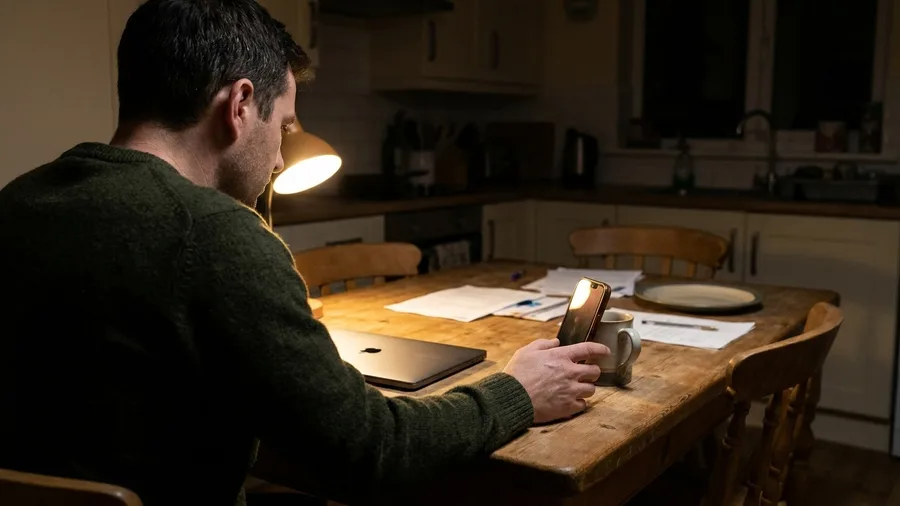
The morning brief depends on a daily Apple usage limit, so test it in the first week and keep a plain non-AI version if the morning relies on it.
The safe build is a weekday automation at 6:45 a.m. that speaks what was already collected, with no screen unlocked.
Type the description into Shortcuts when it asks: "Every weekday at 6:45 a.m., read me a briefing built from my Calendar events today, my Reminders due today or overdue, and the weather for where I am. Keep it under 60 seconds, speak it out loud, and save the same text to a note called Brief."
The old way was a lock-screen scroll: fifteen minutes of Mail, Slack and the news before a decision got made. The new way is today's events, reminders due or overdue, and the weather where you are, under 60 seconds, saved to a note called Brief.
That 60-second ceiling is the point. A heavy day gets trimmed, not extended, so the brief never turns into a second inbox.
Twenty minutes to build, and one minute a morning for the first decisions to be made before the first coffee.
⚠️ COMMON MISTAKE
Do not schedule sends before the beta ships
Scheduled iMessages come with Siri AI in the iOS 27.3 beta and require joining the waitlist in Settings. If your phone is on an older iOS, ask Siri to remind you instead — the message stays unsent but appears in Reminders, and you send it at the window.
4. A Calendar That Books Itself
Book the call, not the thread. One voice command puts it on your calendar, invites the person and attaches a video link, which is Siri AI in 27.3, not older iOS. Ten minutes of setup covers the day.
That is one command where the reply-all chain used to run. Call Context reads the number you are dialing, not the conversation, so your hotel code or flight confirmation surfaces from Mail mid-call.
Beta Siri AI works across 16 apps here, so open each event and confirm it landed before deleting the email that proves it. Weekly repeat meetings: Fantastical, $4.75 a month billed annually, adds templates.
💡 Tip: When a booking goes wrong, undo it in Calendar rather than editing the event. A wrong invitee gets a notification you cannot take back.
5. A Safari Watch List That Pings You

Five minutes at the Safari page, and no more thumb-refreshing a product, booking or delivery page.
You point Notify Me at the address and iOS pings you when it changes, restock or price drop alike.
The exact switches are on Apple's Safari page, so nothing gets guessed here.
It reports a change, not the price you want. How often Safari checks is Apple's to set, and the current options live on that same page, so no refresh rate gets promised.
Tabs get filed by subject as you open them, so three weeks of comparing suppliers lands as one stack instead of forty loose ones. You save the refreshes, and a ping arrives when it matters.
Safari watch: worth it or not
Set Notify Me on
- A product page that sells out within hours
- A booking page you keep refreshing
- A delivery status during a bad week
- A price you will pay this week
Keep refreshing by hand
- A price you will not pay for months
- Pages behind a login
- Anything you check once a day anyway
- A page that changes every minute
6. Meeting Notes You Never Retype

The tedium is the second typing. You leave a 40-minute call with decisions in your head, then retype the same points into a note nobody reads. Writing Tools cuts that, and you probably already have it.
The feature lives on the iPhone, in Notes, Mail and anywhere a cursor blinks, many third-party apps included. Ten minutes is enough to learn it: highlight the text, hit Summarize, then Proofread the result before it goes out.
The one privacy rule for this whole article sits here. Never put passwords, card numbers, health details or a client's confidential document through Rewrite or Summarize. Type that text, or keep it out of the AI step.
The catch is that a summary drops the specifics, the names, the figures and the decision itself. Keep the full transcript in the same note, below the summary, and the minutes are ready before you leave the room.
💡 Tip: Give the note the meeting name and date before you summarize. It costs two taps and makes the note findable next month.
What changes over four weeks
Times are build time only; checking the AI output adds 3 to 5 minutes per task.
7. A Ten-Minute Weekly Tune-Up

Six shortcuts now depend on a daily allowance and a task list. Nothing here stays correct on its own once a few weeks pass – which is the Friday job.
Ten minutes opens each generated shortcut. You look for the action that misfires. One wrong action is all it takes: find it, edit it, and move on.
The settings screen in Shortcuts shows how much of the cloud-model daily cap the briefs and captures have used.
If it runs tight, switch the least important one to plain actions. The cap itself is Apple's, listed in Shortcuts settings, so check there rather than guessing a number.
Prompt to copy
Open my Shortcuts app and find every shortcut I built with a plain-language description, including my capture box, my morning brief and my meeting-notes shortcut. For each one, list the actions in order and flag any action that looks wrong: a task going to the wrong list, a time that is off, a step that repeats. Do not rebuild anything. Return a short checklist of fixes per shortcut, under 200 words, in plain English.
Paste that into ChatGPT or Claude with each shortcut's action list. It comes back in about 30 seconds with a fix-it checklist. Your edit takes five to eight minutes.
Then Passwords upgrades weak or compromised logins in one tap, so the same ten minutes clears the security debt. Ten minutes on Friday replaces ten interruptions every morning.
Frequently Asked Questions
Do I need to pay for any of these seven setups?
No. All seven run on apps already in iOS 27.3 and the Apple features included with the phone. The only paid upgrades named are Fantastical at $4.75/month billed annually for repeat-meeting templates and Todoist Pro at $7/month or $60/year if the Reminders list feels thin.
What if my iPhone is older than an iPhone 16?
Apple Intelligence features need iPhone 16 or later, or iPhone 15 Pro and Pro Max. On older phones the capture box, message windows and Safari watch list still work with plain actions, but the AI summary and conversational Siri steps will not be available.
Is Siri AI safe to use with client information?
Siri AI in the 27.3 beta acts across 16 apps, which means it reads a lot of what is already on your phone. Never run passwords, card numbers, health details or a client's confidential document through Rewrite or Summarize. That text either gets typed or kept out of the AI step entirely.
How long does the full set take to build?
Seventy-five minutes across all seven: capture 15, morning brief 20, message window 5, calendar 10, Safari watch 5, notes 10, tune-up 10. Build one a week, and start with the capture box because the other six read what it collects.
What happens when I hit the shortcut cloud usage limit?
The AI step in a shortcut stops running for that day. The current cap is set by Apple and shown in Shortcuts settings, so check it there rather than relying on a quoted number. Keep a plain, non-AI version of any shortcut your morning depends on.
Do these setups work outside the United States?
Apple Intelligence in China opened for testing in November 2026 and reached users with the iOS 27.3 release in December. Elsewhere, support depends on the device language and the region set in Settings. Check Apple's Apple Intelligence page for your country.
Build the capture box first, then one setup a week
Build the capture box this evening. It takes 15 minutes, it costs nothing, and the other six setups read what it collects. Everything else is stacked on top of it.
Then add one a week in order: the morning brief in week one, the message window the same day, auto-booking and the Safari watch list after that. Start the Friday tune-up on day one so the calendar has a repair slot before you need it.
Seventy-five minutes in total turns an 80-notification phone into a system that catches, briefs and clears. Do the first 15 tonight.