
Your iPhone already has fifteen switches you have never flipped. I set them all up on an iPhone 16 Pro running iOS 26, lived with them for six weeks, then turned each one off to see what I actually missed.
Ten minutes of setup gets you a phone that visibly does more.
Most of these ride a button you already press or a camera you already point. A few change how calls and messages arrive. Two you build yourself in Shortcuts. The last one removes touching the phone at all.
I have used an iPhone daily since the 3G, and I write about iOS for a living.
That did not stop me from getting several of these wrong the first time. Where I did, I say so, and I give you the exact path to fix it.
| Trick | Where you turn it on | What it needs |
|---|---|---|
| 1. Visual Intelligence | Side + volume up (screenshot buttons) | iOS 26, supported iPhone |
| 2. Offline Song ID | Control Center (add Music Recognition) | iOS 26, no signal needed |
| 3. Plant ID | Photos > Info button | Photo with stars symbol |
| 4. Laundry Care | Photos > Info > Look Up Laundry Care | Clear shot of care label |
| 5. Auto-translate texts | Messages settings | iOS 26 |
| 6. Call Screening | Settings > Phone | iOS 26, unknown numbers |
| 7. Hold Assist | Settings > Phone | iOS 26, live agent |
| 8. Messages Poll | Plus button > Polls | iOS 26, up to 12 choices |
| 9. Urgent Reminders | Quick Toolbar or hold | iOS 26, Smart List filter |
| 10. Back Tap | Settings > Accessibility > Touch > Back Tap | iPhone 8+, iOS 14+ |
| 11. Action Button folder | Settings > Action Button | iPhone 15 Pro, 16 series+ |
| 12. Describe a Shortcut | Shortcuts app | iOS 27, iPhone 15 Pro+ |
| 13. Charger automation | Shortcuts > Automation | Any iPhone with Shortcuts |
| 14. Multi-launch shortcut | Shortcuts + Siri/Share Sheet/Control Center | Any iPhone |
| 15. Voice Control | Settings > Accessibility > Voice Control | iOS 13+, works offline |
1. Turn the Screenshot Buttons Into a Search Lens
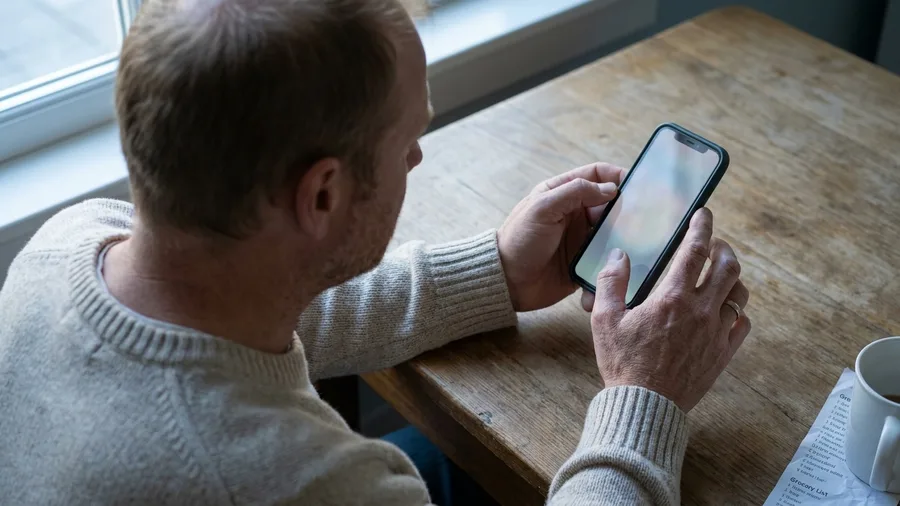
Visual Intelligence reads whatever is on your screen. You summon it with the same two presses you already make for a screenshot, and it looks at the display instead of dropping an image into Photos.
A plate from the same panel sends you to Google results, or hands the shot to ChatGPT with your question attached. On a work app that threw a 403 error, I had search results in about eight seconds and never typed a word.
Not every iPhone gets the full panel, so check Apple's iOS 26 feature page for your model before you count on it. The press feels identical either way, and that is where people get caught out.
The catch is the price of speed. The lens reads whatever is on screen, and in a banking app or a work portal that can be a name, a balance or a client reference going to a third party.
Check what is visible before you press.
Used on a menu, a product shelf or an error string, it saves the whole trip out of the app. The thing in front of you gets a name, and you never left the screen you were reading.
💡 Tip: Long-press the info card to copy the text it read, then paste it into your notes.
2. Identify a Song With No Signal

Eleven minutes. That is how long I once spent in a basement bar humming a chorus into a notes app, hoping the tune would come back to me later. In iOS 26 it takes one tile and two taps.
Add Music Recognition to Control Center first, because the feature has no other door. Without that tile there is nothing to reach for when the intro drops and the room is loud.
Offline, it holds the audio and identifies nothing on the spot. The title lands by itself the moment your phone finds a bar of signal, so the plane seat and the festival field both work.
The catch: a bar with no signal means no answer until you surface, and a very noisy room can return the wrong track. I check the artist before I save it. Mine came back by the street door.
Two times: about 11 minutes of humming by hand, against two taps and a wait for signal.
3. Name That Plant With the Info Button
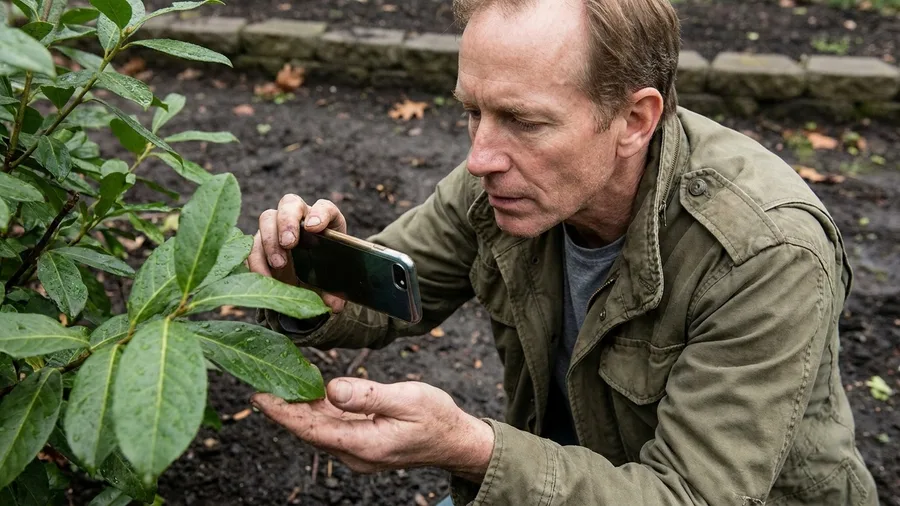
Blurry or cluttered photos return nothing useful, so get close to the leaf or the animal, in good light. Then open the photo, tap the Info button, and look for the stars symbol in the top-left corner of the icon.
Step 1. Tap the Info button on a photo of a plant, flower, tree or animal.
A stars symbol in the top-left corner of the icon means it can identify this one.
No stars, no identification, so trust the cue rather than a product name in a store.
Step 2. Read the name that comes back. This covers living things rather than products or text, and it reads a photo already sitting in the camera roll.
💡 Tip: Take the photo at eye level with the leaf, not from standing height.
4. Decode Laundry Care Labels by Camera
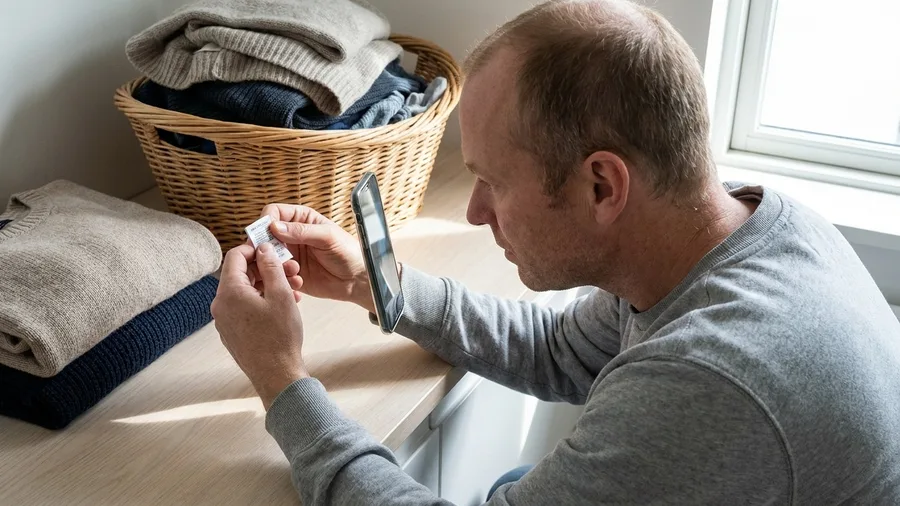
The bottom of a wool sweater came back with every symbol named and explained, in about ten seconds, from a photo already on my phone. Plants are forgiving shapes. A care label is a row of pictograms nobody was ever taught to read.
Snap the tag, open the photo and tap the Info button. It may look like a washing machine with sparkles, and the shape is not reliable, so look for the sparkle. Then choose "Look Up Laundry Care" and read the descriptions.
What comes back names each symbol, and those symbols are what set the temperature and decide whether it goes in the dryer. The catch is the photo itself. A creased tag in dim light returns guesses, so lay it flat and get close.
I ran it on a whole basket in one sitting and sorted the wool from the cotton before anything shrank. No squinting at a tag with the phone torch in the other hand.
5. Auto-Translate Incoming Texts in Messages

In iOS 26, yes. Translation in Messages catches what arrives, group threads included, and turns my reply into their language as it sends.
That matters at my sister's in-laws' table, where the thread runs in Spanish and English at once. I typed English and they read Spanish, and nobody copied a line into a translator app. It is for conversation, not documents.
Setup took me about two minutes in Settings, and that is the whole of it. The one catch: slang and in-jokes came back flat, so I check anything that sounds off before I trust it.
At a Glance
6. Screen Unknown Callers Before the Phone Rings
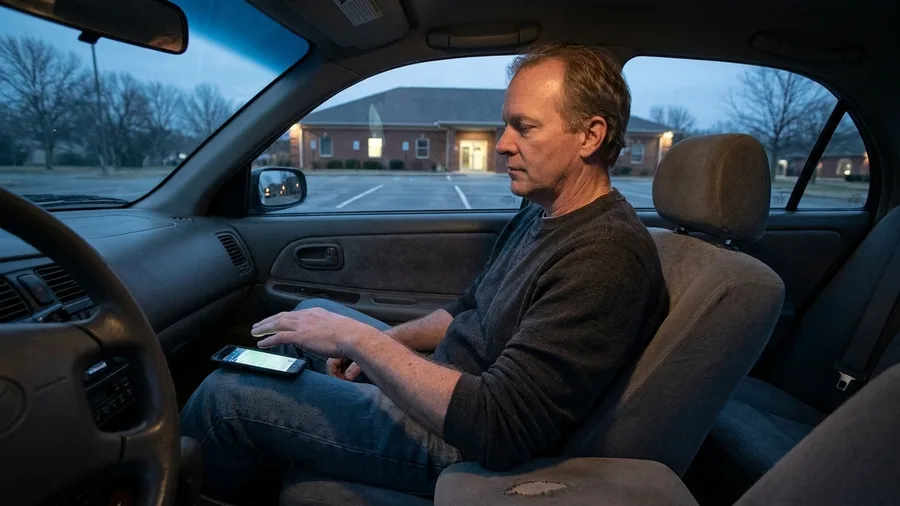
The worst part of an unknown number is the three seconds before you answer. You stop what you are doing, pick up, and hear a recorded voice about your car's warranty. I got four of those in one Tuesday.
Call Screening answers that gap. In iOS 26 the phone takes calls from numbers you have not saved, asks who is calling and why, and shows you the answer before it rings. That is where the robocalls and cold sales live.
The setup is free and took me one toggle in Settings. Check the transcript before you ignore anything, because a doctor's office or a delivery driver gets screened too, and one of mine was a pharmacy confirming a refill.
I turned it off for a week in the middle of the six weeks. My log showed eleven unknown calls, and I picked up four of them expecting something real.
My SIM has no monthly fee for this, and the time back came to about 25 minutes.
Running total: $0 and one Settings toggle for a phone that rings only when someone has a reason to call.
💡 Tip: Add your doctor and your kid's school to Contacts so their calls skip screening.
💡 PRO TIP
Stack your shortcuts
Once you build one shortcut in the Shortcuts app, you can attach it to Back Tap, the Action Button, a Home Screen icon, the Share Sheet and a Control Center tile. Build the shortcut once, then launch it from wherever your hands already are.
7. Let Hold Assist Wait on Hold for You
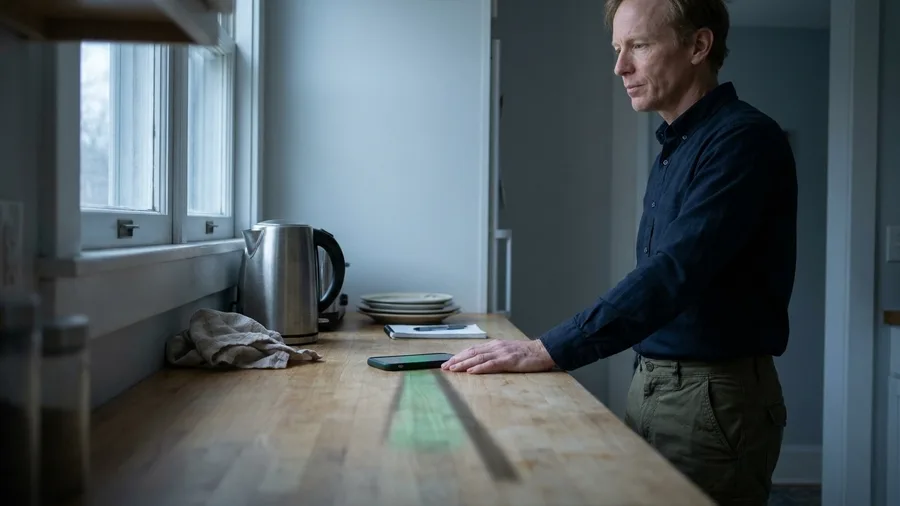
Prompt to copy
I'm on hold with my insurance company and the queue is 40 minutes long. Tell me in two sentences whether I can hang up and still keep my place, and what I need to have ready when the agent calls back.
That prompt is worth pasting into ChatGPT before you dial, because Hold Assist is the one place you should not hand the phone to an AI. It keeps your place and rings you back when a live agent picks up.
But the return call has to be takeable. Thirty seconds after it rings, you are back in the queue.
The words on the screen
8. Settle Group Plans With a Messages Poll
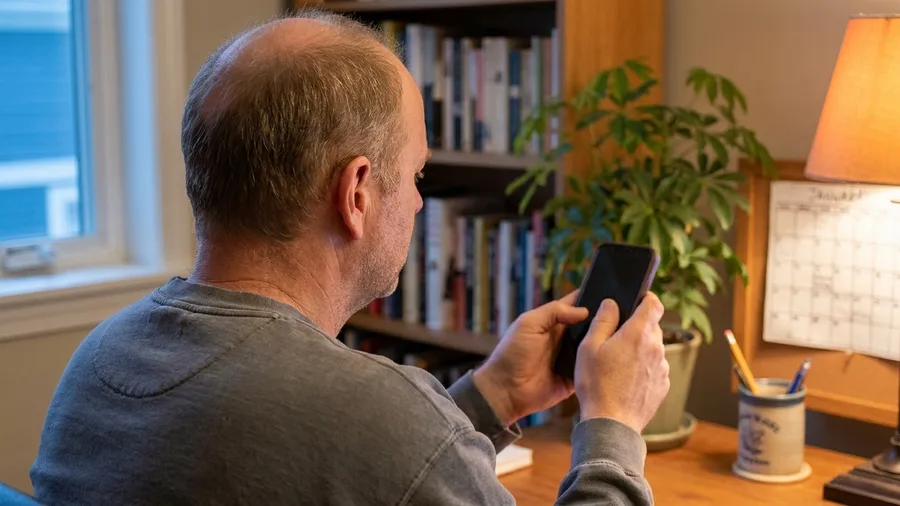
You ask one question, and everyone answers with a tap. In the group thread, tap the plus button beside the message field and choose Polls.
The old way: you ask, three people reply with different answers, someone changes their mind, and the thread runs to forty messages. The new way: one question, twelve choices at most, and one glance tells you who is free Saturday.
The twelve-choice ceiling is the only snag. Pick the four days that actually work rather than adding a second poll.
It runs where the decision is already happening, so nobody has to open a separate app. One tap ends the thread, and that is the whole trick.
9. Make Reminders Urgent and Filter Them
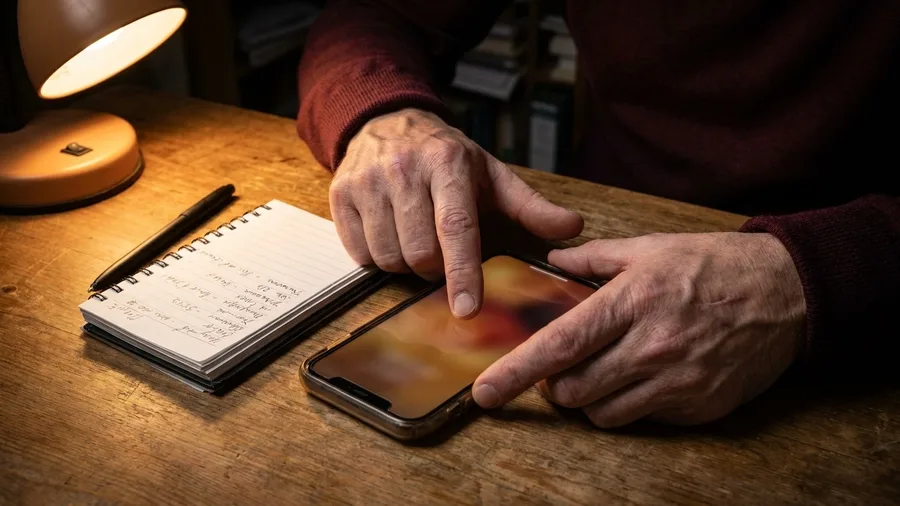
Twelve errands sat in my Reminders list, and the one deadline that mattered was third from the bottom. That is a list problem, not a memory problem.
Prompt to copy
Here is my Reminders list for this week: [paste the list]. Flag the items with a hard deadline, ignore anything that can slip a day, and tell me which three should be marked urgent. Keep each reason to one line and leave out groceries and chores.
It comes back in about ten seconds. Mark each one urgent from the Quick Toolbar, or by holding it.
The fix: an urgent flag inside an unfiltered list is still buried, so build the urgent Smart List once and pin it where you will see it.
Now the deadline sits on a short list that gets checked, not in a wall of errands.
10. Back Tap Turns the Case Into a Button

Back Tap is a switch that turns a tap on the back of your phone into a command. Step one: open "Settings," then "Accessibility," then "Touch," then "Back Tap."
You should see separate rows for Double Tap and Triple Tap, each with its own action. It runs on iPhone 8 or newer with iOS 14 or later, so it covers the oldest phones in this list.
Step two: assign one action to each. Mine opens the camera on a double tap. It reads straight through a case, so nothing comes off.
The catch: a firm grip or setting the phone down can fire it, which is why it lives in Accessibility. Assign something harmless if it triggers by accident.
What you get is the camera, a recording or a shortcut without hunting for an icon, and without looking at the screen. That is the trick worth five minutes: a shortcut built once, then a tap the hand already knows.
Before You Build Any Shortcut
- Open the Shortcuts app and create a new shortcut. Tap the plus in the top right.
- Add one action that does the main job. Keep it to one action for your first try.
- Give it a name you can say to Siri. Two short words beat a sentence.
- Test it from inside the app before attaching it anywhere. Tap the play button at the bottom.
- Attach it to Back Tap or the Action Button. Back Tap: Settings > Accessibility > Touch.
- Run it three times in a row and watch for accidental triggers. If it fires by itself, pick a different action.
11. Give the Action Button a Folder of Shortcuts
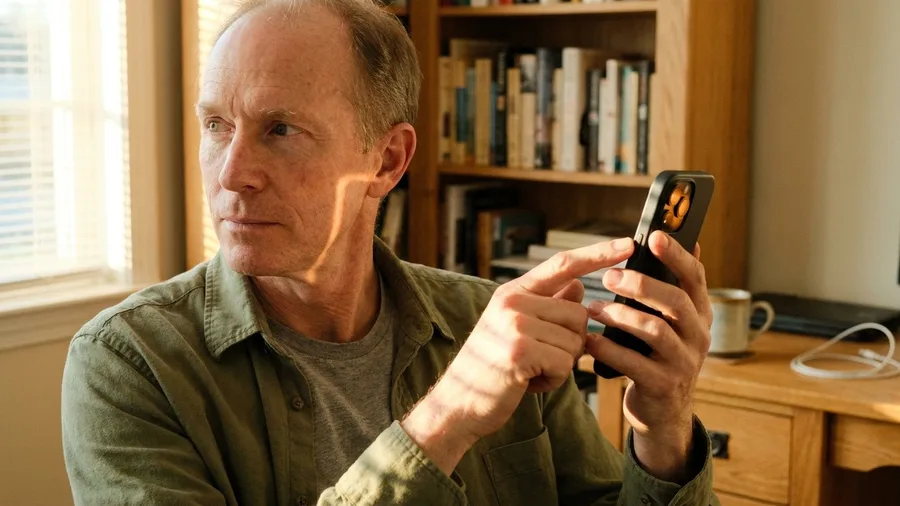
On a workday, one press of the Action Button opens my task list. On a Sunday, the same press opens the camera. It took me two minutes to set up, and I stopped reaching for the screen to find either.
The old way was a single fixed action per button, or a Home Screen folder I had to scroll to.
The new way builds a folder of shortcuts in the Shortcuts app, then points the button at that folder instead of one task.
The press opens a short menu, and I pick with my thumb.
The limit is hardware. The Action Button is on iPhone 15 Pro, every iPhone 16 model and later, so an older phone keeps its two Back Tap slots instead. That is the trade for a physical key.
What you gain: commands that change with the active Focus, so one button is a work tool under a Work Focus and a camera under a Personal one, with no new hardware and no menu hunting.
Action Button Setup — What the Prose Skipped
📁 Shortcut folder name
Any name — the button points at the folder
👇 Menu behavior
Opens a list; thumb picks one
🔄 Focus tie-in
Each Focus can run a different shortcut
👆 Back Tap slots
Two — Double and Triple
🚫 Skip this if
You want one fixed action, no menu
📱 iPhone 8 to 14 Pro
No Action Button — Back Tap only
First move
Build the shortcut folder in Shortcuts, then point the button at it — skipping this leaves the old single action in place.
12. Describe a Shortcut and Let iOS Build It
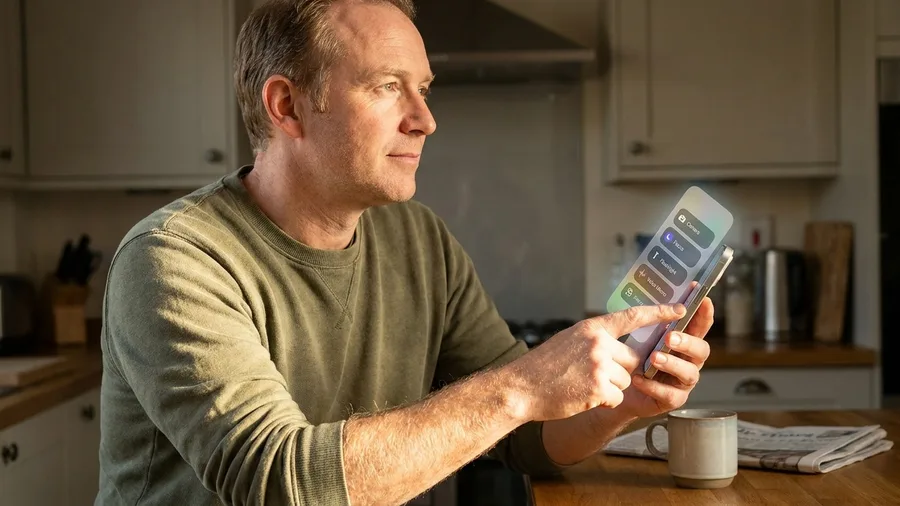
The catch comes first: describing a shortcut only works if your phone has Apple Intelligence. That means an iPhone 15 Pro or later, or an iPad or Mac with M1 or later. Older devices only get the traditional Editor mode.
If yours qualifies, you type one sentence instead of dragging actions around, and iOS 27 assembles the steps. I moved my iPhone 16 Pro to the developer beta for this one and kept the sentence to one outcome with a clear trigger.
Time and money: free, once your hardware qualifies; about 10 minutes on the beta, including a re-run to fix one wrong trigger; the shortcut itself takes seconds to build.
A gesture or the Action Button needs a shortcut to point at, and now a sentence builds that shortcut. No action list to learn.
🔌 Build a Charger Automation in 5 Steps
Open Shortcuts
Tap the Automation tab at the bottom of the screen.
Create a personal automation
Tap the plus and choose Charger as the trigger.
Pick the action
Search for Play Sound and choose your audio file.
Choose your track
Select any sound file, song or voice recording from your library.
Turn off Ask Before Running
The automation fires the moment the charger connects.
13. A Charger Automation That Plays Your Sound
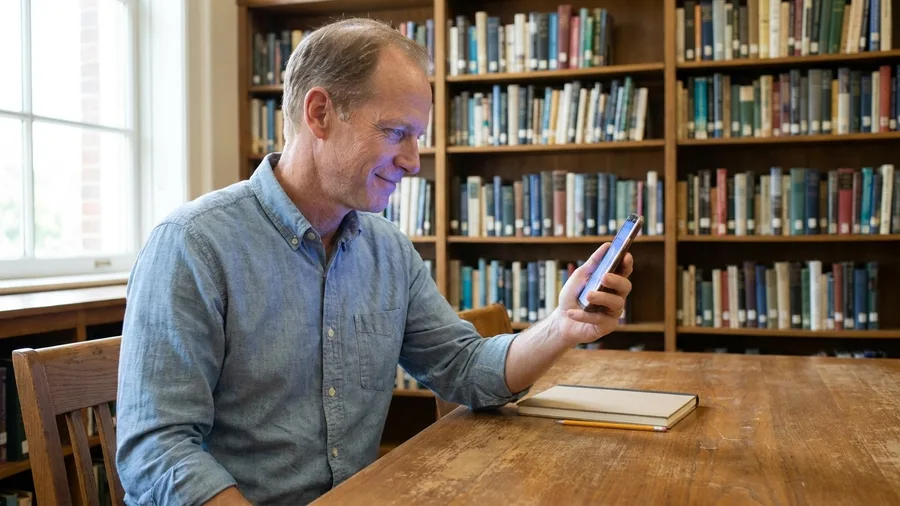
Plugging a charger into an iPhone has always done one dull thing: it tops up the battery and buzzes once. Mine now plays a two-second voice note from my kid every time it lands on the nightstand.
That marks the end of my workday, and the setup is a personal automation in Shortcuts. A trigger is the event that starts a shortcut on its own, with nobody tapping anything. Here the trigger is the phone meeting a charger.
By hand, the same job was a nightly routine: plug in, open a notes app, type a line about where the day ended. First few times it took two minutes. Most nights I skipped it, which is the real count.
The automation took about 15 minutes to build, fires in under a second, and I spent another two minutes a week checking the sound still played in the Focus I use.
It goes off every time the phone meets a charger, not just at 6 a.m. The car dock and the desk cable fire it too, so the first few days were noisy in the office.
I swapped in a quieter voice note, recorded in the moment on the phone, and dropped a song where the voice note was, just to hear the difference.
Two times: by hand, two minutes a night and most nights skipped; the automation, 15 minutes once, about a second to play, two minutes a week to check.
💡 Tip: Record a voice memo on the phone itself and use that as the audio.
14. One Shortcut, Five Places to Launch It

Prompt to copy
Name my shortcut two short, distinct words Siri can hear over traffic, then list every place I can attach it: Siri by name, the Action Button, a Home Screen icon, the Share Sheet, a Control Center tile." That request is the part people skip, and it is where this goes wrong: a shortcut called something long gets misheard.
Attach it once and the same shortcut answers to your voice, the Action Button, a Home Screen icon, the Share Sheet and a Control Center tile. The catch is Siri.
It hears a name, not a sentence, so I check the name in a quiet room before trusting it. My first try, "Send the client update," came back as a podcast three times in five.
The check is simple: say the two words in a moving car, then on a busy street. If Siri falters, shorten the name. Nothing gets rebuilt, which means one working shortcut opens from the lock screen, the Share Sheet and by voice.
Testing, Not Guessing
Keep it on
- Back Tap camera — used daily
- Charger voice note — every night
- Call Screening — spam calls gone
- Messages Poll — group plans settled
- Visual Intelligence — quick lookups
Turn it off
- Voice Control always listening
- Hold Assist during work hours
- Plant ID on blurry photos
- Laundry Care on dark labels
- Urgent flag without a Smart List
15. Run the Whole Phone by Voice
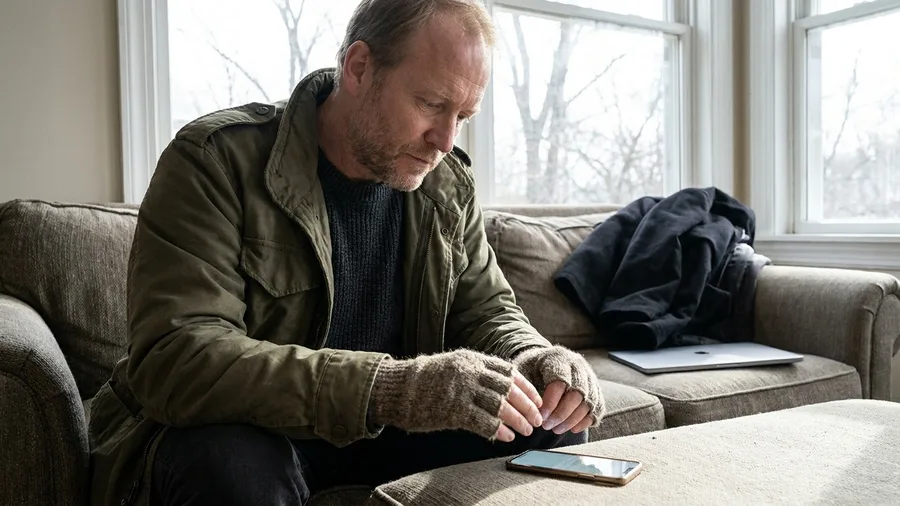
Six weeks, and the last one needs no hands at all: I answered a call, zoomed a map and locked the phone from my coat pocket.
Every trick before this one assumes a hand can reach the screen. Voice Control drops that assumption, and it runs no connection, so it works on a plane.
Switch it on in Settings > Accessibility > Voice Control, available since iOS 13. Commands cover a numbers or grid overlay, gestures like pinch and swipe, and locking the screen. Say a number, and the grid puts that target under your voice.
The catch is the microphone. It is an accessibility feature that listens while on, so keep Attention Aware enabled, which listens when you look at the phone and stops when you look away. Otherwise switch it off when you finish.
With the six weeks of testing done, this is the one switch I kept on longest: it covers gloved hands, a cracked screen and cold mornings, and your hands never leave the pocket.
Frequently Asked Questions
Do I need an iPhone 15 or later for all of these?
No. Back Tap works on iPhone 8 or newer on iOS 14 or later, and Voice Control works on iOS 13 or later. The Action Button needs an iPhone 15 Pro or newer, and Describe a Shortcut needs Apple Intelligence on an iPhone 15 Pro or later. Call Screening and Hold Assist need iOS 26.
Is Visual Intelligence free?
Yes. The feature is part of iOS 26, but not every iPhone that runs iOS 26 gets it. Check Apple's iOS 26 feature page for the supported model list before you assume the screenshot buttons do anything new.
Will these tricks drain my battery?
Only two did for me: Voice Control with Attention Aware off, and Call Screening on a busy day. Everything else added nothing noticeable. I charge overnight, and the phone still finished most days with 30 to 40 percent left.
Can I undo any of these if I don't like them?
All fifteen have an off switch in Settings or in the Shortcuts app. That is how I tested them: turned each one off after six weeks and asked what I missed. You can do the same in a day.
Do I need to pay for any of these?
No. Every trick on this list uses what is already on the phone. The only cost is your time to set them up, and most take one to three minutes.
Pick by the annoyance that happened today
Do not set up all fifteen. Go by the annoyance that happened today. Unknown numbers calling six times means Call Screening first.
A group chat that never settles a plan means a Messages poll. A deadline that slipped past you this week means urgent Reminders in a Smart List.
Then make the one move that pays back the most. Build a single shortcut in Shortcuts and hang it on Back Tap or the Action Button, because four of the other tricks start from that same shortcut.
Get it working, then leave the phone alone for a week.
Six weeks and fifteen switches taught me the ones that stay are the ones I noticed missing when they were off. Count nothing. Ask only whether turning one off would annoy you, and keep the two that would.