
The update banner has been sitting on your iPhone all week. You finish charging it at night, tap Install Now, watch the progress bar crawl, and get on with your life. That has worked fine every time so far.
The catch is what happens when it doesn't. Reports after iOS 26.2.1 arrived on installs that finished cleanly, with Safari tabs gone and saved places disappearing from Apple Maps. Nothing errored. The damage showed up afterward.
By the end of this piece you will have one dated copy of your phone that iOS 27 cannot overwrite, a clear list of what each backup type leaves out, and the exact moves if the install goes wrong.
The example throughout is an iPhone 15 Pro, 256GB, 118GB in use, running iOS 26.2.1 and updating to iOS 27 tonight.
| What it covers | iCloud backup | Encrypted computer backup |
|---|---|---|
| Photos (iCloud Photos on) | Not in the backup | Included |
| Messages (synced to iCloud) | Not in the backup | Included |
| Health, Activity, Keychain | Not in the backup | Included, as it is encrypted |
| Encryption keys | Apple keeps them | You keep them |
| Older copies kept | Newest only | Archived copies stay |
| Example size for this phone | About 47GB | About 118GB |
Updates can wipe data even when nothing errors

The update can finish with no error and still hand back a phone that is missing things.
Reports after iOS 26.2.1 came from people whose install had already succeeded, so a clean progress bar tells you the software landed, not that your data came with it.
What those users described: Safari tabs gone, Private tabs included, and saved places vanishing from Apple Maps. The same reports mention Face ID running slow or failing more often, heavy battery drain, and system data storage swelling until some phones stopped working.
These are user reports of what can happen, not a promise that it will. That is exactly what makes them worth taking seriously. The damage shows up after the button has done its job, when there is nothing left to cancel.
A dated copy taken this morning, while the phone still runs iOS 26.2.1, is the only route back to the phone you have right now. Without it, a bad outcome leaves you with a newer system and no way to prove what was there before.
iCloud keeps one backup, and it's the newest

iCloud holds only the most recent backup. There is no list of earlier copies to scroll through and pick from, so the fallback you are picturing does not exist in the form you pictured it.
Turn on iCloud Backup and the phone copies itself every day while it is plugged in to power on Wi-Fi.
That means one sleep after you tap Update, the only iCloud copy left is the one made on iOS 27. The pre-update version is already gone.
The sizes make the gap plain. This phone holds 118GB of data, and its iCloud backup runs about 47GB, because Photos and synced Messages sit outside it. The free plan offers 5GB, which is not enough to hold even that 47GB.
A backup made and archived before the Update tap is the copy nothing on the phone can reach. The daily job can overwrite iCloud all it likes once a dated copy is sitting somewhere else.
Going back to old iOS costs you everything since
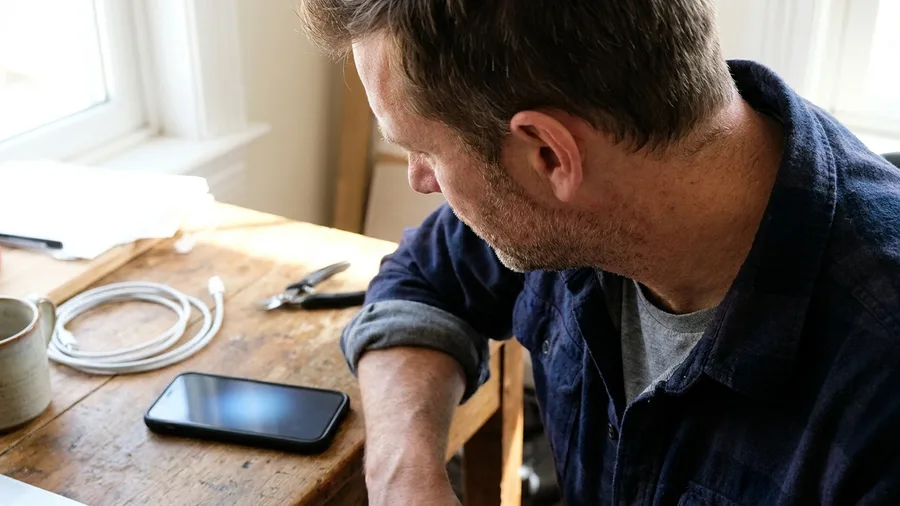
The road back to iOS 26 is one-way, and it charges you everything created since your last good pre-update copy. An iCloud backup made on iOS 27 will not restore onto a phone running iOS 26, so that copy cannot carry you backward.
Getting to iOS 26 at all means erasing the phone first. Whatever you photographed, texted, saved or logged during that rough week on the new version goes with the erase, unless it also lives in the older copy.
This catches the person who plans to ride out a bad week and then just restore. By the time the week is over, the newest backup is an iOS 27 backup, and the old one has been replaced by it.
The choice has to be made before the Update tap, not after. The pre-update archive is the fallback, because it is the only copy the downgrade will still accept, and the only one holding the phone exactly as it stands tonight.
The four words that decide how far back you can go
An archived computer backup cannot be overwritten

That pre-update copy only helps if the next backup cannot touch it, so the job is to turn it into an archive.
Plug the iPhone 15 Pro into the computer with a certified cable and back it up through Finder or the Apple Devices app, whichever your machine runs.
When it finishes, open "Manage Backups" on the computer, right-click the entry carrying your phone's name, and choose "Archive". That single click changes what the copy is: from a rolling file the software overwrites on the next sync into a dated one that stays put.
Archiving also keeps the copy when the computer's drive runs low on space, because unarchived backups are the first thing the system deletes to free room.
The check is simple: your backup list should show a date and time, and clicking it should offer no immediate overwrite.
Timing matters: make the archive while the phone still runs iOS 26.2.1. An archive made after the update lands is a copy of iOS 27 and cannot carry you back to this morning.
Do this tonight and you hold a dated, protected copy of 118GB that the upgrade cannot reach, sitting quietly on a drive the phone has no way to change.
Each backup type misses different things

An archive holds only what the backup behind it captured, and the three routes leave out different parts of this phone. Start with iCloud.
With iCloud Photos on for the 62GB of photos, those images live in iCloud Photos and are not inside the iCloud backup at all.
The same applies to Messages when they are synced with iCloud, so the 9GB of conversations is not in that backup either. iCloud backups are always encrypted, but Apple holds the keys, and iFixit rates iCloud as more convenient but less secure than a local backup.
A plain computer backup runs the opposite way. It carries the photos and messages, but Health, Activity and Keychain data are missing unless you switch on encryption. Those are the records that can never be re-downloaded from anywhere.
The overlap: put the two routes side by side and only one single file holds all of it, the encrypted computer backup. That is why it is the one worth archiving, with the iCloud copy second.
🌱 GROWING TIP
Store the backup password off the phone
Write the encrypted backup password on paper, or put it in a password manager on a different device. If it lives only on the phone being restored, a wiped phone takes the password with it.
An encrypted backup dies with its forgotten password

That complete copy is locked behind a password you have to create, and losing it makes the whole archive read as an empty file.
"Encrypt local backup" sits off by default on a computer backup, so the first step is switching it on and setting a separate password when the computer asks.
There is no recovery route if that password is forgotten, and no support desk resets it. Your full 118GB archive stays on the drive, complete, and none of it can be read back onto a phone.
So store the password somewhere that is not the phone: on paper in a drawer, in a password manager that syncs to another device, or both. A wiped iPhone cannot hand back a password it was holding.
Quick check: before you close the laptop, open the password manager on a second device and confirm the entry opens. If it only lives on the iPhone, it goes when the phone does.
Do that one step and the encrypted archive gives you Health, Activity and Keychain records the plain backup drops, plus everything the phone held this morning.
Free iCloud's 5GB won't hold a real phone

The automatic copy only runs if there is room for it, and on the free plan there is not. Apple gives 5GB at no charge. iFixit's take is blunt: that fits little more than one small iPhone, and this phone's iCloud backup is about 47GB.
The gap is where the money question starts. 50GB costs $0.99 a month, and 2TB costs $10 a month, the tier iFixit points people toward, as of November 2026. Storage tops out at 12TB, or 14TB on an Apple One Premier plan.
Paying does not fix the overwrite habit. A bigger plan still holds one backup, the newest, so tonight's copy is gone the first time the phone backs up on iOS 27. What the paid tier buys is the daily automatic copy that exists at all.
That makes it the second line, not the plan. The archived computer copy stays the one that cannot move. The $0.99 tier is worth it so a current copy sits in iCloud behind it.
No computer? Third-party tools fill the gap

A Mac or Windows machine is not the only way to get a copy off the phone. Third-party apps make one without an archive on a computer, and they split on price and on whether they can update a backup instead of starting over.
iMazing is the one to pick if you want repeats. It is $40 for Mac and Windows, and its free trial comes with limits.
Set it up once and it copies the phone over Wi-Fi, while the phone keeps sending its own daily copy to iCloud.
CopyTrans Shelbee suits a single rescue. One full backup and one restore cost nothing, so a phone that has never been copied can get its dated copy before the update. Updating that backup later, and restoring only chosen parts, are paid.
AnyTrans does the same broad job inside a heavier all-in-one app, and it is not free. The catch across all three is dollars and setup, not capability.
The pick: iMazing if you will back up again next month, Shelbee if one complete copy tonight is enough.
Two recovery choices, two very different outcomes
Choose Update
- Reinstalls iOS over the failed install
- Photos, messages and app data stay put
- The option that fixes a stuck phone without a wipe
Choose Restore
- Erases all data and reinstalls iOS from scratch
- Phone comes back as a new device
- Only recoverable from a backup made before tonight
In recovery mode, Restore erases and Update doesn't

Press Update, never Restore. Restore reinstalls iOS from scratch and erases all data, so the copy you just made is what you would be left rebuilding from. Update reinstalls the software over the failed attempt and leaves your photos and messages in place.
To reach that screen on an iPhone 8 or later, press and release Volume Up, press and release Volume Down, then hold the side button until the 'Connect to computer' screen appears.
Only do this once a backup exists, because one button on that screen wipes everything.
The catch: a Restore chosen in a hurry is the step that turns a stalled install into a wiped phone. If the screen appears and you are unsure which button to touch, stop and read both labels before touching either one.
Chosen correctly, Update puts the same iOS 27 install back on top of the copy you made. Your tabs, maps and messages come back the way they were this morning, and the archive stays there untouched in case it goes wrong again.
🛠️ Four minutes, one button, two hard edges
Certified, direct, and short
Uncertified cable or a hub port causes most 4013 drops; plug straight into the computer's own port.
Screen over 15 minutes
When it drops, unplug, repeat the button sequence, and stop the wasted download before reconnecting.
Update vs Restore, one line each
Update keeps all 118GB in place; Restore returns a blank phone, then you rebuild from the archive.
Error 4013 shows up
Same cable and same port is the guess. Swap the cable first, the port second, then run it again.
After it restarts
Leave the archive in Manage Backups for a few days, and delete the duplicate only once calls and photos check out.
A dropped connection screen isn't a dead phone
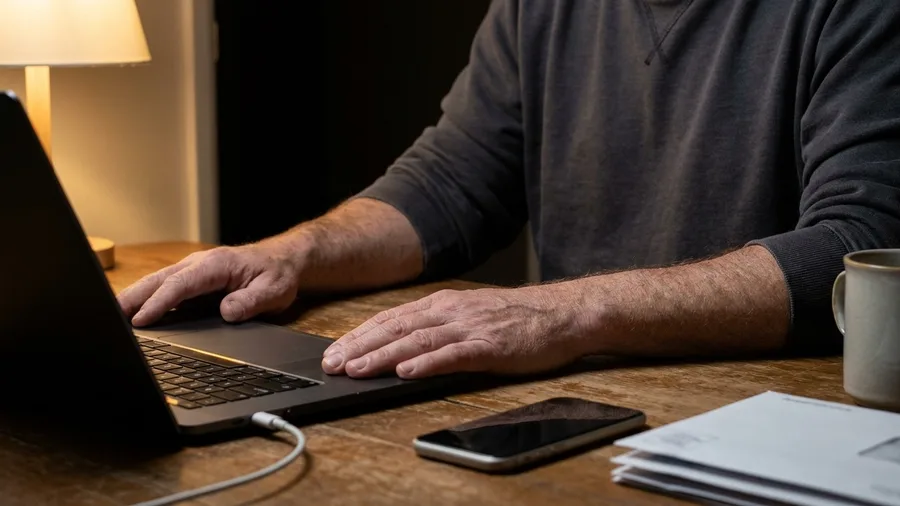
The phone is not dead. A software download that runs past 15 minutes can drop the 'Connect to computer' screen on its own, and the phone is still sitting there waiting for that download to land.
The screen going dark looks like a crash because the cable is still plugged in. Nothing was erased. The install paused, not failed, and the phone has not touched a single photo or message.
Leave both ends plugged in and let the download finish. Unplugging mid-download is the one move that turns a paused install into a real problem, and it buys nothing.
When the download completes, repeat the button sequence: Volume Up, Volume Down, then hold the side button until the screen returns. It usually comes back on the first try, and the install carries on from where it stalled.
The trap: the wait feels like a dead end, so the hand drifts to Restore. Restore on that screen reinstalls iOS and erases all data. One impatient click there is how a recoverable phone becomes a wiped one.
Sit on your hands for those extra minutes. A phone that dropped the screen and a phone that lost its data look identical for about a quarter of an hour. Only one of them is worth panicking over.
Error 4013 is usually the cable, not the phone

Error 4013 is a dropped connection between the phone and the computer, not a damaged phone. The update or restore stopped partway because the two stopped talking to each other.
The usual cause is physical. A worn cable, an uncertified cable, or a loose USB port is behind most of these, which is why the fix is hardware, not software.
Swap the cable for a certified one and plug straight into a port on the computer.
Skip the hub and the adapter for this, at least until the install finishes. Then run the update again. With a clean connection it usually completes, and nothing on the phone is erased.
Before you click anything: a failed update leaves your data alone. A Restore chosen in a panic is what wipes it. The error scares people into the wrong button, and that button is the only thing here that costs data.
One good cable and one direct port. That is the whole repair, and the photos and messages stay where they were.
Frequently Asked Questions
Will iCloud keep yesterday's backup if the update goes wrong?
No. iCloud keeps only the most recent backup, and the phone overwrites it every day while plugged in on Wi-Fi. Within a day of installing iOS 27, the only iCloud copy was made on the new version.
Do I need to pay Apple for iCloud storage?
Only if you want the automatic daily copy on top of your archive. The free 5GB holds very little, the 50GB tier is $0.99 a month, and the 2TB tier is $10 a month as of November 2026.
What happens if I forget the encrypted backup password?
The backup becomes useless. There is no reset and no recovery prompt. Store the password on a device other than the iPhone being restored, such as a password manager on a laptop.
Can I go back to iOS 26 after trying iOS 27?
Yes, but it means erasing the phone, and a backup made on iOS 27 will not restore onto the older version. The only copy worth returning to is the one you archived before the update.
I don't own a computer. What are my options?
Use a third-party tool on a borrowed machine: iMazing at $40 with a free trial and Wi-Fi backups, or CopyTrans Shelbee for one free full backup and restore. Both do the same job as Finder or the Apple Devices app.
My phone is stuck after the update. Do I press Update or Restore?
Press Update. Restore erases all data and reinstalls iOS from scratch. Update reinstalls the software over the failed install and leaves your photos and messages where they are.
The ten minutes before you tap Install Now
Do this in order tonight. Back up the iPhone to a computer with Finder or the Apple Devices app. Turn on 'Encrypt local backup' and set a password.
Open Manage Backups and choose Archive on that entry. Store the password off the phone. Check the archive date reads tonight. Then tap Update.
No computer at all means iMazing or CopyTrans Shelbee. A 5GB free plan means buying at least the 50GB tier so the daily automatic copy exists. A phone already stuck means swapping the cable and port before choosing Update in recovery mode.
Start with the computer backup. It is the only copy the update cannot reach.