
The surprise is not that AI can write a formula. It is that matching one tool to one chore turns a five-task workbook week from 277 minutes of handwork into 74 minutes, checking included.
That gap is real, and so is the checking. Every number below counts the minutes spent verifying the output before it carries your name to a manager.
You will see 15 tools, each matched to the chore it actually handles: pivots, formulas, inherited monsters, 2,000-row cleanups, chart sets and team models.
Start with the chore that costs you the most time this week. Run its benchmark, then check the first output against a manual total.
| Excel chore | By hand | With AI, including checking | Best tool |
|---|---|---|---|
| Monthly sales pivot and summary | 50 min | 15 min (5 min checking) | Microsoft Copilot in Excel |
| Plain-English formula | 22 min | 4 min (2 min checking) | Formula Bot |
| 60-line inherited formula audit | 40 min | 12 min (6 min checking) | Claude |
| 2,000-row contact cleanup | 75 min | 18 min (6 min checking) | Rows AI |
| 12-chart dashboard from summary | 90 min | 25 min (8 min checking) | Bricks |
1. Microsoft Copilot for In-Excel Pivots

Prompt to copy
I have a monthly sales table in Excel: columns are Order Date, Region, Product, Units, Unit Price. Columns A through E, data in rows 2 to 400. Build a pivot showing Units and total sales by Region and by Month, then write a five-sentence summary of what changed month to month. Describe the clicks and the layout.
That prompt asks Copilot to work inside the file already open. It builds the pivot and drafts the summary without you rebuilding the source range.
Doing it by hand takes about 50 minutes. With Copilot it takes 15, and 5 of those go to checking, so you save 35.
Those five minutes are two named checks. Put the pivot grand total beside a SUM of the source Units column and confirm they match. Then pick one region, filter the pivot, and count its rows yourself.
Rollout inside a company is an admin setting, so confirm Copilot is on for your account on Microsoft's official Copilot pages before you plan around it.
A colleague's working screenshot proves nothing about yours. As of October 2026, both checks happen before the summary leaves your desk.
Monthly total: 50 minutes by hand, 15 with Copilot, 5 of them checking, 35 saved: the same routine next month with the same two cells.
💡 Tip: Save the pivot and the two verification cells as a monthly template. Next month is paste, refresh, check two cells.
The five-chore week – At a Glance
⏱️ By hand
277 minutes
🤖 With AI and checking
74 minutes
📉 Saved
203 minutes
🔍 Checking time inside the 74
27 minutes
🏆 Biggest single saving
Bricks, 65 minutes
The rule
The tool that wins a chore is the one whose output you can verify in two or three named cells.
2. ChatGPT for Formula Drafts and Fixes

Four minutes gets one cell its formula, and most weeks that is the request that repeats. A pivot answers for the whole table; a single cell still needs a sentence turned into syntax, and ChatGPT does that on its own without the workbook open.
Step 1: paste one sample row of invented data, columns A to D with two fake customer names and amounts, and say what you want back.
Step 2: ask for the formula plus a line-by-line explanation.
Step 3: you should see the formula and a plain-English walkthrough of each part.
Catch: ChatGPT invents function names and returns confident wrong syntax, so test the draft on a copy of the sheet, never the live workbook. Keep passwords, client files and financial records out of the chat, and switch off model training where your plan offers it.
Four things people get wrong about AI and Excel
3. Claude for Inherited Formula Audits

A 60-line nested formula comes back as a plain-English map. Each block is named, the edge cases it mishandles are listed, and a safer rewrite sits at the end waiting for your approval. The edit stops being a guess.
The easy formula is the one you write. The hard one is inherited from a colleague who left, 60 lines deep, and nobody knows which segment does what.
Reading it by hand to trace its own logic takes about 40 minutes. Claude takes 12, and 6 of those are checking, so 28 minutes come back.
Build the habit once and it keeps paying. Keep a small block of test rows with answers you already know, one per tricky segment, and hold the audit against them.
Prompt to copy
Here is a 60-line nested Excel formula. Break it into named parts, say in plain English what each part does, list the edge cases it will get wrong (blanks, text in number columns, dates as text), and propose a safer rewrite. Do not edit my sheet.
Six of the 12 minutes are spent spot-checking three nested segments against known row outputs. If the explanation disagrees with a real result, the audit is wrong and the formula stays untouched.
What Claude can accept in an upload changes with the plan, so check the uploaded-file limits on Anthropic's official pages. A workflow built on last year's limit stalls.
💡 Tip: Ask for the rewrite as a numbered list of changes, not a finished formula. You approve each change against a test row.
⚠️ COMMON MISTAKE
Never paste into the live workbook
Every AI formula, macro or pivot goes onto a copy first. A draft that returns a plausible but wrong number is far harder to catch once it lives in the file your boss opens.
4. Gemini for Quick Formula Second Opinions

A formula can return the right number and still be built on logic you would not defend in a meeting. A full audit is heavy machinery for that problem. You want a second construction to put beside yours, and the edge cases yours ignores.
Gemini suits this because it answers from memory in seconds. Ask for two formulas tested against one stated case, not a verdict.
Name the case, the columns and the result you expect, then compare the alternatives side by side. Free-tier caps and data-use settings live on Google's official Gemini pages, and both change.
It will also agree with a wrong premise. Call a working formula broken and Gemini hunts for a fault that is not there.
Build one fake test row with a known answer and ask which formula reaches it. The check: that single row decides, before either formula touches the sheet.
Four mistakes that turn the minutes back into hours
5. Perplexity for Function and Error Research

A citation can be pure fiction. Perplexity will hand back a tidy answer with a Microsoft link attached, and that link may lead nowhere or open a page that never says what the summary claims.
So the safe drill is to open every source yourself before you believe a word of it.
Close the tab on the first broken or mismatched link and throw the whole answer out. That rule sounds harsh until you have lost an afternoon to a page that half-matched.
It also means this tool never touches a cell in your sheet. It researches an unfamiliar function name or an error code, source list first.
The question to type is the error code or function name plus "Microsoft documentation", and an instruction that every claim carry a link to Microsoft docs or a named tutorial site.
Plan and search limits live on Perplexity's own pages, not on a cap you recall from last year.
Before and after: twenty browser tabs and a guessed VLOOKUP against a short source list with the one documentation page to read first. What you gain is knowing which page settles it, and the audit trail to prove the answer was right.
💡 Tip: Search the error code, not the symptom. '#VALUE!' plus 'Microsoft documentation' beats 'my formula is broken'.
6. Julius AI for Uploaded Spreadsheet Analysis

Julius AI does, once you upload the file and ask in plain English.
Questions like top products by month, or average order value by region, come back as summary statistics and charts you never had to pivot by hand.
Treat it as a first pass. Exploratory questions show you which two or three cuts deserve a proper pivot, and that is where its value stops.
Upload support, row limits, data use and export rules vary by plan, so check Julius's official pages before a client file goes near the button.
A silently dropped row gives you a wrong average that still looks reasonable. Spot-check every total and average against a pivot built from the same file. Then the interesting cuts are named, and your pivot work starts on the right three.
7. Rows AI for Messy Contact Cleanup

Analysis of a spreadsheet assumes the entries underneath are sound, and contact exports rarely are.
Rows AI does three repairs on a 2,000-row list in one pass: it merges the duplicate rows, shortens state entries such as "Cali" or "Calif" to two-letter codes, and fills or flags the empty fields.
By hand that list took 75 minutes. With Rows AI it took 18, and 6 of those went on checking. That leaves 57 minutes gained, the biggest saving of the five chores timed for this article.
The 6 minutes are not optional. Deduplication that removes 40 rows too many gives no error and no warning, so read 20 random rows afterward and count the rows before and after the merge.
Confirm import and export to Excel, and the free-row cap, on Rows' official pages before uploading anything.
A 2,000-row file only fits the free tier if the cap allows it, so check that first. Get past it and the list comes back clean, with 57 minutes to spend on something else.
💡 Tip: Screenshot the row count before and after. It is the fastest proof that nothing vanished in the merge.
8. Numerous.ai for Bulk Cell Categorization

800 lines of product feedback need the same judgment on every row: bug, feature request or praise. That is column work, not conversation. One AI formula in Numerous.ai runs down the column, where a chat window would need 800 separate prompts.
Prompt to copy
I have a column of 800 product feedback lines in Excel. Write one Numerous.ai formula for a new column that labels each line as bug, feature request or praise, using only those three words. If a line fits none of them, return unclear. Do not invent categories.
Before you fill all 800, run it on 10 rows and compare those labels against ones you assigned by hand. A category scheme the tool reads differently from you produces a confidently wrong column at scale, and the error repeats down every row.
Row limits, free-plan rules and data-use terms come from Numerous's official pages, and they change between plans. What you get back is a repeatable step: next month's export re-runs the same formula instead of a fresh round of copy-paste.
9. Turning a Spoken Request Into a Working Formula

A working formula came back in 4 minutes, 2 of them spent checking, against 22 minutes of hunting through help pages for the same thing.
Type "Sum column D when column B is California and column C is paid" into Formula Bot and the formula lands on screen.
It is one sentence in, one formula out, with no file uploaded. Before it goes in the live sheet, run it on a copy beside a hand-filtered sum.
An off-by-one range returns a total that looks entirely reasonable. Plan limits come from Formula Bot's official pages.
Skip it when the rule needs a lookup across two sheets or is not yet clear in your head. Build that one by hand or ask a general assistant to walk through the steps. For the everyday sum-if, this is 18 minutes back.
10. SheetAI for Repetitive Text Cleanup

Prompt to copy
Columns A is company name and B is full address. Rewrite column A so every entry reads the same way, and split column B into street, city, state and ZIP in four new columns, keeping suite and unit numbers in the street.
That goes into SheetAI inside the sheet, and it rewrites the cell itself.
That is the split from a formula tool: a formula returns a number, while a column of names and addresses needs text rewritten across hundreds of rows, which is a different job built for a different tool.
After a few minutes, 'Acme Inc.', 'ACME, Inc' and 'acme' read as one name, and an address like '12 Oak St, Suite 4, Fresno, CA 93701' fills four clean columns. It runs as an add-on beside your data, not a separate chat window.
Check: scan the new columns for merged or dropped values. An address split that quietly discards the suite number returns a tidy-looking, incomplete column, and the clean look is what hides it.
Excel support, export behavior and plan limits come from SheetAI's official pages; an add-on that serves only one spreadsheet platform is a dead end on the wrong machine. Get a cleaner text column without writing a single nested formula by hand.
⚙️ One prompt, one macro, four gates
Ask Ajelix for the macro
Describe the weekly report job and ask for VBA that sets column widths, styles headers, freezes panes and adds a totals row.
Copy the workbook
Save a duplicate and run everything on that copy until the macro has proven itself twice.
Read each line
Check what the code touches: which sheets, which ranges, and whether any loop can run away.
Run once, deliberately
Enable macros in the copy and step through one execution while watching the totals row.
11. Ajelix for Formula and Macro Drafts

Ajelix drafts it, and also drafts a formula for that lookup that has resisted three attempts. Paste this into its formula and script box.
Prompt to copy
Write a VBA macro that sets column widths to fit, bolds the header row, freezes the top row, and adds a totals row summing columns D and E. Keep it to the active sheet of the weekly report only.
The output arrives as code, so read it line by line before enabling anything. The question is what each line touches, not whether the code looks tidy.
Catch: a macro can delete, overwrite or loop. Run it first on a copy of the workbook with macros turned on deliberately, and check plan limits on Ajelix's official pages.
You get a draft macro to adapt plus a pre-run checklist: a copy of the file, the lines read, one test run, then the live workbook.
Excel AI terms, decoded
12. Excelmatic for Uploaded Workbook Reports

Excelmatic turns an uploaded monthly sales workbook into a draft written report. The job is the Friday summary that nobody wants to start from a blank page: top products, trends, a few chart suggestions, all in prose you can edit down.
Step one: upload the file. You should see its sheets listed and a place to type a request.
Step two: ask for top products by month, the trend across the quarter, and three chart ideas. Back comes several paragraphs and a chart list within a minute or two.
Check before sharing: summaries can leave rows out. The report's headline total may not match the workbook's own total, so reconcile the two numbers first.
Upload limits, data-use terms and export rules live on Excelmatic's official pages, and those terms decide whether a given client file can go up at all.
Step three: edit the draft down to a half page. The structure and the obvious trends are already named, so you are cutting and correcting rather than writing from nothing. The two totals matching is what lets the report leave your desk under your name.
13. GPTExcel for Formula and Script Ideas

Regex and scripts break on rows your sample never had. A trailing space, a null cell or one line with two separators returns a plausible wrong answer, so build five deliberately odd rows into the test set first.
GPTExcel returns three takes in one pass: a formula, a regex pattern and a script outline for the same cleanup job.
Seeing the formula, the regex and the script side by side decides the maintenance burden, the load that outlives Friday's deadline.
Two options go into a test sheet and one wins on evidence. Free limits and plan details come from GPTExcel's official pages, not from what was true on your last visit.
14. Bricks for Chart and Dashboard Drafts
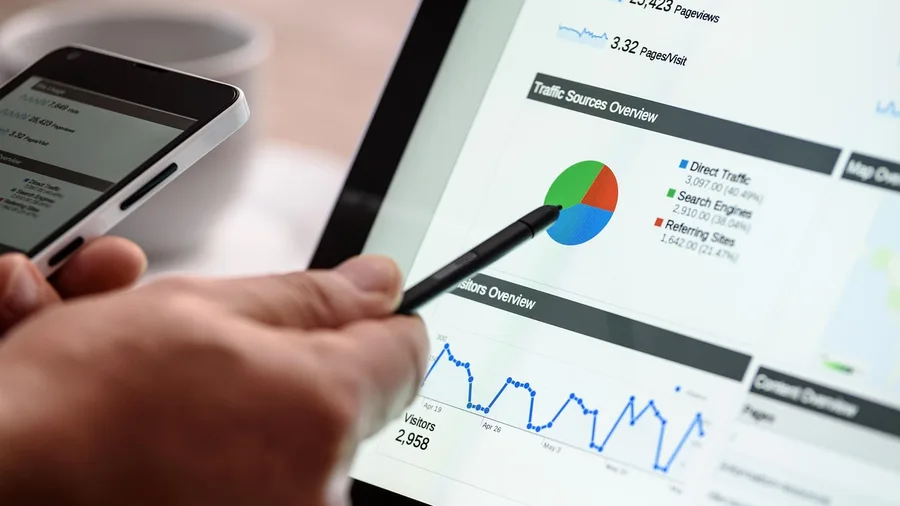
Formulas and scripts hand you the numbers, but the monthly review needs twelve charts, and choosing each chart type and writing its title is the tedious part.
Twelve titles and twelve axis labels by hand, each one formatted to match the last, is an afternoon of clicking and a dashboard nobody wants to rebuild next month.
Bricks drafts that layout from the summary table: 12 charts with titles and placement in about 25 minutes, against roughly 90 by hand.
Reading each axis against the table costs another 8 minutes. A mislabelled axis stays invisible to whoever built the chart and leaps out at the boss.
Import and export with Excel, and how many charts a plan allows, come from Bricks' own pricing and help pages. The dashboard arrives with the layout settled, and the argument over which chart goes where happens before the meeting rather than in it.
On the clock: 90 minutes by hand, 25 with Bricks, 65 back.
15. Equals for Team Scenario Models

A shared budget model breaks on collaboration, not on formulas: three pricing tiers against unit cost, four editors, and two people accepting AI changes to the same assumption.
Fix that with a named owner before the model is built, so one person answers for every value that lands in the sheet.
Then put the model in one live file where the edits sit side by side, set up in a single afternoon of importing the workbook and inviting the team.
Paste the assumptions into Equals once and ask for the three-tier layout, with each tier's cost per unit visible on the same tab.
Prompt to copy
Here are our three pricing tiers and unit costs for next quarter. Build one tab that models margin per tier at 500, 1,000 and 2,500 units, keep every assumption in a single labeled block at the top, and leave my imported columns unchanged.
Before anyone shares it, the owner checks the version and confirms each assumption reads the same for all editors.
Import and export with Excel, plus seat counts and plan limits, come from Equals' official pages.
Seats decide whether the whole team fits, and the review rule makes the model defensible at sign-off.
Let the tool do it, or keep it in your hands
Hand it to AI
- Drafting a formula from a plain-English sentence
- Merging duplicates and standardizing a 2,000-row list
- Breaking down a 60-line inherited formula
- Selecting and titling a 12-chart dashboard
Keep it manual
- The final sign-off on numbers you will present
- Anything holding passwords or client records
- A macro's first run on the live workbook
- Assumptions the boss must see you own
Frequently Asked Questions
Do I need to know how to code to use these tools?
No. Formula Bot and Copilot take plain-English sentences. Ajelix returns VBA, but you only need to read what each line touches and run it on a copy first.
Which one is free?
General assistants have free tiers with usage limits that change. Check each tool's official pricing page as of October 2026 before you build a routine on the free tier.
Can I upload a client workbook to these tools?
Only after you read that tool's data-use terms. Keep passwords, client files and financial records out of chats entirely, and check the settings for whether your data trains the model.
How do I know the AI's number is right?
Check it against one named cell you computed by hand from the same file. On the pivot that is the grand total; on a cleanup it is the row count before and after.
Which tool should I try first?
The one matching the chore that cost you the most time this week. If that is a monthly pivot, Copilot in Excel. If it is a messy list, Rows AI.
What if the tool gives a formula that returns the wrong total?
Test it against a hand-filtered sum on a copy. Off-by-one ranges are the usual fault: the total looks reasonable but covers a row too many or too few.
Pick the tool by the chore eating your week
Copilot in Excel for the monthly pivot, Formula Bot for one stubborn formula, Claude for an inherited 60-line audit, Rows AI for contact cleanup, Bricks for a 12-chart set. That is the shortest path through the 277-minute week.
Start with the chore that costs you the most minutes. Run the matching benchmark, then check the first output against a manual total before you trust anything the tool returns.
The boss sees the finished workbook. The wizardry is the two-cell check you ran before it left your desk.