
You will finish this page with 14 AI tools that earned a daily spot, and a clear reason to skip the other 998. I opened 1,012 of them between March 2025 and October 2026, and each one got a live task before I scored it.
The keep rule was simple. A tool had to be opened on at least 8 of 10 workdays for four straight weeks. Fourteen passed.
Here is the short verdict by reader type. Writers: start with ChatGPT, Claude and Grammarly. Managers: Copilot, Otter.ai and Notion AI. Solo founders: Perplexity, Zapier AI and Canva Magic Studio.
The rest of the list explains why each one stayed, what it costs you in time, and where it goes wrong.
What failed the test, and the rule behind it
1. ChatGPT for First Drafts and Source Checks
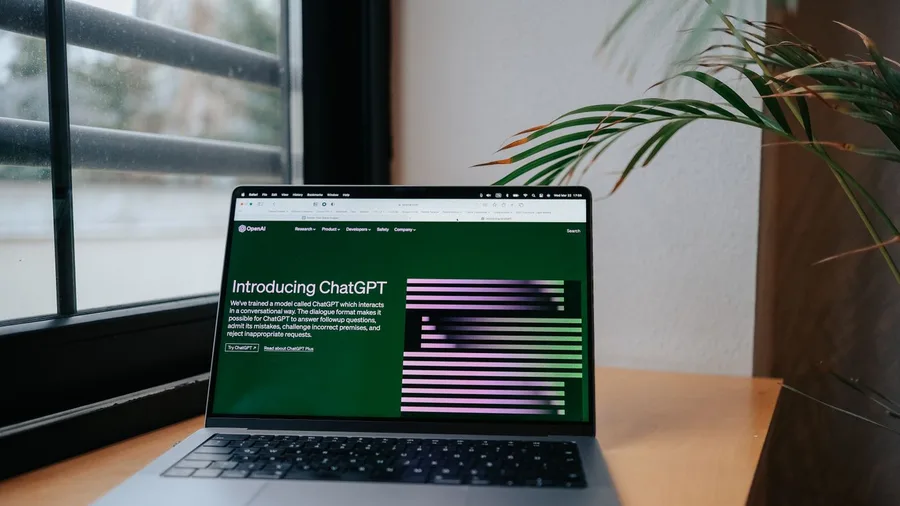
For a rough, half-written brief, the fastest route to a usable first draft is still ChatGPT. By hand, an outline plus a 900-word draft ate about 70 minutes.
The same brief in ChatGPT came back in 40 seconds, and editing it into something sendable took about 25 minutes.
I typed the messy brief with its three bullets, the deadline and the audience, then asked for an outline and a 900-word draft.
What came back needed the opening rewritten and one section cut. The rest gave me a working draft to argue with instead of a blank page.
The catch is two catches. Free and personal plans may use your chats to improve the models unless you switch training off in settings. And nothing it states is checked: verify every fact, quote and link against a primary source.
That is why it earned the most opens in my 1,012-tool log, and why I checked file upload and web search on its current plan. Make it the default drafting desk, then verify everything before it ships. The test rewards return visits, not launch attention.
💡 Tip: Never paste passwords, client files, or medical or financial records into any chatbot. Redact names first.
| Tool | Daily job | First move |
|---|---|---|
| ChatGPT | Drafting and source checks | Switch off chat training in settings, then draft one brief |
| Claude | Long documents and careful edits | Upload a 60-page PDF and ask for a clause-by-clause map |
| Gemini | Google Workspace work | Summarize a Drive folder you already check daily |
| Perplexity | Research with links | Open every link in one answer before you trust it |
| Microsoft Copilot | Microsoft 365 day | Test it on one recurring meeting and one recurring report |
| Otter.ai | Meeting transcripts | Record the next recurring meeting and edit the summary |
| Descript | Podcast and video edits | Cut filler words from a two-hour interview transcript |
| Canva Magic Studio | Social visuals | Build one reusable brand template and duplicate it |
| Grammarly | Last-pass proofreading | Run it before publishing, then read the piece aloud |
| Notion AI | Notes and project memory | Ask one active project page for open decisions and owners |
| Zapier AI | Glue work between apps | Automate one repeated handoff and watch the first ten runs |
| Gamma | Fast presentations | Paste an outline and rewrite the decision slide |
| ElevenLabs | Scratch voiceover | Generate one scratch track and time the cut |
| GitHub Copilot | Code review and small builds | Use it on one small function, then read the diff yourself |
2. Claude for Long Documents and Careful Edits

A clause-by-clause map of a 60-page contract PDF in about 9 minutes, versus roughly 2 hours of my own reading.
That came out of Claude, and it is why the slot after the broad drafting desk went to it.
A short brief is one thing; a document that has to be read twice is where a broad assistant gets thin.
I uploaded the PDF, asked for a clause-by-clause map in a table, and asked which clauses changed from the earlier version. The map gave me a clean list to work from, and I edited tone from there rather than from the raw file.
The catch: a clean summary can still skip the one clause that matters. I check every clause in the map against its page, which added about 15 minutes and caught one indemnity term the summary had softened.
That reading twice, then checking, is why the four-week test kept it; the return visits were on real contracts and reports. Upload the long file, ask for the map, edit from it. The check is part of the workflow.
The two times: about 2 hours 15 minutes by hand, against about 24 minutes with the map and the clause check.
💡 Tip: Ask for a clause map, not a summary. Maps force the tool to name every section.
⚠️ COMMON MISTAKE
Do not pay before the four-week test
The most common mistake is buying a paid plan on launch week. Run the tool on your most repeated task for four weeks. If you do not open it on 8 of 10 workdays, do not pay.
3. Gemini for Google-Shaped Work
Prompt to copy
Read the Gmail thread and the two Docs I linked on the vendor renewal, then draft a 150-word reply to Dana that lists the three open questions and the dates we agreed. Plain tone, no greeting filler, and mark anything you could not find in the thread.
That prompt ran against a thread of nine emails and two shared Docs, and Gemini returned a reply in about 40 seconds.
One of the three dates was wrong, a Tuesday it had pulled from an old message. Opening the original took ten seconds and caught it.
The limit is the handoff itself. Once the document is mapped, the remaining friction is a day spent hopping between inbox, Docs and Drive, and that is the only gap Gemini fills.
Use it for one task you repeat every morning, then open the source before you hit send. Saved tab-switching counts only if the checking stays cheaper than the hopping was.
💡 Tip: Check with IT before pointing it at team folders. Tenant settings decide what it can see.
What each tool is safe for, careful with, and not for
- Drafting and rewriting — ChatGPT, Claude, Grammarly, Gamma.
- Research with links — Perplexity, then open every source.
- Meeting transcripts — Otter.ai: tell the room it is recording.
- Notes and project memory — Notion AI: check page permissions first.
- Code and automation — GitHub Copilot and Zapier AI: review every diff and watch the first runs.
- Passwords and client files — Never paste into any chatbot.
- Medical or financial records — Keep them out of every tool on this list.
4. Perplexity for Research With Receipts
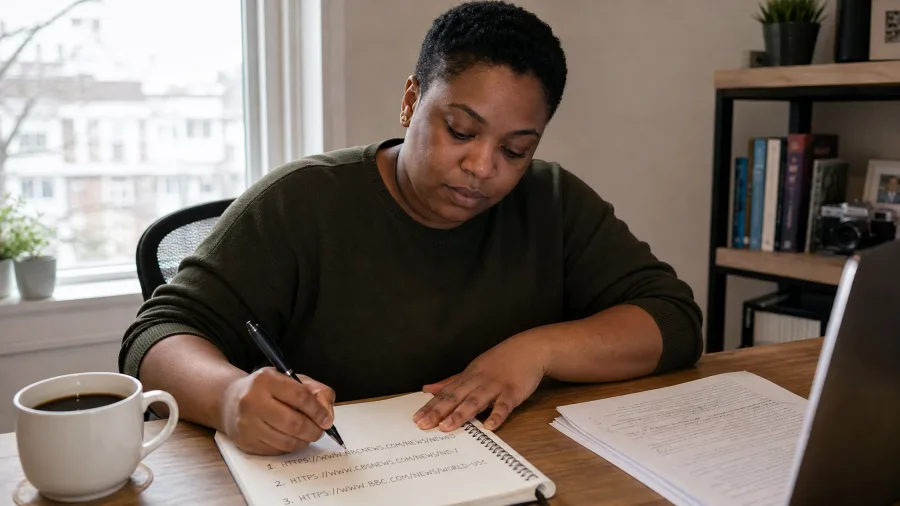
Perplexity answers with a link beside every claim, which is the whole point. Google-shaped work still sends you outside the walls, and research is where that happens.
The setup: before any search, I set it to answer in short points with sources listed, then ask one question at a time. Ten minutes once, and every research topic after that starts with a reading list, not a blank tab.
Last month a rough topic that used to eat an afternoon gave me twelve sources in one coffee break. I opened all twelve, cut four that were stale or off-point, and had a clean reading list in 26 minutes.
A tidy citation can still be old, or say less than the answer claims. I open every link and check the exact sentence. That is the test the four-week log applied, and Perplexity passed it because I kept starting unfamiliar topics there.
5. Microsoft Copilot for the Microsoft 365 Day
The catch with Microsoft Copilot is that admin settings decide what it can see, so confirm with IT before pointing it at team files.
Research with receipts settles the unknown topic, but a Microsoft 365 day needs an assistant already inside Outlook, Teams, Word and Excel.
Used safely, it drafts in Outlook, summarizes Teams meetings and works inside Word and Excel. It stayed because return visits came on recurring meetings and reports, not because it added a tab.
Test it on one recurring meeting and one recurring report before asking for a wider rollout. Four weeks is the case you bring to your manager.
6. Otter.ai for Meeting Transcripts

Ninety-four minutes: the length of the recurring Monday call I used to spend typing notes instead of listening. Otter.ai records it, transcribes it, and pulls a short action list, searchable later by anyone on the team.
Step one: join the call and start Otter's recording, and say out loud that it is recording.
Step two: after the call, open the transcript and correct names and numbers against the audio.
Step three: edit the auto-summary before it goes anywhere.
Consent and accuracy stay with you. Copilot summarizes a Teams call, but a dedicated recorder keeps the transcript for searching. The transcript is raw material, not the minutes.
7. Descript for Podcast and Video Edits
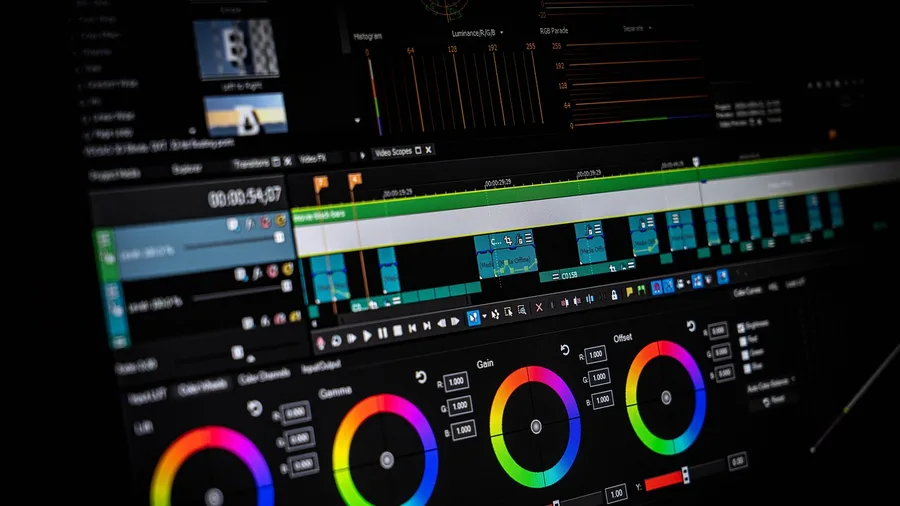
Scrubbing a timeline to find one um, then doing it again for twenty minutes, is the boring part of editing. A transcript you already have fixes that. In Descript, delete the word on the page and the sound goes with it.
My two-hour interview took 40 minutes to cut that way, not the afternoon I used to lose. Cost check: free tier with limits, a paid plan for heavy use, 40 minutes of work.
The catch is the export. Big projects and high-definition files can push you onto a paid plan. Open the pricing page and check the limits before you promise a file to anyone.
Drop in the next interview, cut the filler words, export, then play it on a phone speaker. If the edit holds up there, it is done.
8. Canva Magic Studio for Social Visuals

Eleven minutes. That is how long it took me to turn one headline into a square post, a thumbnail and a slide in Canva Magic Studio, with the template doing the layout.
A post, a thumbnail, a slide or a one-pager: it is the quickest way from a rough idea to something clean enough to publish. Paste the headline, pick a template, swap the text.
Here is where it can go wrong. Templates and AI images start to look like everyone else's. Fonts slip off-brand and image rights are not automatic. Check both before you hit publish.
It stayed because it covered the small graphics that did not justify a designer. The four-week test kept it on repeated posts, not one-offs.
Build one brand template and duplicate it next time instead of starting from a blank canvas. The test is reuse. A clever one-off does not pass it.
9. Grammarly for the Last Pass

By the third read your own writing stops registering, so the typo, the tone shift and the sentence trying too hard all slip through.
Grammarly is the quiet last pass that catches them. Visuals go out the door, then the text beside them needs a check you can no longer give it yourself.
Paste the draft into Grammarly, then put this prompt into ChatGPT beside it to compare the two reads: Prompt: "Here is a 300-word draft of a newsletter opening. Flag only three things: any typos, any sentence where the tone shifts from warm to formal, and any sentence trying harder than the rest. Quote each problem line, give one plain replacement, and leave the meaning intact. Do not rewrite the whole piece."
You get a short list of fixes instead of a full rewrite, which is what you want.
The catch is flattening: both tools can sand the voice off a good sentence or miss the context of a joke.
Accept only the fixes that keep the meaning you intended.
It earned return visits in all four weeks because it was the lowest-effort tool I own and the easiest to leave switched on before publishing. Run it last, then read the piece aloud once and confirm the meaning survived the fixes.
10. Notion AI for Notes and Project Memory

I asked it for the open decisions and owners on one active project page and got a five-line list in about 40 seconds. Two owners were wrong.
That trade is the whole story of Notion AI: it makes the notes you already keep searchable and summarizable, instead of adding another app. It fixes nothing about whether those notes should have gone to AI at all.
Where I stop: a page of raw brainstorms, half-formed guesses about a client, or anything under a permission I have not checked.
It only works with what it can see, so a team space summary can pull in pages I forgot were shared. Check page permissions before you ask.
The four-week test kept it because my return visits were on active project pages, not archive ones. Summarizing a buried page never saved me anything.
Point it at the page you open this week, and judge the answer by whether it saved a search, not by whether it sounds smart.
11. Zapier AI for the Glue Work

Prompt to copy
Write the steps for a Zap that takes each new row in my client inquiry Google Sheet, emails me a copy, and adds a card to my project board. Trigger first, then each action, plain steps.
A Zap is one wiring of a trigger to an action. That's the whole word: one event starts one job. On a Monday I built that Zap for a client-intake form, and the old way took 25 copy-paste minutes. The Zap ran in 4.
Then two inquiries sat unsent for three days, because automations fail silently. Add a test run and an error alert before it touches money or a client. I watched the first ten runs, around 20 minutes with checks, and handoffs stopped eating Mondays.
The words that decide whether a tool earns a slot
12. Gamma for Fast Presentations
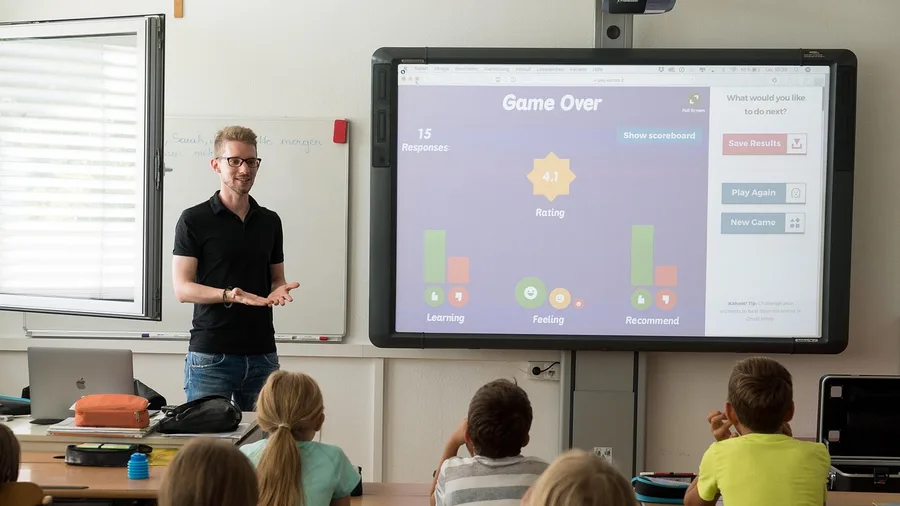
Gamma turns a brief into a first-pass deck: sections, cards and speaker notes, in minutes, good enough for an internal update and no further.
I pasted a seven-line outline on a Friday and had 12 slides by lunch, which killed the blank-slide tax on my recurring Monday review. What it does not do is tell the story.
Generated decks come out flat and template-obvious, and every slide carries the same cheerful geometry. If you polish those slides first, you spend an hour making a weak argument look finished.
So edit the story before you touch the design. Rewrite the one slide that carries the decision, cut anything that only summarizes, and only then change a font. The test is whether that decision slide lands with the room, not whether the deck looks clean.
It earned its slot on first-pass decks because the outline-to-draft step now takes the time the polish used to. Paste your next review outline in and see how little of it you keep.
13. ElevenLabs for Voiceover Drafts
A deck that turns into a demo needs a voice before anyone books a narrator. I wrote an 800-word script for a product walkthrough and recorded it myself twice. Both reads were flat, and I lost an afternoon to them.
So I pasted the script into ElevenLabs, picked one of the stock voices, and had a scratch track in about six minutes.
The walkthrough cut to 4 minutes 20 seconds once I trimmed lines against the audio. Recording by hand had taken 55 minutes plus retakes.
The catch is rights and consent. I only use my own cloned voice or a voice the product licenses, and I read the terms before publishing anything. A voice that sounds fine can still be one I have no permission to ship.
Time check: 55 minutes by hand against 6 minutes plus 15 minutes of listening for a scratch read, with the final voice still to come.
14. GitHub Copilot for Code Review and Small Builds
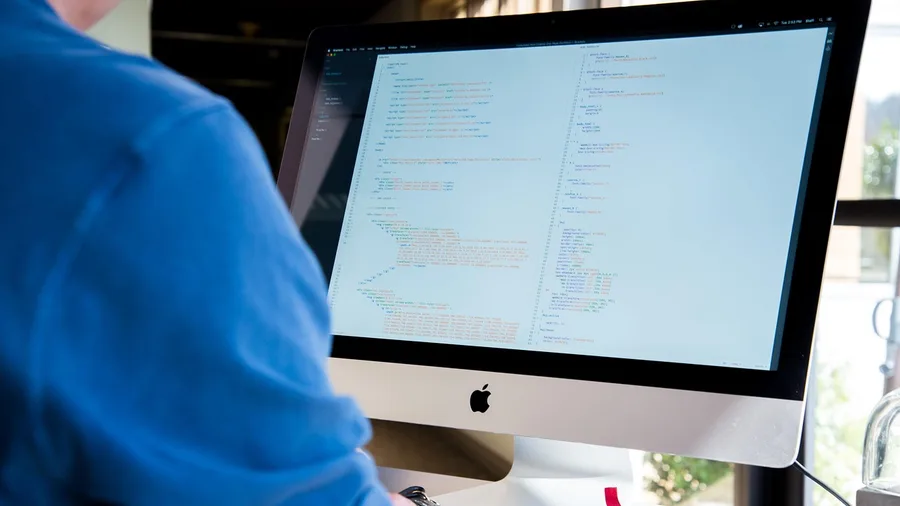
The clean diff is the trap. Suggestions from GitHub Copilot can be wrong, stale, or lifted from code under a license you cannot use, so never accept a block you have not read. That rule is what keeps the tool safe on a real codebase.
My method is one line: write the function, let Copilot autocomplete it, then draft the test file with it. I used it on a small date-parsing function during a writing week, and the first suggestion carried the obvious bug of ignoring time zones.
Prompt: "Here is a small function that parses a date string. Write three test cases for it, including one invalid input and one edge case, using the test framework already in this file. Explain each case in one line."
The tests came back in under a minute and caught the time-zone bug on the second run. That was 25 minutes of work that usually eats an hour of my writing morning. I read every line and checked the license on a copied snippet.
Why it stayed: it shrank the small builds and reviews that used to break my day.
The four-week test kept it on functions and test files, and the fix is simple.
Use it on the next one, run the tests, then read the diff you would sign.
Daily tools versus demo tools
Earns a daily slot
- Opened on 8 of 10 workdays for four weeks
- Used on a live task with a deadline
- Its catch is known and checked every time
- You can name the task it owns in one sentence
Still a demo
- Opened once, then forgotten
- Tested only with prompts you wrote to test it
- No check step, so you trust the first answer
- Its job overlaps a tool you already open daily
Frequently Asked Questions
Do I need to pay for all 14 tools?
No. Every tool on the list has a free tier or trial with limits that change. Start with the free tier of the one tool that owns your most repeated task. Check the current pricing page before you upgrade.
How long does the four-week test take?
Four weeks per tool, but you run one at a time. I kept a simple log: date opened, task, and whether the result needed a fix. That log is how I got from 1,012 tools to 14.
Is it safe to paste my work into these tools?
Only after you switch off chat training where the tool offers it. Never paste passwords, client files, or medical or financial records. For team files, check with IT or the workspace admin first.
Do I need to code to use these?
No. Thirteen of the 14 work without code. GitHub Copilot is the exception and is only worth it if you already write or review code.
Which single tool should I try first?
The one that owns your most repeated task. Writers should start with ChatGPT or Grammarly. Managers with Copilot or Otter.ai. Solo founders with Perplexity or Zapier AI.
Why did you keep only 14 out of 1,012?
Because 998 failed the same rule: they were not opened on 8 of 10 workdays for four weeks. The test rewards return visits on live work, not launch attention.
The 14 That Stayed, and the One Week That Decides Yours
The useful AI stack is not the biggest one. It is the 14 tools that kept showing up on live work. Writers: ChatGPT, Claude, Grammarly. Managers: Copilot, Otter.ai, Notion AI. Solo founders: Perplexity, Zapier AI, Canva Magic Studio.
Here is the one first move. Pick the tool that owns your most repeated task and run it for a week before you pay for anything. Log every open, every task, and every fix you had to make.
If it shows up on 8 of 10 workdays, keep it and add the next. If it does not, drop it and move on. That is how 1,012 became 14.